
If Cursor helped you get a mobile app running locally, the next step is release operations. This guide shows how to move a Cursor-built app toward App Store and Google Play submission, including signing, store setup, review prep, and the handoff risks that can slow a launch.
Publishing Apps Built With Flutter, React Native, or Native goes deeper on the ideas above and adds concrete next steps.
Early Proof: Cursor Speeds Up the Build, Not the Store Workflow
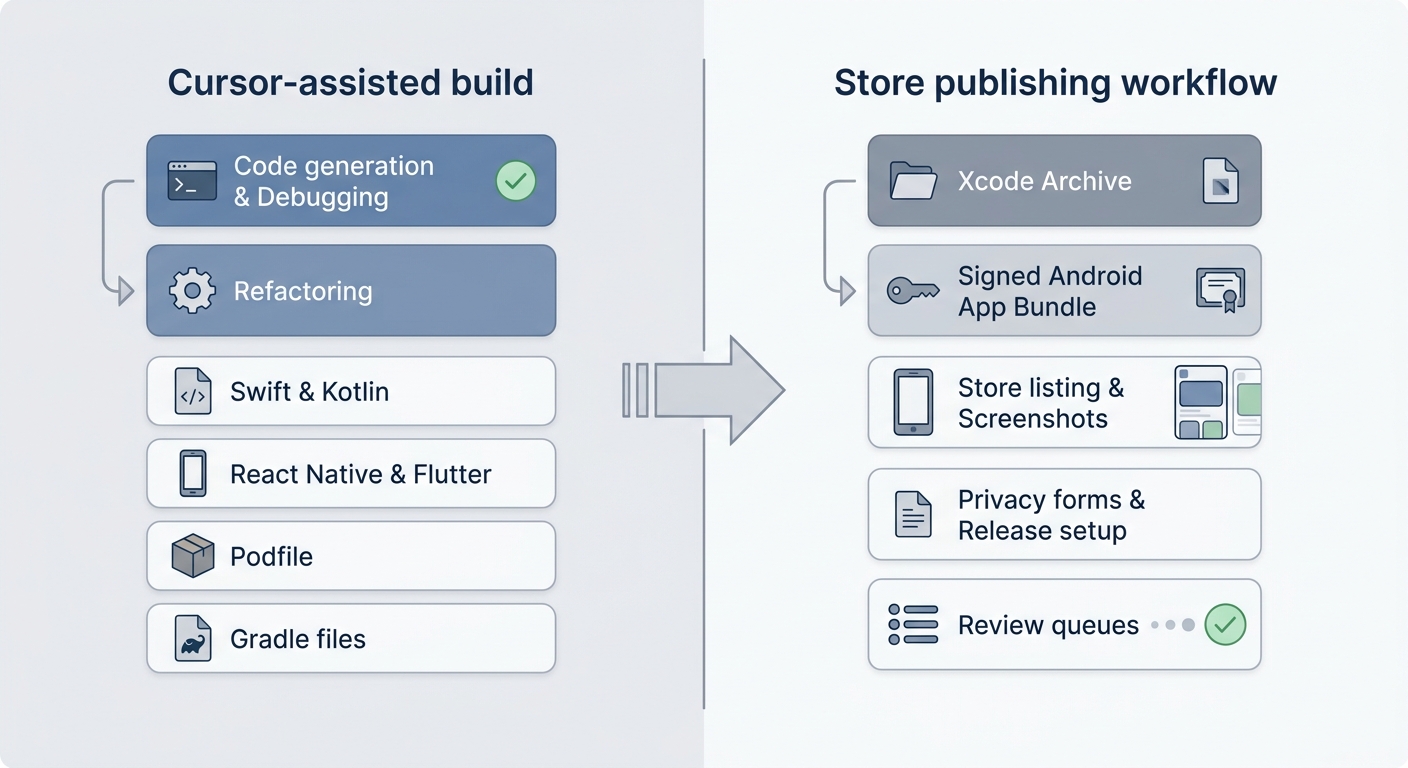
A two-lane process diagram showing Cursor-assisted build work on the left, including code generation, debugging, refactoring, Swift, Kotlin, React Native, Flutter, Podfile, and Gradle files, then a handoff line into the publishing lane with Xcode archive, signed Android App Bundle, App Store Connect listing, Play Console release, privacy forms, screenshots, and review queues.
Cursor can help with code, configuration, and debugging. It does not replace App Store Connect, Play Console, code signing, privacy declarations, screenshots, or platform review.
| Area | Cursor can help with | Apple and Google still require |
|---|---|---|
| App code | Generate, edit, debug, and refactor features | A stable release build that passes validation |
| Native setup | Troubleshoot Podfile, Gradle, manifests, entitlements, and config files | Correct identifiers, permissions, capabilities, and signing |
| Store content | Draft descriptions, release notes, and review notes | Accurate metadata, screenshots, privacy answers, ratings, and support links |
| iOS release | Help fix Xcode errors | Xcode archive, uploaded build, App Store Connect setup, and review submission |
| Android release | Help fix Gradle or bundle issues | Signed .aab, Play Console setup, testing track, and release submission |
The practical interpretation is simple: "it runs on my phone" is a development milestone, not a publishing milestone. Reviewers evaluate the submitted build, metadata, privacy answers, permissions, and compliance details.
The business impact is timing. Even a small app can need extra days for account access, signing setup, screenshots, privacy answers, rejected uploads, review questions, or policy fixes. If you announce launch dates, leave room for review and resubmission cycles.
When you move from outline to execution, How to Publish an Emergent-Built Mobile App Successfully helps close common gaps teams hit here.
How to Publish a Cursor-Built Mobile App
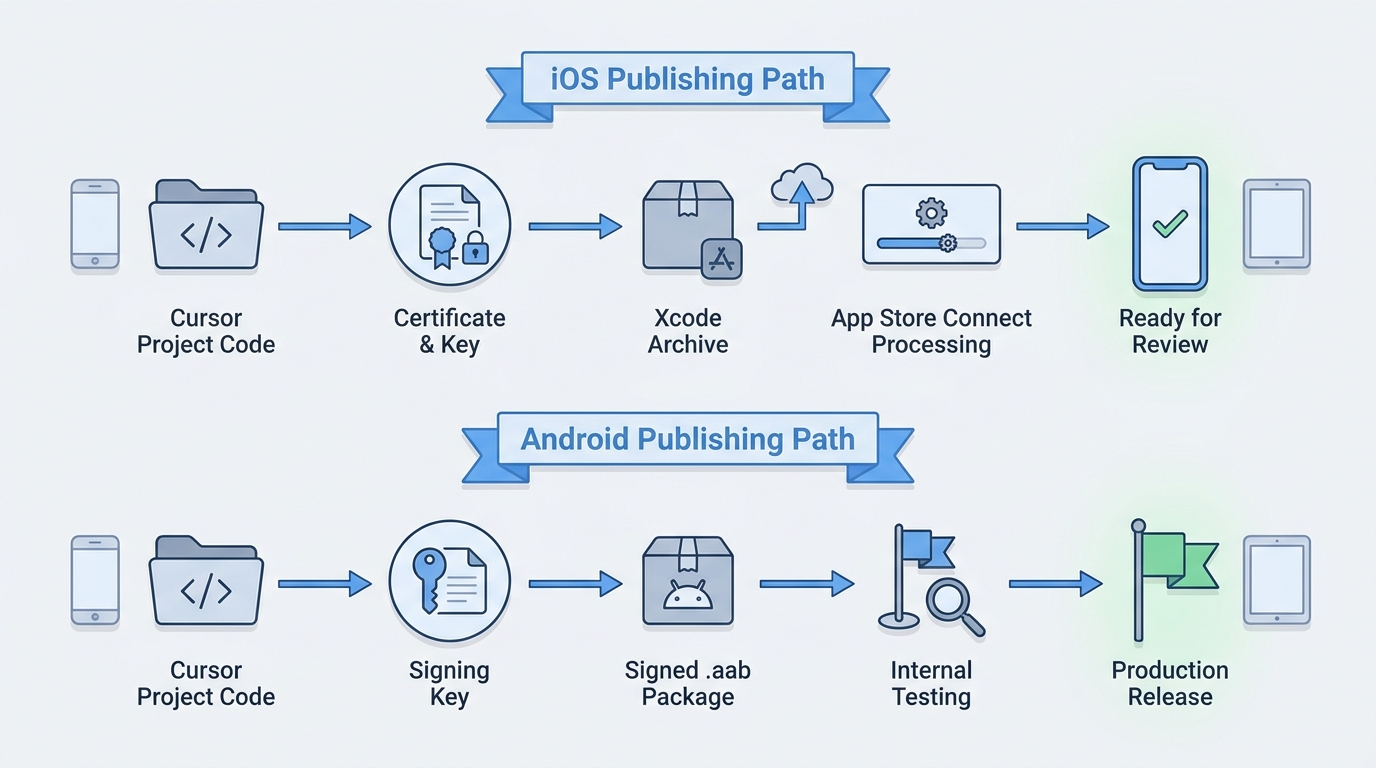
A compact side-by-side flow showing the iOS path from Cursor project to Xcode archive to App Store Connect build processing, and the Android path from Cursor project to signed .aab to Play Console internal testing and production release.
Once the app runs locally, your job shifts from building to release readiness. Start with ownership, identifiers, and compliance before pressing archive or upload.
Confirm account ownership and access
Make sure the right legal owner controls the Apple Developer account, App Store Connect team, Google Play developer account, and payment or tax details if needed. Account verification and permission fixes can take longer than expected, especially for companies, agencies, or transferred projects.
Freeze identifiers before signing
Lock the iOS Bundle ID and Android
applicationIdbefore creating certificates, provisioning profiles, keystores, app records, push setup, subscriptions, or deep links. Changing identifiers late can break uploads, app links, push notifications, and release continuity.Audit the files Cursor touched
Review
package.json,pubspec.yaml,Podfile, Gradle files,AndroidManifest.xml, entitlements, Info.plist entries, environment variables, and permissions. Cursor can help spot issues, but final responsibility is still yours.Prepare compliance basics
Confirm your privacy policy, support URL, login requirements, test credentials, data collection, payments, tracking, location, camera, health data, and user-generated content. These answers affect Apple privacy labels, Google Data Safety, ratings, and review notes.
How Do You Publish a Cursor App to the App Store?
For iOS, you still need the standard Apple release workflow. Open the correct project in Xcode, usually .xcworkspace for CocoaPods, React Native, or Flutter projects, then confirm the release scheme, signing team, Bundle ID, version, build number, capabilities, and permission descriptions.
Use Product > Archive to create the release build. Apple documents the broader workflow in App Store Connect Help, but in practice you should budget time for missing provisioning profiles, incorrect capabilities, app icon issues, deployment target mismatches, native dependency errors, or settings changed during AI-assisted edits.
Before submission, complete screenshots, age rating, privacy labels, metadata, review notes, and test credentials. If the app has gated screens, subscriptions, admin tools, or region-specific features, explain them clearly for App Review.
How Do You Publish a Cursor App to Google Play?
For Android, generate a signed Android App Bundle .aab, not just a debug build that runs from Cursor. Check the final applicationId, version code, version name, launcher assets, permissions, SDK versions, and Gradle signing configuration.
Google documents Play release requirements in Play Console Help and the Android App Bundle format separately. Test the release build through an internal testing track or a generated APK from the bundle, because release builds can expose signing errors, minification problems, missing environment variables, native dependency failures, or permission warnings.
In Play Console, create or open the app record, upload the .aab, and complete the store listing, screenshots, content rating, Data Safety form, app access instructions, and release notes. Many teams submit to internal testing first, then production, because it gives them time to catch pre-launch report failures and policy warnings.
Avoid Cursor-to-Store Handoff Mistakes
The handoff from AI-assisted development to mobile publishing is where many projects slow down. The code may be close, but store approval depends on configuration, policy accuracy, and release validation.
Do not treat generated code as automatically release-ready. Check SDKs, analytics, login providers, payments, permissions, data collection, subscription text, and claims in the app listing. Remove unsupported medical, financial, privacy, or performance claims unless the app and documentation support them.
Do not submit only because the debug build works. Test the artifact you plan to submit:
- Install and test the archived iOS build through TestFlight or device testing.
- Test the Android release
.aabthrough internal testing or a generated APK. - Verify login, purchases, push notifications, deep links, onboarding, offline behavior, and crash-free startup.
- Watch App Store Connect processing, Play pre-launch reports, crash logs, and permission warnings.
- Retest after signing, dependency, permission, or build-number changes.
What Should You Check Before Submitting?
Use this before pressing submit. Small missing items can block review or force another build.
- Apple Developer and Google Play account access confirmed
- Bundle ID and
applicationIdlocked - iOS archive signed and uploaded
- Android
.aabsigned and uploaded - Screenshots exported for required devices and form factors
- Metadata, release notes, support URL, and privacy policy finalized
- Apple privacy labels and Google Data Safety checked against real app behavior
- Age rating and content rating completed
- Reviewer access, test credentials, and special instructions provided
- Build numbers and version codes ready to increment if needed
- One person assigned to monitor review, rejection messages, and resubmission
Platform fees, verification requirements, and eligibility can change, so confirm current costs on official Apple and Google pages before budgeting. The main operational cost is usually not just the fee, but the time spent on signing, policy forms, review cycles, and fixes.


