
Emergent can help you move from idea to working mobile app quickly, but publishing that app is still a separate release process. If you are a founder, product operator, or non-technical builder, this guide walks through the practical steps required to prepare an Emergent-built app for App Store Connect and Google Play Console review.
The Last Step AI App Builders Don't Solve: Publishing goes deeper on the ideas above and adds concrete next steps.
Early proof: why an Emergent build still needs a publishing workflow
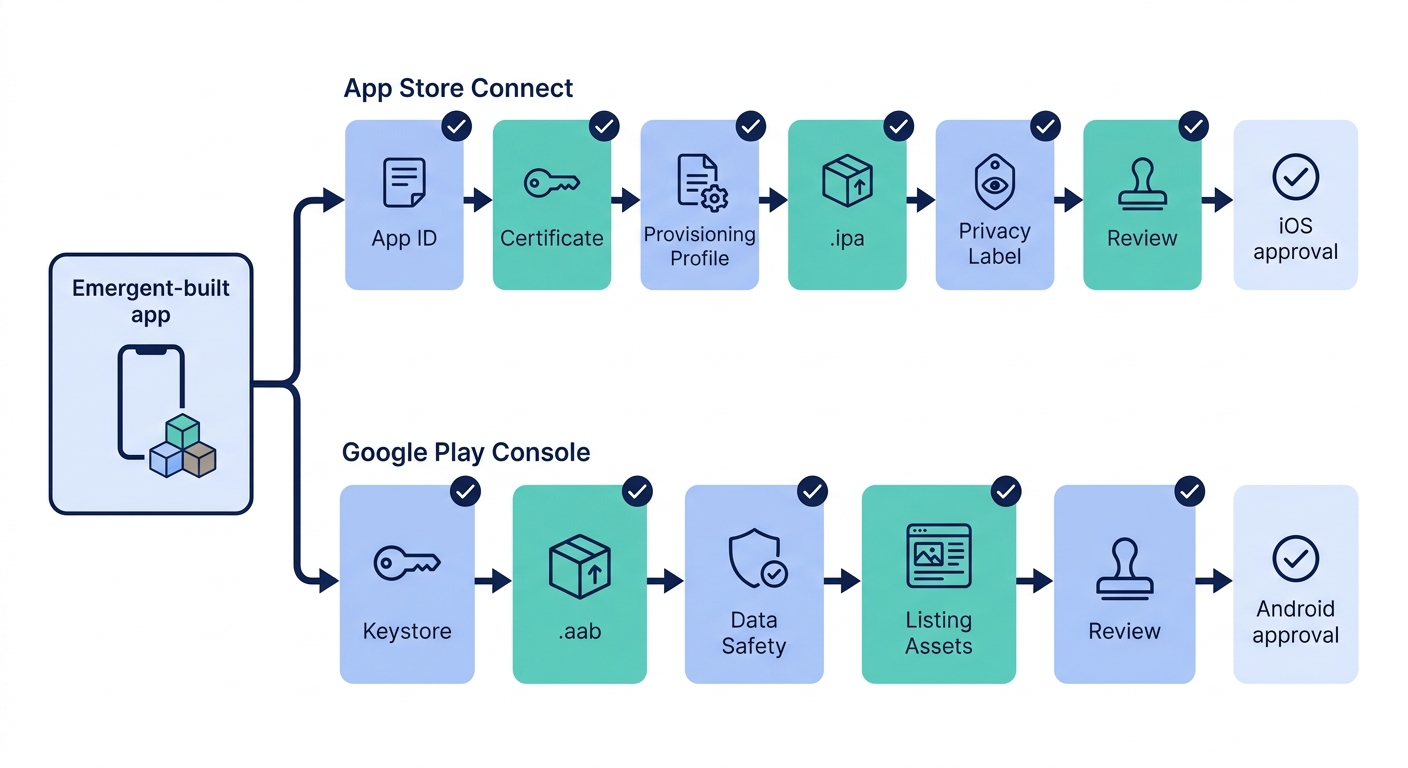
A left-to-right diagram showing an Emergent-generated app moving into two separate release tracks: App Store Connect with App ID, certificate, provisioning profile, .ipa, privacy label, and review; and Google Play Console with keystore, .aab, Data Safety, listing assets, and review.
Emergent accelerates app creation. Apple and Google still control developer identity, app signing, privacy declarations, store metadata, production credentials, and final review.
That gap is normal. It does not mean your AI-built app is broken. It means you have moved from product building into mobile release operations.
| Requirement | Apple App Store | Google Play |
|---|---|---|
| Developer account | Apple Developer Program | Google Play Console |
| Account cost | Paid program, verify current Apple pricing | Paid registration, verify current Google pricing |
| Main upload package | Signed .ipa | Signed .aab |
| Upload destination | App Store Connect or Transporter | Play Console |
| Key review inputs | Metadata, screenshots, privacy policy URL, privacy labels, test access | Store listing, screenshots, privacy policy URL, Data Safety form, content rating, test access |
| Useful official reference | Apple publishing overview | Google Play app dashboard setup |
The practical interpretation is simple: creating app functionality and publishing a mobile app are related, but they are not the same workflow. Emergent helps create the app experience. The stores require signed builds, verified accounts, accurate declarations, and review-ready assets.
The business impact is timing. If you wait until the app is finished to create accounts, write a privacy policy, capture screenshots, or configure signing, launch can slip even when the product itself is ready. Account verification, build processing, and review timing vary, so treat store setup as part of the build plan, not a final afternoon task.
When you move from outline to execution, The Future of App Publishing: Where AI Agents Are Taking It helps close common gaps teams hit here.
What should you prepare before publishing an Emergent app?
Before you generate final builds, clean the app like a reviewer is about to use it. Review teams will judge what appears on screen, what data the app collects, and whether core flows work with the credentials you provide.
Your prerequisites are:
- Access to the Emergent project export or build settings
- Apple Developer Program account for iOS
- Google Play Console account for Android
- Production backend, database, AI service, payment, and authentication credentials
- A live privacy policy URL
- At least one real iPhone and one real Android test device, if publishing to both stores
Before packaging, replace anything that points to development systems:
- Development API keys, authentication tokens, AI service credentials, and payment keys
- Test backend URLs, staging databases, sandbox webhooks, and debug endpoints
- Demo data, test accounts, placeholder onboarding, and prototype copy
- Debug flags, verbose logs, unused permissions, and temporary admin tools
Then test the main user flow on a real device as a brand-new user. Include signup, login, onboarding, checkout or subscription, AI feature use, settings, account deletion if available, and logout.
One common mistake is testing only with an existing founder account. Reviewers often start from a clean install, so broken first-run experiences can cause rejection even when the app works for you.
A complementary angle worth comparing lives in Why Publishing Requires Structured Execution, Not Guesswork.
How do you build, sign, and upload iOS and Android app packages?
This is the technical core of mobile publishing. The app must be packaged in the format each store expects, signed with the correct identity, and uploaded to the correct console.
If you are used to web publishing, this step can feel strict. Mobile operating systems rely on signing to verify app ownership, support updates, and protect users from tampered packages.
Generate the Android App Bundle
Android apps submitted to Google Play generally use the
.aabformat. In your Emergent export or build workflow, create a release build, not a debug build, then confirm the package name matches the app you created in Play Console.Create and protect the Android keystore
The keystore is the signing identity for your Android app. Store it securely because losing it can create serious update problems later, especially if Play App Signing is not configured correctly.
Configure iOS signing assets
For iOS, you need an App ID, certificate, and provisioning profile connected to your Apple Developer account. These assets prove that the
.ipabelongs to your team and is allowed to run under your app identifier.Upload the build
Upload the signed
.ipathrough App Store Connect or Transporter. Upload the signed.aabthrough Play Console. After upload, wait for processing before attaching the build to a release.Verify the build after processing
Do not assume upload success means submission readiness. Check version number, build number, supported devices, permissions, entitlement warnings, and console errors before moving forward.
Common edge case: your app may run locally but fail review because a production API key is missing, an authentication redirect uses a staging URL, or an app permission is declared but not explained.
For tradeoffs, checklists, and edge cases, Step-by-Step Guide to Publishing Your First Mobile App rounds out this section.
Create the store listing reviewers and users will see
Your listing is not just marketing copy. It is also part of review. Apple and Google compare your metadata, screenshots, permissions, and app behavior for consistency.
Use clear app names, subtitles, short descriptions, and long descriptions that match the actual app. Avoid overclaiming capabilities, especially around AI, health, finance, productivity, or security.
If your app helps users draft messages, say that. If it does not make legally binding decisions, medical diagnoses, or financial recommendations, do not imply that it does.
Screenshots should show the production interface, not mockups from an earlier prototype. If onboarding, paywalls, chat screens, dashboards, or AI outputs appear in the store listing, they should match what reviewers and users see after install.
If your app requires login, provide reviewer credentials. If paid features are required to evaluate the app, provide access instructions, promo codes, test accounts, or a demo mode that does not expose real customer data.
Publishing Apps Built With Flutter, React Native, or Native reframes the same problem with a slightly different lens - useful before you finalize.
What privacy, data safety, and AI disclosures do app stores require?
Privacy work is where many AI-built apps slow down. The issue is not that your app was built with Emergent. The issue is whether you collect, process, store, share, or infer user data.
Your privacy policy should be live at a public URL before submission. It should explain what data you collect, why you collect it, who processes it, whether third-party services are involved, and how users can contact you.
For AI apps, include what happens to prompts, uploaded files, generated outputs, account data, analytics, and payment data. If you use third-party AI APIs, describe that relationship in plain English.
Do not guess when completing Apple privacy labels or Google Data Safety forms. Review your app code, SDKs, analytics tools, payment provider, authentication provider, crash reporting, and AI service configuration before answering.
Typical data categories include:
- Account identifiers such as email or user ID
- Payment-related data handled by a payment provider
- Device identifiers, diagnostics, and crash logs
- User-generated prompts, files, messages, or outputs
- Analytics events and usage behavior
If your app generates text, images, audio, code, recommendations, or decisions using AI, be clear about it. A writing assistant may only need a light disclaimer that outputs should be reviewed. A wellness, legal, financial, or medical app needs stronger guardrails and more careful policy review.
Submit, monitor review, and respond quickly
Submission is not the end of the workflow. It is the start of review operations.
Apple and Google review timing can vary by app complexity, account history, category, permissions, and issues found during review. New developer accounts, sensitive categories, and apps with complex data use may need extra time.
Submit one clean version. Reviewers can encounter inconsistent behavior if the app, backend, screenshots, or metadata changes during evaluation.
A clean version includes:
- One final signed build
- Final metadata and screenshots
- Working reviewer credentials
- Accurate privacy policy and data declarations
- Stable production services
- Clear instructions for restricted or paid features
Both stores provide status updates and rejection reasons inside their developer consoles. Read them carefully before resubmitting.
If rejected, respond directly to the issue. Do not submit the same build again unless the rejection was clearly a misunderstanding and your reply explains how reviewers can verify compliance.
Pre-submission checklist for an Emergent-built app
Use this checklist before pressing submit. It catches the issues most likely to waste review cycles.
| Area | Check |
|---|---|
| Clean install | App opens correctly after deletion and reinstall |
| New user flow | Fresh signup, login, onboarding, and logout work |
| Production credentials | APIs, AI services, payments, and auth use production values |
| Privacy policy | Public URL works without login |
| Screenshots | Match the final production UI |
| Data declarations | SDKs, analytics, AI services, and payments are declared accurately |
| Permissions | Unused permissions are removed |
| Reviewer access | Test credentials and instructions are provided |
| AI disclosure | AI-generated content and limitations are explained where relevant |
| Store packages | Signed .ipa and .aab use the correct identifiers and versions |
This checklist is useful whether you are learning how to build a mobile app without coding, managing enterprise mobile app development, or building mobile applications with a hybrid team. It does not guarantee approval, but it reduces avoidable review friction.
What to expect after approval
Approval means the app passed review at that point in time. It does not mean the launch is finished.
Plan time after release to monitor crashes, onboarding drop-offs, payment failures, support tickets, and AI output quality. The first production users will often reveal issues that did not appear in founder testing or store review.
Also keep your signing assets, keystore, privacy policy, screenshots, and store metadata organized. Future updates are easier when release materials are documented instead of scattered across tools, inboxes, and individual laptops.


