
Publishing your first mobile app is rarely blocked by code alone. The harder part is turning a working build into a review-ready package that Apple or Google can approve, distribute, and update. This guide gives you a practical path through accounts, app identifiers, signing, store listings, privacy answers, reviewer access, and final submission checks.
Why Publishing Requires Structured Execution, Not Guesswork goes deeper on the ideas above and adds concrete next steps.
Early proof: the first-submission readiness table
| Publishing gate | What must be ready | iOS example | Android example | First-time risk |
|---|---|---|---|---|
| Developer account | Verified publisher access | Apple Developer Program | Google Play Console | Verification can delay launch week |
| Signed build | Release artifact | Signed .ipa | Signed .aab | Upload fails before review |
| Store listing | Accurate public page | Name, screenshots, support URL | Description, screenshots, category | Listing claims features not in build |
| Compliance | Policy and data answers | Privacy details, age rating | Data safety, content rating | Answers conflict with permissions |
| Reviewer access | Testable app flow | Demo login, review notes | Demo login, release track | Reviewer cannot reach core features |
This table is directional, not a guarantee of approval. The practical interpretation is that app publishing is a five-gate workflow: if one gate is incomplete, your launch can stall even when the app works locally.
The business impact is predictability. A founder, indie developer, or first-time product team can reduce review back-and-forth by preparing the submission package before pressing submit.
When you move from outline to execution, How to Publish an Emergent-Built Mobile App Successfully helps close common gaps teams hit here.
What changes between a test build and a published app
A test build proves the app can run. A store-ready build proves the app can be distributed by a verified publisher, signed correctly, described accurately, and tested by a reviewer without your help.
Apple and Google review more than crashes. They also check account identity, signing configuration, metadata, privacy disclosures, content ratings, permissions, and whether the submitted build matches the listing.
Approval is never guaranteed, and review rules can change. Check the official documentation for App Store Connect and Google Play Console before setting a public launch date.
A complementary angle worth comparing lives in How Solo Founders Can Navigate App Publishing Without Losing Weeks.
What do you need before publishing a mobile app?
Start setup before the final build is ready. For a first submission, plan for a few focused hours of store setup plus possible waiting time for identity, business, tax, banking, or permission verification.
| Item | Why it matters | Practical note |
|---|---|---|
| Developer account | Required to create app records and submit builds | Organization accounts can take longer to verify |
| App identifier | Connects signing, updates, links, and analytics | Treat bundle ID and package name as long-term choices |
| Privacy policy | Required for most apps that collect data or use services | Must be public, not a private document |
| Test credentials | Lets reviewers access protected features | Use credentials that will not expire during review |
| Screenshots and metadata | Sets user and reviewer expectations | Do not show unreleased features |
The tradeoff is that early setup feels administrative while the product is still moving. The benefit is finding blockers while there is still time to fix them.
For tradeoffs, checklists, and edge cases, Why Code Signing Is the Most Confusing Part of iOS Publishing rounds out this section.
How do you publish a mobile app step by step?
Use this compact workflow for iOS, Android, or both. The platform details differ, but the submission logic is similar.
| Step | iOS path | Android path | Watch for |
|---|---|---|---|
| 1. Create account | Enroll in Apple Developer Program and set up App Store Connect | Create Google Play Console account | Verification, role permissions, billing setup |
| 2. Create app record | Add the app, language, name, category, and bundle ID | Add the app, language, name, category, and package name | Names and identifiers are harder to change later |
| 3. Configure signing | Use distribution signing through Xcode or your build system | Configure release signing, usually with Play App Signing and a keystore | Losing signing access can create update problems |
| 4. Upload build | Upload signed .ipa through Xcode, Transporter, or CI | Upload signed .aab to a release track | Upload success does not mean review readiness |
| 5. Complete submission | Add metadata, screenshots, privacy details, ratings, pricing, and review notes | Add listing, Data safety, content rating, release notes, pricing, and review details | Inconsistent answers can trigger delays |
A realistic first pass may take half a day to a full day if assets, accounts, and policies are ready. It can take longer if screenshots are missing, signing is unfamiliar, or the app uses login, subscriptions, sensitive permissions, or third-party data services.
The key decision point is whether to submit both stores at once. Parallel prep helps, but forcing Apple and Google into the same launch deadline can add pressure. Submit each package when it is complete enough to withstand review.
The Last Step AI App Builders Don't Solve: Publishing reframes the same problem with a slightly different lens - useful before you finalize.
How can you avoid app store rejection?
Most first-submission problems are operational. The app may run, but the listing overpromises, the privacy answers do not match app behavior, or the reviewer cannot log in.
Before submission, compare the public listing against the actual build. If the description says users can export reports, invite teammates, sync with a tool, or purchase a plan, that feature should be present and testable.
Use this final checklist:
- Verified Apple Developer Program or Google Play Console account
- Matching iOS bundle ID or Android package name
- Uploaded release build with correct version and build number
- Complete app name, description, icon, category, and screenshots
- Public privacy policy URL
- Accurate privacy, permission, Data safety, age rating, or content rating answers
- Demo credentials for apps that require login
- Clear review notes with test steps
- Correct release track, availability, and pricing settings
Then run a reviewer-style test. Install the submitted build on a clean device, log in only with the credentials in your review notes, and complete the main flow without local data, admin shortcuts, or your development environment.
Edge cases deserve extra attention. Apps with payments, subscriptions, health data, location access, user-generated content, child-directed content, or account deletion requirements usually need more careful policy review.
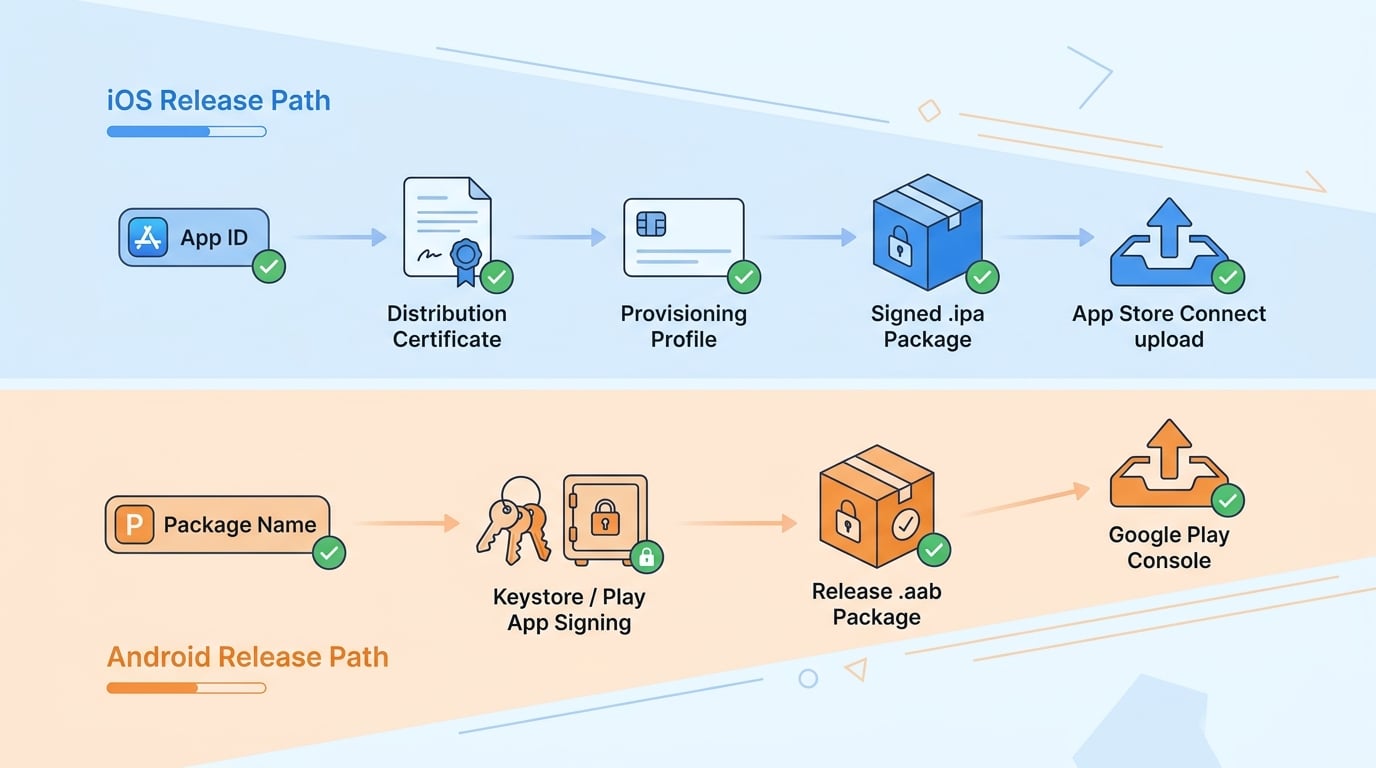
A two-lane process diagram: the iOS lane moves from App ID to distribution certificate to provisioning profile to signed .ipa to App Store Connect upload; the Android lane moves from package name to keystore or Play App Signing to release .aab to Play Console upload.


