
If you have built an iOS app, uploaded it, and still hit a signing error, you are not alone. Code signing is confusing because it is not one setting. It is the relationship between your App ID, Apple Distribution certificate, and App Store provisioning profile, and this guide helps you check that relationship before you lose another afternoon.
Step-by-Step Guide to Publishing Your First Mobile App goes deeper on the ideas above and adds concrete next steps.
Early Proof: The Three Code Signing Pieces That Must Match
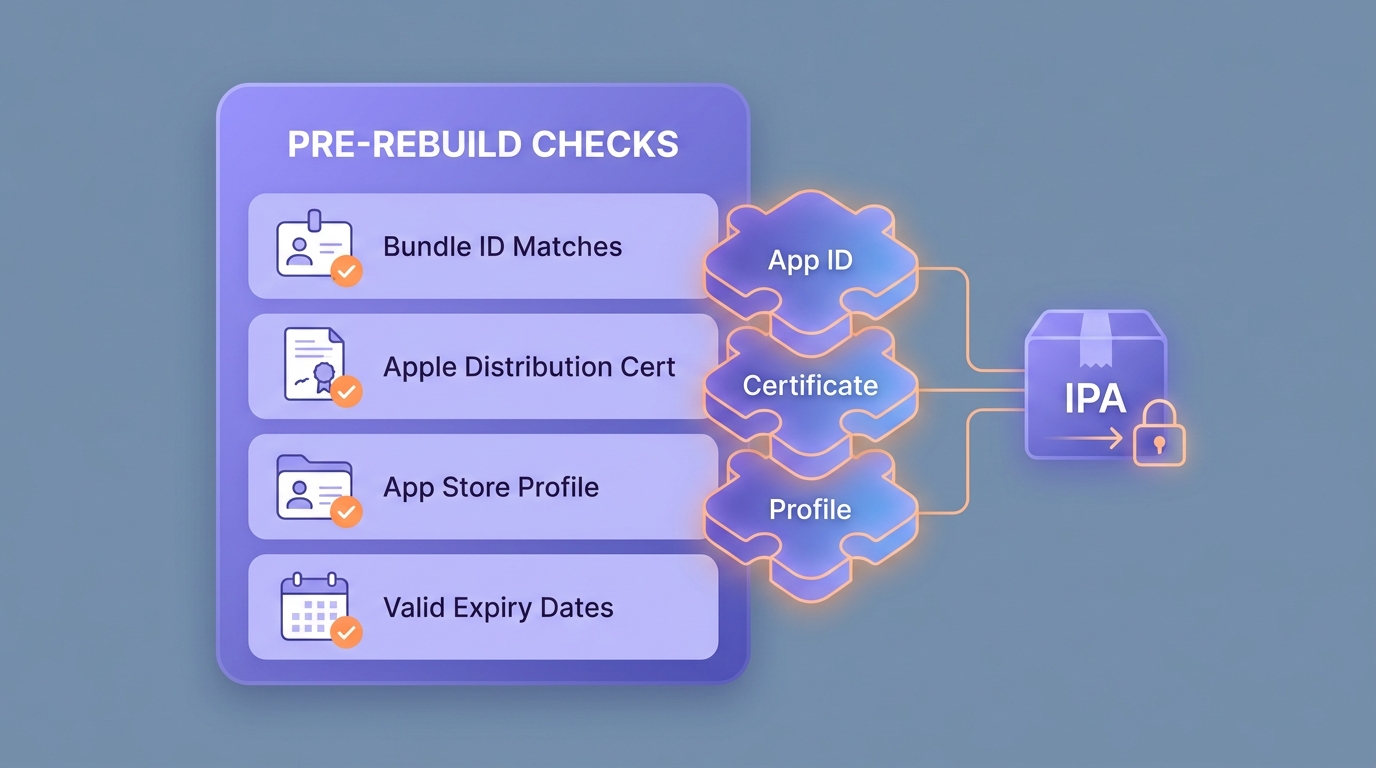
A mobile-friendly checklist block with four checks before rebuilding an iOS IPA: Bundle ID matches, certificate type is Apple Distribution, provisioning profile type is App Store, and certificate/profile expiry dates are still valid.
Before you open Xcode, Expo EAS, or App Store Connect, map the three required pieces. Apple describes provisioning profiles as part of the signing system that connects an app, developer identity, and distribution path in TN3125: Inside Code Signing: Provisioning Profiles.
| Signing piece | Where you create it | What it must match | What fails when it does not match |
|---|---|---|---|
| App ID | Apple Developer Portal - Identifiers | Bundle ID in Xcode or Expo config | The build cannot resolve the app identity |
| Apple Distribution certificate | Apple Developer Portal - Certificates | Private key in Keychain, EAS, or CI | The build cannot prove developer identity |
| App Store provisioning profile | Apple Developer Portal - Profiles | App ID and distribution certificate | Upload validation or processing can fail |
The practical interpretation is simple: the provisioning profile is the connector. It references both the App ID and certificate, so all three must align.
The impact is real. A mismatch can block a launch, delay a client handoff, or turn a release into debugging across several Apple tools. With access ready, cleanup may take 30 to 60 minutes. For teams, CI, extensions, or missing private keys, expect longer.
When you move from outline to execution, App Store Connect vs Google Play Console: Key Differences helps close common gaps teams hit here.
What Is iOS Code Signing?
Code signing is Apple’s way of verifying that a trusted developer built the app and that the app was not modified after signing. Apple explains the broader process in its App code signing process documentation.
For App Store submission, you sign the iOS build, upload the IPA to App Store Connect, and Apple validates the signature during processing. Later, iOS checks the app again when a user installs or runs it.
A valid signing setup is necessary, but it does not guarantee approval. App Review, missing entitlements, account permissions, expired credentials, privacy requirements, and CI secret issues can still block release.
The tradeoff is security versus setup burden. Users get apps from known developers, but publishers need to keep credentials, profiles, and build systems in sync.
A complementary angle worth comparing lives in How to Publish an Emergent-Built Mobile App Successfully.
How Do You Set Up iOS Code Signing for App Store Submission?
The goal is not to memorize every Apple credential type. The goal is to create the right chain, verify it, and rebuild when anything changes.
Confirm the Bundle ID
Check the Bundle ID in Xcode or your Expo config first. Then confirm the same value exists as an App ID in Apple Developer Portal under Identifiers.
Use an Apple Distribution certificate
For App Store submission, use Apple Distribution, not Apple Development. If you build locally, the matching private key must exist in Keychain Access.
Create an App Store provisioning profile
In Apple Developer Portal, create a profile using the App Store distribution method. Apple documents this in Create an App Store provisioning profile.
Connect the profile to the right App ID and certificate
Select the exact App ID and Apple Distribution certificate used for the build. Download and install the profile locally, or upload it to CI or EAS.
Rebuild the IPA
Do not reuse an old IPA after changing credentials. Signing happens during the build, so a new certificate or profile only applies after a new archive or EAS build.
What this means: fix the credential chain first, then rebuild. Otherwise you may test an old signing state and chase errors that are already solved in the portal.
For tradeoffs, checklists, and edge cases, CI/CD Pipelines Are Overkill for Most Mobile App Publishers rounds out this section.
Why Do iOS Code Signing Errors Happen?
Most signing errors come from a mismatch, an expired credential, or a build system using a different credential than the one you just changed.
| Mistake | How to spot it | Practical fix |
|---|---|---|
| Bundle ID is almost right | Values differ across tools | Copy the exact value everywhere |
| Certificate lacks private key | Keychain shows no matching private key | Export a secure .p12 from the original Mac or create a new certificate if policy allows |
| Wrong profile method | Profile says Development, Ad Hoc, or Enterprise | Create an App Store provisioning profile |
| Automatic and manual signing conflict | Xcode selects an unexpected profile | Choose one signing strategy per target |
| Credentials expired | Certificate or profile date has passed | Renew, reconnect, and rebuild |
Automatic signing is convenient for simple local builds. Manual signing is often better for CI, Expo EAS, extensions, and release machines because credential selection is more explicit.
The Security Risks of Manual App Publishing reframes the same problem with a slightly different lens - useful before you finalize.
Xcode, Expo EAS, and CI Notes
The signing pieces stay the same. What changes is where credentials live and which tool selects them during the build.
| Build path | Main dependency | Watch out for |
|---|---|---|
| Xcode local build | Certificate, private key, and profile | Another Mac may not have the private key |
| Expo EAS | Credentials managed or uploaded in EAS | EAS may use a different credential than the one you changed |
| CI automation | Secure .p12, profile, passwords, and API credentials | Secrets must be protected and rotated carefully |
In practice, CI and team workflows take more setup time than a one-person local build. Multiple targets, app extensions, and separate staging or production Bundle IDs can multiply the profiles you need to verify.
Final Pre-Submission Checklist
Use this checklist before every App Store build, especially if the app has not shipped in a while or a teammate recently changed signing settings.
- Bundle ID: Matches in Apple Developer Portal, Xcode or Expo, and App Store Connect.
- Certificate: Uses Apple Distribution, not Apple Development.
- Private key: Exists where the build runs, such as Keychain, EAS, or CI.
- Profile: Uses App Store distribution, not Development, Ad Hoc, or Enterprise.
- Expiry: Certificate and profile are still valid.
- Entitlements: Capabilities such as push notifications, Sign in with Apple, or associated domains match the app setup.
If any item is wrong, fix it first, then rebuild the IPA. Uploading the old build again will not make App Store Connect reinterpret the signing configuration.


