
You built the app with an AI tool, the output looks polished, and the core flow works. Then Google Play rejects it for misleading metadata. In practice, this often comes from drift: your listing, screenshots, permissions, and declarations no longer match the exact app you shipped. This guide gives you a practical fix order before resubmission, with a realistic view of where the work usually is.
AI App Positioning Without Policy Risk goes deeper on the ideas above and adds concrete next steps.
Top mismatch risks at a glance
This Early proof block is a practical ranking based on review visibility, cleanup effort, and the mismatch areas most clearly covered by Google Play's metadata and deceptive behavior guidance. Froxi's rejection analysis workflow points teams to these same surfaces as common first checks, but treat that as directional product experience, not a platform-wide statistic.
| Rank | Risk area | Why drift happens | Fast reviewer check | Realistic fix effort |
|---|---|---|---|---|
| 1 | Screenshots | Teams reuse template or pre-update images after flows change | Compare listing images to installed app screens | Low to medium |
| 2 | Listing copy | AI-assisted descriptions keep planned features or old names | Read title and description against live app behavior | Low |
| 3 | Data Safety | Answers are completed from memory, not from SDK and backend review | Compare declarations with privacy policy and technical behavior | Medium |
| 4 | Permissions | Generated projects keep unused permissions from plugins or SDKs | Inspect manifest and package capabilities | Medium to high |
Explanation: Google Play's policy pages make visible listing assets and app representations central to review, which is why screenshots and claims often get checked first.
Interpretation: If your app changed faster than your Play Console fields and disclosures, the product can look inconsistent even when the main workflow works.
Reader impact: Cleaning up these four areas does not guarantee approval, but it usually gives your resubmission a clearer and more defensible path.
When you move from outline to execution, How to Publish Your Bolt-Generated Mobile App helps close common gaps teams hit here.
What counts as metadata on Google Play?
In this context, metadata is broader than your app description. Google Play's guidance on metadata and deceptive behavior covers the surfaces reviewers use to understand what your app is, what it does, and what users should expect.
That can include your title, short description, full description, screenshots, feature graphic, support URL, privacy policy link, and other declarations that shape user expectations. In practice, Data Safety and permissions often get reviewed in the same honesty-and-consistency frame, even if they sit in different parts of Play Console.
A complementary angle worth comparing lives in App Store Optimization in 2026: What Actually Moves the Needle.
Why do AI-built apps get flagged for misleading metadata?
The issue is usually not that AI helped build the app. The issue is speed. AI workflows make it easier to go from template to MVP while leaving old copy, unused permissions, or inherited SDK behavior in place.
I would treat this as a directional pattern, not a proven rate claim. In fast-moving projects, especially ones assembled from templates, plugins, and SDKs, metadata drift is simply easier to introduce.
Common leftovers include:
- Template screenshots from an earlier flow
- Old feature claims in the description
- Auth, analytics, or notification modules still enabled
- Camera, location, storage, or ads-related permissions kept from plugins
- Backend logging or AI request handling not reflected in Data Safety
- Privacy policies based on assumptions instead of the final build
Ranked fixes to prioritize before resubmission
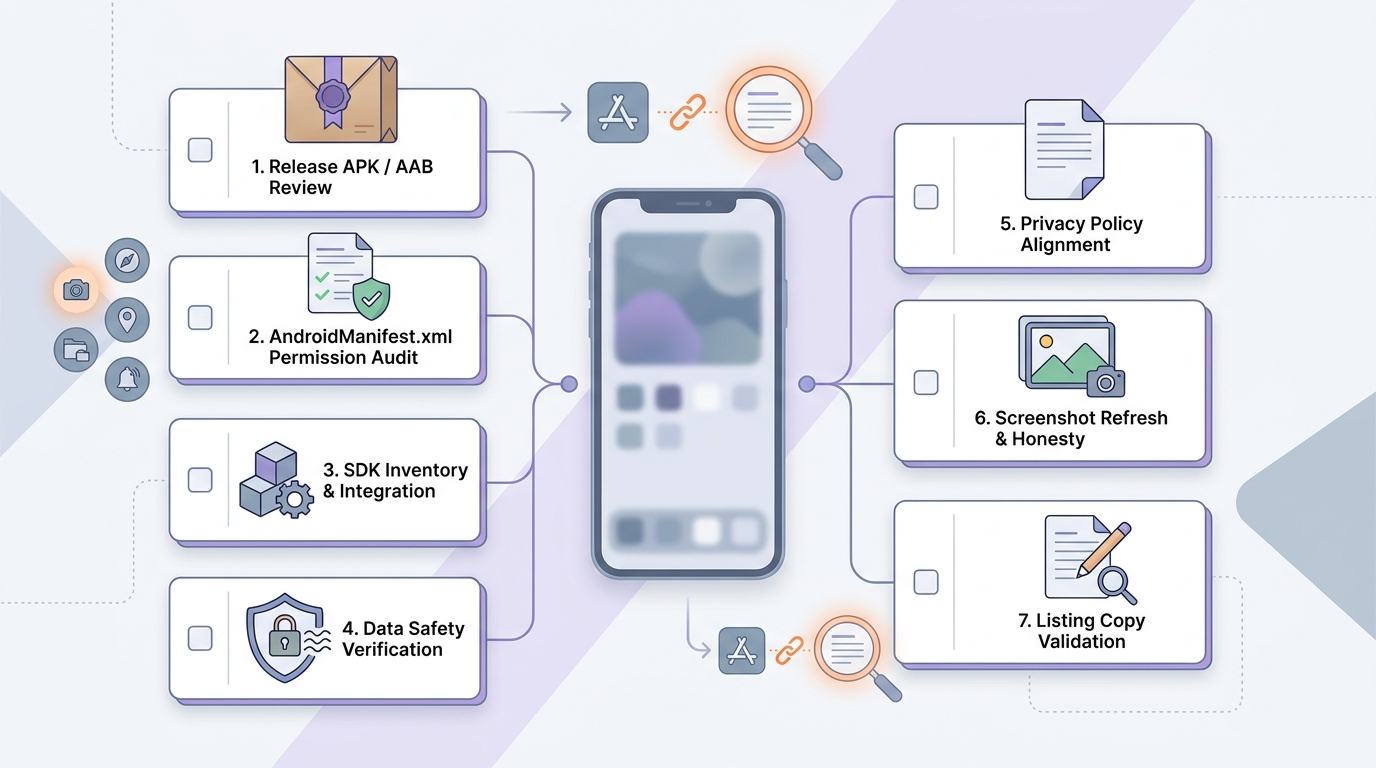
A compact resubmission checklist for AI-built apps covering final APK or AAB review, AndroidManifest.xml permission audit, SDK inventory, Data Safety verification, privacy policy alignment, screenshot refresh, and listing copy validation.
1. Replace stale screenshots with captures from the release build
Freeze the exact APK or AAB first. If the UI is still moving, it is easy to create a fresh mismatch by accident.
Then capture only real, reachable flows from the release build. Do not reuse prototype assets if labels, layout, or navigation changed. For a small app, this is often a 1 to 2 hour cleanup, but localization or tablet variants can add time quickly.
2. Reconcile Data Safety and permissions with the actual package
Check AndroidManifest.xml, generated plugin output, and the final package for permissions that survived after features were removed. Then list every SDK in the release and map what data it collects, processes, stores, or shares.
Update Data Safety and your privacy policy together so both reflect actual behavior, not team memory. This step often requires coordination across engineering, backend, and legal or privacy owners, and cleanup can surface hidden SDK dependencies. For small teams, expect anything from half a day to a few days depending on service complexity.
3. Audit listing claims line by line against the installed app
Read the title, short description, and full description like a reviewer would. Verify each feature claim against the installed build, and remove roadmap language, partial launches, or renamed features that no longer match.
Also check support and privacy links. This is usually a fast pass, but it matters because Google Play's metadata policy is fundamentally about accurate representation.
How should you resubmit after a misleading metadata rejection?
A workable order looks like this:
Freeze the release candidate
Pick the exact build you plan to ship so your assets and declarations stop moving underneath you.
Fix the visible surfaces
Update screenshots, title, and description to match the app as installed today.
Verify the technical disclosures
Review permissions, SDKs, Data Safety answers, and privacy policy together.
Resubmit with notes if useful
If the rejection notice was specific, explain what you changed. It will not override policy review, but it can reduce ambiguity.
Here is the practical takeaway: do not treat this as a copy edit. Treat it as a product-listing alignment pass.
One thing worth noting is that approval is never automatic after cleanup. Policy interpretation can vary, and some SDK behavior is only obvious once you inspect the shipped package closely. The goal is to reduce review risk, not promise certainty.
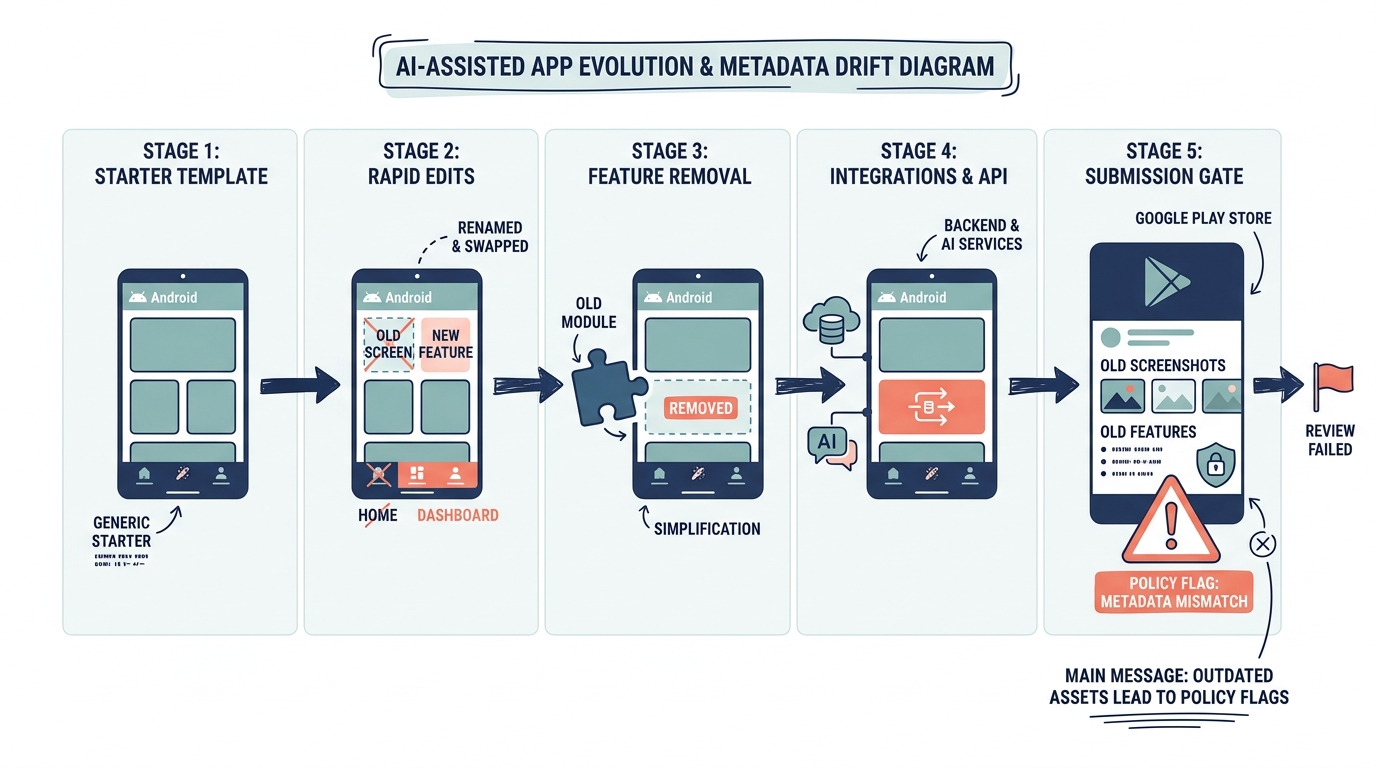
A simple flow diagram tracing how an AI-generated Android app moves from starter template to renamed screens, removed features, added Firebase or AI API, then submission to Google Play with outdated screenshots or listing copy still attached.


