
If your release is suddenly blocked in Play Console because you requested a sensitive permission, you are not alone, and the fix is rarely obvious from the warning text. The Google Play Permissions Declaration Form is a review gate, not paperwork, and a weak submission can mean days of back and forth, rejected updates, or a stalled launch. In practice, you will need to map each declared permission to a core feature, justify the access in plain English, and sometimes provide a short video demo plus tester access instructions. By the end of this guide, you will know how to prep the inputs, complete the form with fewer surprises, and lower the odds of preventable review ping-pong (while accepting that timelines still vary by app category, risk level, policy changes, and reviewer ability to verify).
| Early proof: what a "good" declaration looks like in practice | What it shows | Why it matters to your release |
|---|---|---|
| Permission list from the shipped build (merged manifest) matches Play Console detection | You are declaring what actually ships, not what you think ships | Avoids the common "declared X, but build requests Y" mismatch that often triggers follow-ups |
| Each sensitive permission maps to a user-visible feature screen and user copy | Reviewers can verify necessity and user awareness | Fewer clarification requests because the feature is easy to find and understand |
| Reviewer can access the feature (test account, steps) and see the permission prompt | The demo is verifiable end to end | Lowers "could not reproduce" outcomes that can stall a track |
| Illustrative prep time to assemble the above | Often 2-4 hours across eng, PM, and QA for a non-trivial app | Helps you plan release timing and avoid last-minute scrambles |
- Explanation: This is not a formal Google checklist. It is a practical summary of where real submissions often fail.
- Interpretation: Most delays come from inconsistencies across the build, the form, and in-app behavior, plus access issues during verification.
- Reader impact: If you prep these artifacts up front, you can often reduce back-and-forth, even though you cannot reliably control review speed.
Why Publishing Certainty Is More Valuable Than Faster Builds goes deeper on the ideas above and adds concrete next steps.
Why does the Google Play Permissions Declaration Form matter before you publish?
Many teams first notice the form when a release is blocked right before launch. If your app requests a sensitive permission, Play Console may require a declaration showing the access is necessary, user-facing, and aligned with your store listing and privacy policy (Google Play guidance). The goal is not perfection, it is to make verification straightforward for a reviewer.
One thing worth noting: even a correct declaration does not guarantee approval or a specific review time. It mainly reduces preventable questions and mismatches.
Who tends to get blocked by this form?
Apps that touch higher-risk permissions get hit most often: location, SMS, contacts, camera, mic, and background access. It also catches teams that added an SDK and unknowingly pulled in a permission.
Operational constraint: you usually need engineering to confirm what ships, product to confirm the user value, and QA or support to validate a reviewer can actually reach the feature.
What Google Play is really checking
Google Play is typically checking three things for each sensitive permission:
- Purpose: what feature uses it
- Necessity: why a less invasive option will not work
- User-facing behavior: where the user sees prompts and what happens if they deny
If the app asks for access but the feature is unclear or hard to reach, reviewers may ask for a demo, question your store description, or require you to remove the permission.
When you move from outline to execution, Publishing App Updates Without Getting Rejected helps close common gaps teams hit here.
What does the permission declaration workflow look like in Play Console?
Category: Risk
Statistic: 29%
Label: Avoidable rejections
Context: Tied to metadata or policy gaps
Category: Timeline
Statistic: 72 hrs
Label: Typical review delay
Context: When issues need a second pass
Category: Submission
Statistic: 4 required inputs
Label: What you must submit
Context: Core feature + justification + video demo + access instructions (if needed)
Treat this like a small audit across three surfaces: what ships, what you declare, and what a reviewer can reproduce. Most teams lose time because they start in Play Console before they have the evidence ready.
Here is a practical prep plan (plan longer if you have multiple build flavors, multiple SDKs, or tight gating):
- Permission inventory (30-90 minutes): extract from the merged manifest of the exact release build
- Feature mapping (30-60 minutes): identify the screen or flow for each sensitive permission
- Reviewer access (15-45 minutes): test account, region checks, paywall handling, exact steps
- Evidence capture (30-60 minutes): screen recording showing the feature and the permission prompt
Common dependencies and failure modes to plan around:
- Reviewer cannot log in (SSO, OTP, region lock, enterprise-only accounts).
- Your demo never triggers the prompt because permission was already granted on the device.
- Manifest differs across variants or tracks, so Play Console detects something you did not test.
- Policy interpretation can shift, and reviewer expectations vary across categories.
Permission mapping worksheet
Use this to map each permission to a screen, user copy, and evidence before you fill out the form.
permission-mapping-template
A complementary angle worth comparing lives in How to Prepare Your App for Google Play Review.
How do you complete the Google Play Permissions Declaration Form step by step?
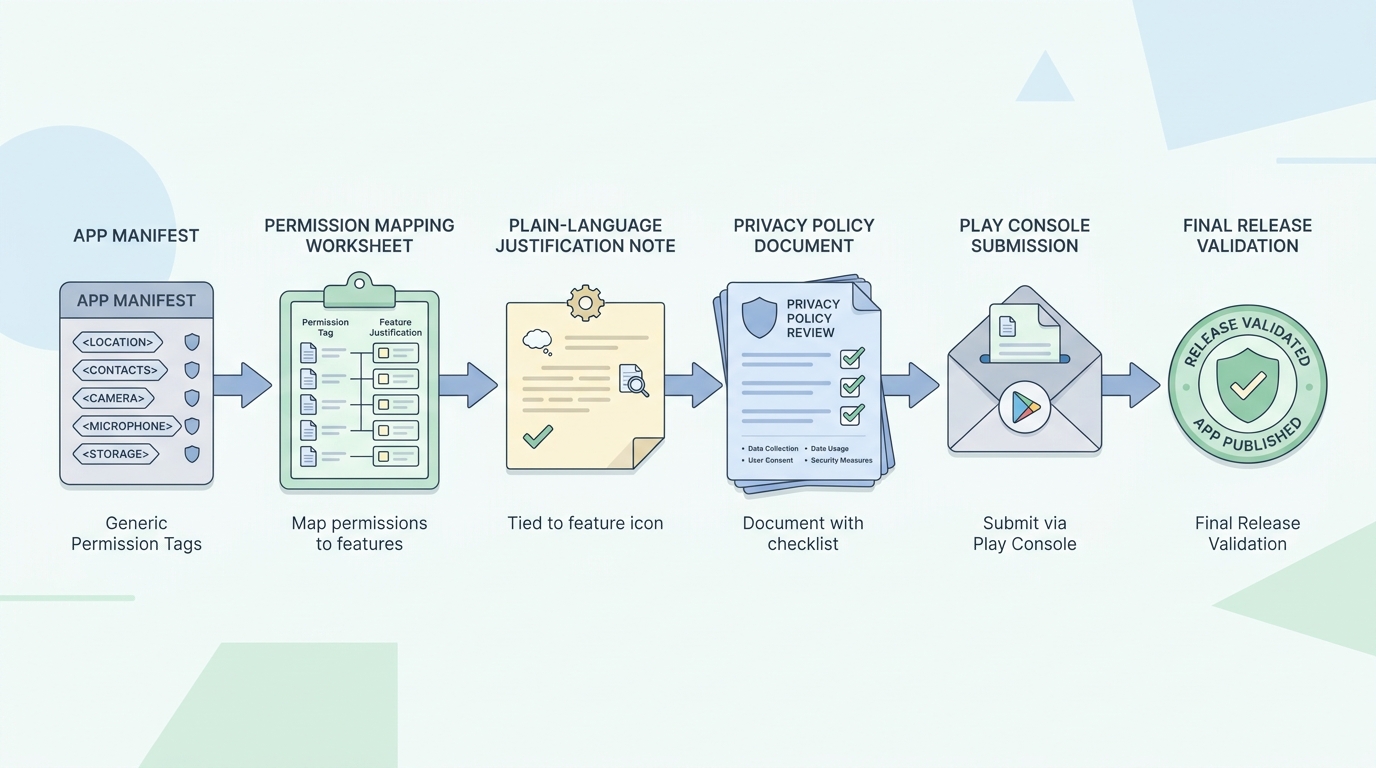
A clean process diagram mapping app manifest permissions to feature justification, privacy policy review, Play Console submission, and release validation.
Confirm which permissions ship in the real build
Use a build-derived source and compare it to what Play Console detects. Tools that can help: Android Studio APK Analyzer,
aapt2 dump permissions, or bundletool for AABs. If an SDK introduced the permission, find the source first so you do not justify behavior you plan to remove.Map each sensitive permission to a user-visible feature
Write down the exact in-app behavior that needs it, like turn-by-turn navigation, profile photo upload, scanning a QR code, or recording a voice note. If you cannot point to a screen or flow, assume reviewers will question necessity.
Remove anything you cannot justify before declaring
If a permission is legacy or tied to a removed feature, remove it first and rebuild. Expect a bit of iteration if third-party SDKs re-add permissions or different product flavors diverge.
Write the justification in plain English that matches the app
Keep it specific and consistent with your in-app rationale text and listing. Tradeoff: being generic often triggers follow-ups, but oversharing can create contradictions with your UI, policy, or privacy disclosures. Aim for "enough detail to verify", not marketing copy.
Prepare reviewer verification (video and access) when needed
If the feature is gated, record a 30-90 second demo that includes navigation steps, the permission prompt appearing, and the feature working after grant (and failing gracefully if denied). Test access on a fresh device or emulator, and assume reviewers may be outside your primary region or on different device defaults.
For tradeoffs, checklists, and edge cases, How to Protect Your App Store and Google Play Accounts rounds out this section.
What are the most common permissions declaration mistakes?
Declaring permissions the app no longer uses
Often caused by an SDK or leftover manifest entry. Fix by stripping unused permissions, rebuilding, and re-checking what Play Console detects before you submit.
Writing a generic justification instead of a feature-specific one
Weak: "required for app performance" or "to improve experience." Better: "Microphone is used only when the user taps Record on the Voice Note screen to attach audio to a support ticket." Keep wording aligned across the prompt, in-app rationale, store listing, privacy policy, and declaration.
Submitting without a testable path
If the reviewer cannot reach the feature (login issues, region gating, paywall), you can get delayed even when your story is correct. If you create a review-safe path (like a limited test mode), weigh the security and product implications and remember you may need to maintain it over time.
Everything You Need to Know About Apple and Google Developer Accounts reframes the same problem with a slightly different lens - useful before you finalize.
What should you check before and after submitting the form?
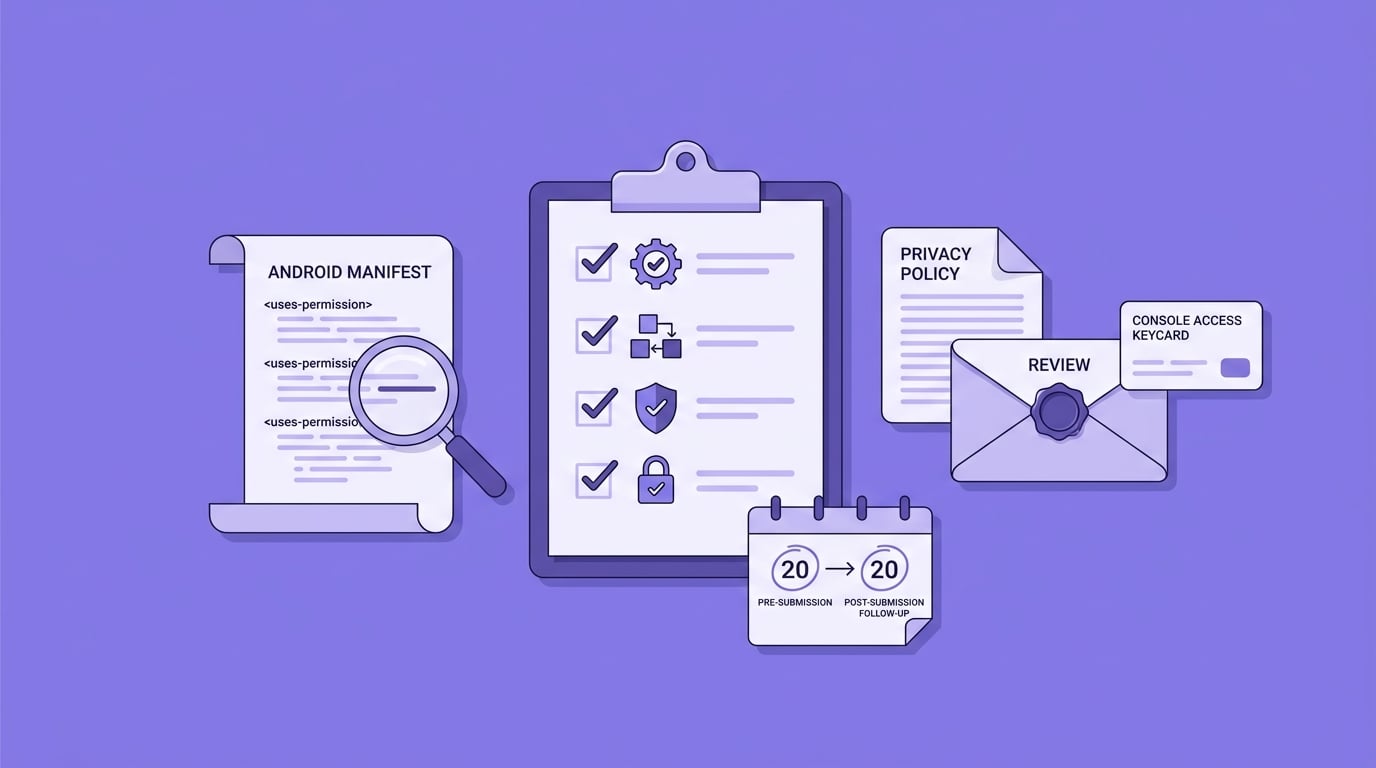
A release-prep checklist focused on Google Play permissions: verify manifest permissions, match use-case language, confirm privacy policy alignment, and check Play Console access before submission.
Use one compact checklist for both prep and response loops. For most teams, this is 20-40 minutes if you already have the artifacts, and longer if you need engineering changes.
| Check | When | Why it matters |
|---|---|---|
| Sensitive permissions in the merged manifest for the exact release build | Before | Prevents "declared X, shipped Y" mismatches |
| Each permission has a named feature screen + 1 sentence necessity statement | Before | Makes verification faster and less subjective |
| Privacy policy + store listing align with the same data-use story | Before | Avoids contradictions that trigger scrutiny |
| Reviewer access works on a fresh device (login, region, paywall, steps) | Before | Reduces "cannot access feature" outcomes |
| Monitor policy status + reviewer messages in Play Console | After | Lets you respond quickly and keep build and declaration in sync |
Also plan for upkeep: SDK updates can add permissions, and Android behavior changes can shift when prompts appear. A lightweight check every few releases is often enough, but fast-moving apps may need it each release.
Keep the permission story consistent across every release
Create a reusable permissions checklist and schedule a recurring manifest and policy review so you catch SDK permission drift before release week.
permissions-checklist


