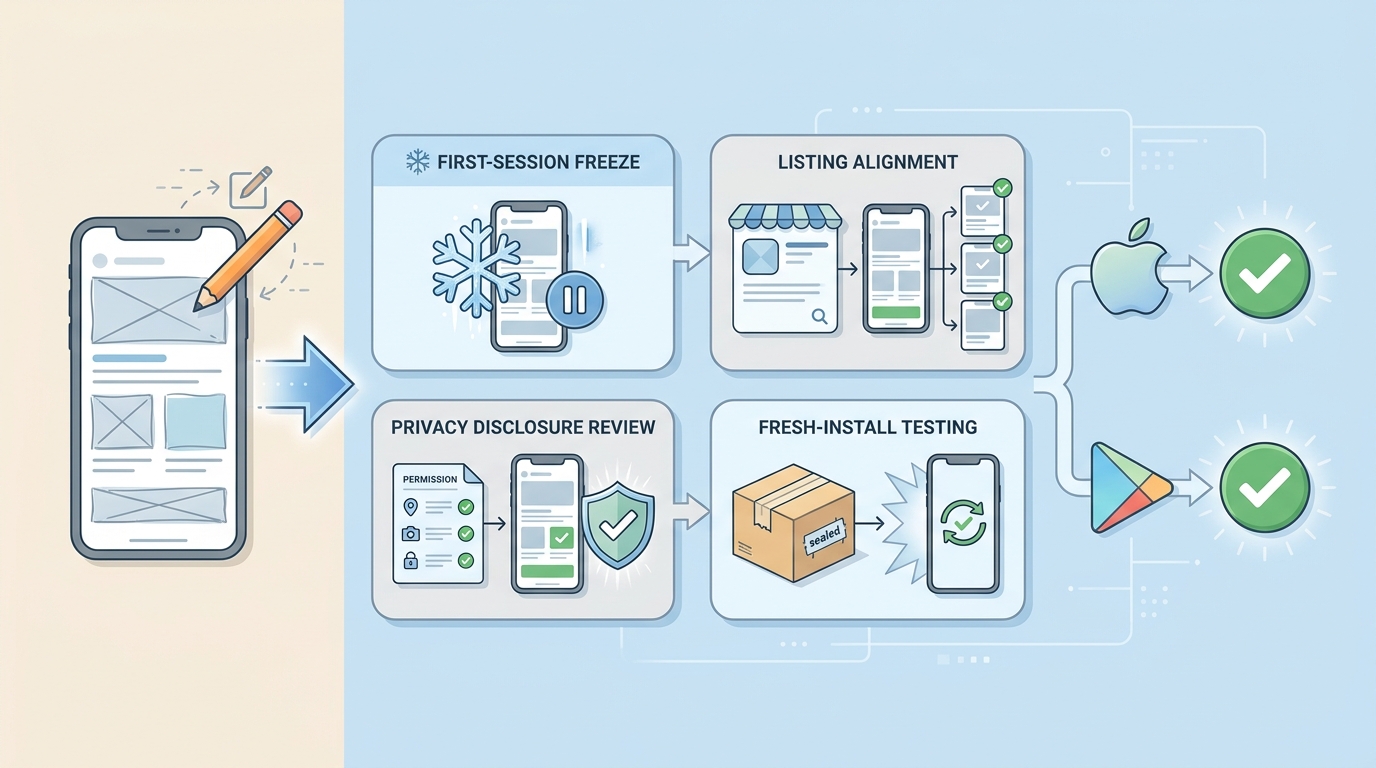
How to Publish Your Lovable App: From Export to Approval

How to Publish Your Lovable App: From Export to Approval

How to Publish Your Lovable App: From Export to Approval goes deeper on the ideas above and adds concrete next steps.

Introduction: Why Lovable Apps Need a Publishing Pass

Illustration for ## Introduction: Why Lovable Apps Need a Publishing Pass

Supporting visual for ## Introduction: Why Lovable Apps Need a Publishing Pass

Lovable helps founders, solo builders, rapid prototyping teams, and product teams move from idea to working app fast. That speed is useful, but it creates a specific risk when you are preparing for app publishing: the product may still feel in motion when Apple and Google review it.

App Store and Google Play do not evaluate how quickly you built the app. They evaluate the experience a reviewer gets when opening the finished app for the first time.

That first session matters more than many teams expect. If onboarding is unclear, permissions appear without context, screenshots do not match the current UI, or the app feels unfinished, publishing can slow down even if the core feature works.

This guide walks you through a practical publishing pass for a Lovable mobile app. The goal is to make the app feel complete, clear, and consistent before you export, test, and submit to Apple and Google.

When you move from outline to execution, Submitting vs Publishing an App: What's Different helps close common gaps teams hit here.

Prerequisites Before You Export

Prerequisites before exportA single baseline readiness value of 2 shown as a starting trend point before export.Export readiness024baseline2
Supporting visual for prerequisites before export.
Supporting visual for ## Prerequisites Before You Export

Before you start the publishing process, make sure the app is stable enough to review. Publishing should not begin while core screens, navigation, or user flows are still changing every day.

You should have these items ready:

  • A stable Lovable app flow from launch to the first meaningful user action
  • Final app name, logo, icon, colors, and brand assets
  • App Store Connect account access for Apple submission
  • Google Play Console account access for Google submission
  • Privacy details for data collection, analytics, payments, and third-party services
  • A support email or support URL
  • Test accounts if login is required
  • Demo content if the app needs data to make sense
  • A clear one or two sentence description of the app’s value
  • Screenshots that match the current production UI

The most important prerequisite is product clarity. A reviewer should understand what the app does, why it exists, and how to reach the main feature without guessing.

A common mistake is treating export as the start of publishing. In practice, export should happen after the first-session experience, privacy disclosures, and store listing story are already aligned.

A complementary angle worth comparing lives in 72-Hour App Launch Checklist: Verify Before You Submit.

Step 1: Freeze the First-Session Experience

Illustration for ## Step 1: Freeze the First-Session Experience

Supporting visual for ## Step 1: Freeze the First-Session Experience

Start by reviewing what a brand-new user sees from the moment the app opens. This includes the splash screen, onboarding, sign-up, login, empty states, permissions, loading screens, and the first meaningful action.

Your goal is to make the first session predictable. A reviewer should never wonder whether a screen is broken, whether content is missing by accident, or whether they need special knowledge to continue.

Walk through these questions:

  • Does the app explain its value before asking for effort?
  • Can a new user reach the main experience without confusion?
  • Are login and sign-up flows complete?
  • Are empty states helpful instead of blank?
  • Do loading states resolve or explain delays?
  • Are permission requests introduced with clear context?
  • Are error messages written for users, not developers?
  • Is there a clear path back if the user takes a wrong turn?

Pay special attention to login gates. If the app requires an account, provide demo credentials in review notes and make sure those credentials work on a fresh install.

The common mistake is optimizing only the main feature while leaving first-run screens unfinished. Apple and Google may never get to your best feature if the path to reach it feels incomplete.

For tradeoffs, checklists, and edge cases, How to Publish Your Rork App: App Store + Google Play Checklist rounds out this section.

Step 2: Check the App Against Store Expectations

Supporting visual for ## Step 2: Check the App Against Store Expectations

Apple and Google expect a complete, predictable, and useful app experience. They are not looking for perfection, but they do expect the app to function as described and avoid obvious signs of being unfinished.

Review the app as if you have never seen it before. Tap every primary button, open every tab, follow every link, and check every claim made in the UI.

Look for issues such as:

  • Broken links
  • Placeholder text
  • Lorem ipsum content
  • Test data that should not be public
  • Empty screens with no explanation
  • Buttons that do nothing
  • Features mentioned in the listing but missing in the app
  • Screens that still use internal project names
  • Dead-end flows with no back or close action
  • Settings, billing, or profile screens that feel incomplete

Store review often slows down when the app feels inconsistent. For example, if your listing promises team collaboration but the submitted app only supports a single-user flow, the reviewer may flag the mismatch.

This step is not just quality assurance. It is a trust check between your app, your listing, and the reviewer’s first impression.

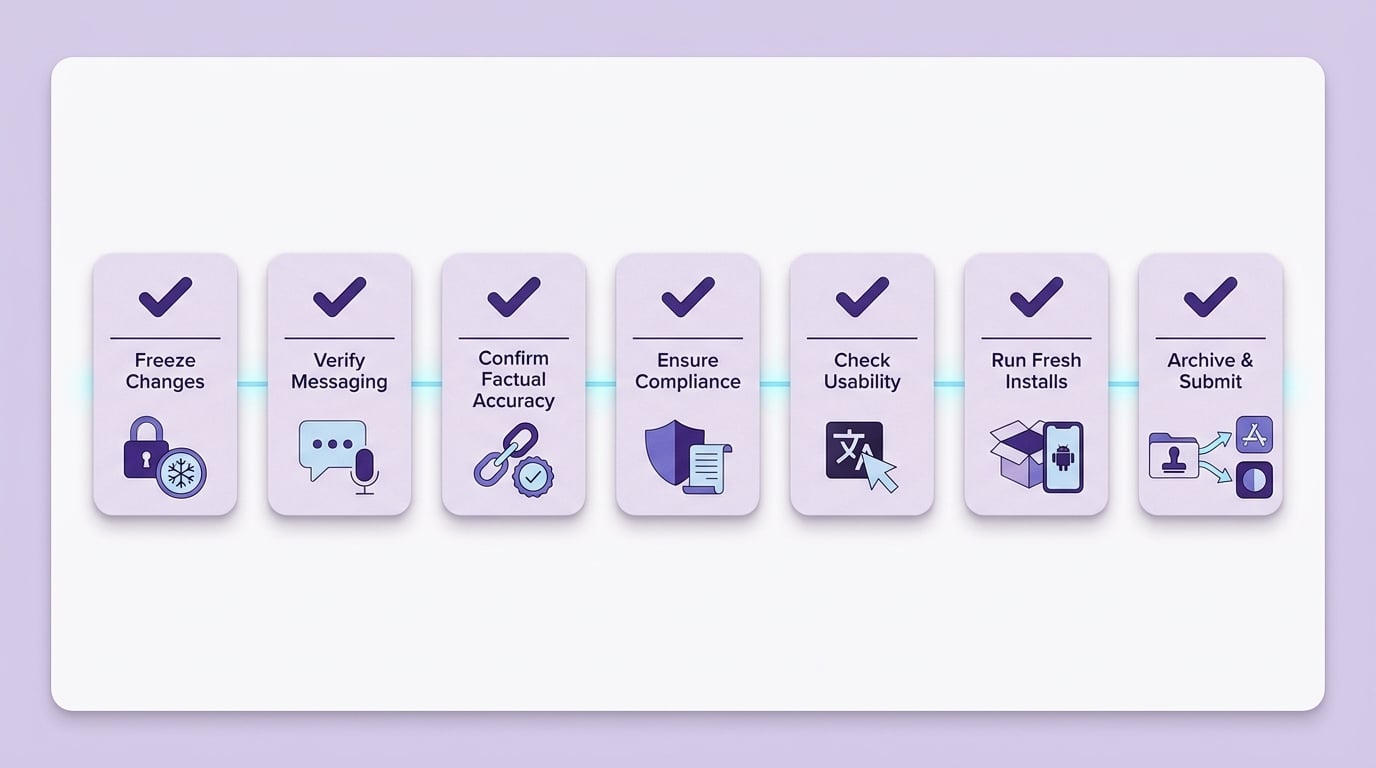
Publishing pass checkpoint

Before moving on, confirm that the app, listing claims, and reviewer path all describe the same finished experience.

Use this as a readiness checkpoint before export, store setup, and submission.

How to Publish Your Vibe-Coded App (Without Getting Rejected) reframes the same problem with a slightly different lens - useful before you finalize.
Step 3: Prepare Privacy, Permissions, and Disclosures

Privacy details need to match what the app actually does. This applies to Apple privacy nutrition labels, Google Play data safety forms, permission prompts, analytics tools, payment providers, authentication services, and any third-party APIs.

Document what data the app collects and why. Include account information, email addresses, names, location, photos, files, contacts, usage data, diagnostics, payment information, and any user-generated content.

For each permission, write down the user-facing reason:

  • Camera: What feature needs camera access?
  • Photos: Is access needed to upload, edit, or store images?
  • Location: Is location required for the core feature or only optional?
  • Notifications: What notifications will users receive?
  • Contacts: Why does the app need address book access?
  • Microphone: What recording or communication feature requires it?

Permission requests should not appear as a surprise. If the app asks for camera, location, contacts, or notifications without context, reviewers may question whether the request is necessary.

Also check third-party services used by your Lovable app. Analytics, crash reporting, authentication, databases, email tools, AI APIs, payment processors, and storage providers can all affect privacy disclosures.

A common issue is copying generic privacy answers instead of checking actual app behavior. If your disclosure says you do not collect usage data but your analytics tool does, the submission can be delayed or rejected.

Step 4: Export and Build the Mobile App

Once the app flow and disclosures are stable, move to export and mobile build preparation. At this stage, the focus shifts from product behavior to production configuration.

Confirm that the app is connected to the correct production environment. Remove development-only settings, test endpoints, temporary banners, debug menus, and any internal notes that should not appear in the submitted build.

Check the core build details:

  • Correct bundle identifier for Apple
  • Correct package name for Google
  • Version number and build number
  • Production API keys
  • Production database or backend configuration
  • Correct app icon and launch assets
  • Proper display name
  • Final permissions configuration
  • Release signing setup where required

Lovable mobile workflows should always be tested after export. Behavior can differ from the builder preview, especially around navigation, authentication persistence, keyboard handling, file uploads, deep links, permissions, and device-specific layouts.

Do not assume that a flow works on mobile because it worked in the builder. The exported app is the version Apple and Google will judge.

Step 5: Test Like an App Reviewer

This is the most important step before submission. Test the app the way a reviewer will experience it: on a real device, from a fresh install, with no memory of how the product is supposed to work.

Use fresh accounts and clean installs. If the app supports both logged-out and logged-in states, test both. If the app depends on user content, test the empty state and the populated state.

Run these scenarios:

  • First launch after install
  • Sign-up with a new account
  • Login with demo credentials
  • Password reset if available
  • Denied permissions
  • Slow network
  • Airplane mode or temporary connection loss
  • App backgrounding and reopening
  • Logout and login again
  • In-app account deletion if the app allows account creation
  • Purchase or subscription flow if available

Also check edge cases that often create review friction:

  • Crashes during onboarding
  • Missing back buttons
  • Trapped screens with no exit
  • Poor keyboard behavior on forms
  • Buttons hidden behind the keyboard
  • Paywalls with unclear pricing
  • Purchase buttons that do not complete properly
  • Required fields with unclear validation
  • Error messages that expose technical details
  • Loading spinners that never resolve

Testing should include more than the happy path. Reviewers often deny permissions, use unfamiliar navigation paths, or open screens in an order your team does not expect.

If something breaks during testing, fix it before submission. A known issue rarely becomes invisible during review.

Step 6: Create Store Listings That Match Reality

Your store listing should accurately describe the current app, not the roadmap. Apple and Google compare the listing against the submitted experience, so screenshots, descriptions, and feature claims need to match what the reviewer can actually use.

Write a clear app description that explains:

  • Who the app is for
  • What problem it solves
  • What the user can do today
  • What makes the experience useful
  • Whether login, subscriptions, or special access are required

Choose screenshots from the current UI. Do not use old Lovable screens, design mockups, or future-state visuals that are not present in the submitted build.

Use metadata to describe the app in language real users would use when looking for this kind of product. Focus on the problem, audience, category, and core actions instead of adding platform or build-related terms that are not part of the user-facing purpose.

Avoid claims the app cannot support. Phrases like “fully automated,” “instant approval,” “guaranteed results,” or “works with every platform” can create review or policy issues if the app does not clearly deliver them.

The best listing sets accurate expectations. A reviewer should be able to open the app and see the same product the listing promised.

Step 7: Submit to Apple App Store Review

For Apple, prepare the app record in App Store Connect and upload the build through your team’s iOS build workflow. Depending on your setup, that may be Xcode, Transporter, a build service, or a CI/CD pipeline.

Once Apple processes the build, select it for the app version you plan to submit. Then complete the required metadata, privacy, compliance, pricing, and review fields before sending the app to review.

Before submitting, check these items:

  • App name, subtitle, category, and age rating
  • Screenshots for all required device sizes
  • App description and keywords
  • Support URL and marketing URL if used
  • Privacy nutrition labels
  • App Tracking Transparency details if applicable
  • Sign-in information for reviewers
  • Demo credentials if login is required
  • Notes explaining anything the reviewer needs to access
  • Export compliance and content rights questions
  • In-app purchase configuration if the app sells digital goods

Review notes are especially important for apps with gated content. Tell Apple exactly how to access the main feature, what credentials to use, and whether any test data is already available.

Common Apple issues include:

  • Incomplete login access
  • Demo accounts that fail
  • Vague permission prompts
  • Broken purchase flows
  • Missing in-app account deletion for apps that allow account creation
  • Apps that look like prototypes
  • UI that does not match screenshots
  • Features that require explanation but have no review notes

Apple generally expects apps that allow account creation to also provide an in-app path for users to delete their account. Do not treat this as an optional cleanup item if your app includes sign-up.

Apple tends to focus heavily on completeness, user value, privacy, and whether the app feels like a finished product. If your Lovable app still looks like a prototype, fix that before sending it to review.

Step 8: Submit to Google Play Review

For Google Play, prepare your release in Play Console. Upload the app bundle or release artifact, complete store listing requirements, and provide all required policy and access information.

Before submitting, check these items:

  • App name, short description, and full description
  • Screenshots and feature graphic
  • App category and tags
  • Content rating questionnaire
  • Data safety form
  • App access instructions
  • Reviewer access instructions and demo credentials if login is required
  • Target audience and content settings
  • Permissions declarations and permission use explanations
  • Ads declaration if applicable
  • Account deletion details if accounts are supported
  • Testing track requirements if they apply
  • Release notes for the submitted version

The data safety form should match actual app behavior. Check analytics, crash reporting, authentication, payment tools, databases, file storage, AI services, and any third-party APIs before you answer.

Complete the content rating questionnaire carefully. Your answers should reflect the app’s actual content, user-generated content, location sharing, health or financial information, AI-generated output, commerce features, and any other sensitive areas that apply.

App access instructions should be specific enough for a reviewer to reach the main feature without guessing. If the app requires login, subscriptions, invite codes, location setup, seeded data, or admin approval, explain the path and provide working access.

Target audience and content settings also need careful attention. If the app may appeal to children or includes user-generated content, location sharing, health information, financial content, or AI-generated output, review the related Google Play policies before submission.

Permissions should be limited to what the submitted app actually needs. If the app requests camera, location, photos, contacts, microphone, notifications, or background access, make sure the feature clearly justifies the request and that the store declaration matches the in-app prompt.

Use the right release track before production submission. Internal, closed, or open testing can help catch install issues, crashes, account problems, and device-specific layout bugs before the app reaches public users.

Some Google Play developer accounts and app types may have specific testing requirements before production access is available. Confirm whether your account must complete a closed testing period, then plan enough time for tester participation and fixes.

When the build, store listing, data safety form, content rating, policy declarations, testing requirements, and review access are complete, create the production release. Review every warning in Play Console before rollout, because unresolved policy or configuration issues can delay approval.

Common Google Play issues include:

  • Data safety answers that do not match app behavior
  • Missing or unclear reviewer access instructions
  • Login requirements with no working demo credentials
  • Inaccurate content rating answers
  • Permission requests that are broader than the feature requires
  • Store listings that describe features not present in the build
  • Release tracks used incorrectly
  • Production submissions blocked by unmet testing requirements

Google Play review depends on a consistent chain of evidence: the app, the listing, the data safety form, the content rating, and the access instructions all need to tell the same story. If one part is out of sync, fix it before production submission.

Conclusion: Publish the Finished Experience, Not the Prototype

A successful Lovable app submission is less about the tool used to build the app and more about the quality of the submitted experience. Apple and Google want a complete product with clear value, accurate disclosures, working access, and a listing that matches reality.

Before you submit, slow down long enough to test the first session, verify privacy details, clean up unfinished screens, and prepare reviewer instructions. These steps reduce avoidable review friction and help the app feel trustworthy from the first tap.

The best publishing pass is practical and honest. Show reviewers exactly what users will get, make the main feature easy to reach, and submit only when the app behaves like the public version you are ready to support.

Like what you see? Share with a friend.