
If your app icon looks crisp in Figma but ends up blurry, cropped, or rejected in App Store Connect or Google Play, you are running into platform-specific rules that are easy to miss. The fix is not "more sizes", it is a repeatable workflow: one source design that exports cleanly into iOS and Android without last-minute fire drills.
How to Publish a Replit-Built Mobile App goes deeper on the ideas above and adds concrete next steps.
What should you check before submitting app icons?
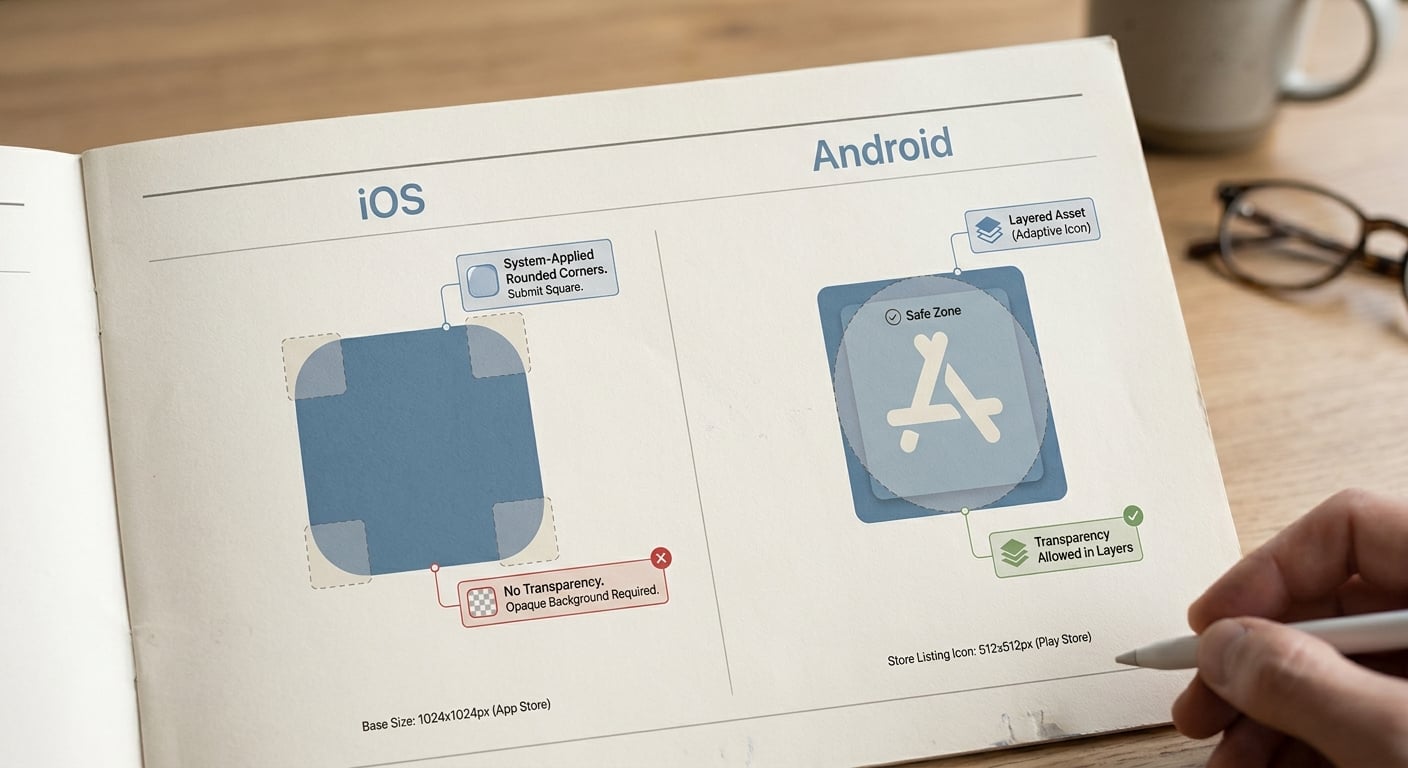
A compact comparison callout showing iOS app icon requirements versus Android launcher icon requirements, highlighting sizing, masking, and transparency differences that commonly trigger export mistakes.
Most icon problems that slow submissions are not about taste, they are about packaging: wrong base size, unexpected masking, or transparency where it is not allowed.
| Check that fails in practice | iOS (App Store + Xcode) | Android (launcher + Play listing) |
|---|---|---|
| Base asset | 1024 x 1024 square PNG, no rounded corners, no transparency (Apple HIG) | Adaptive icon layers (foreground + background) plus a separate 512 x 512 store icon (MobileAction) |
| Cropping risk | System applies corner radius | Devices apply different masks; legacy fallbacks still exist |
| Common review friction | Alpha channel, pre-rounded corners, wrong format | Missing adaptive layers, relying on one flat export, mismatched store vs launcher icon |
Explanation: this table is a fast pre-flight check for issues that commonly trigger rework during review or store processing.
Interpretation: get the iOS 1024 master and Android adaptive layers correct first, then generate everything else from those sources.
Reader impact: you reduce the odds of resubmissions and late-stage design churn, but outcomes still depend on metadata, screenshots, other assets, and store-side processing timelines.
When you move from outline to execution, How to Publish Your Bolt-Generated Mobile App helps close common gaps teams hit here.
Why do iOS and Android app icon requirements matter?
What breaks when the icon is too tight, detailed, or mispackaged
- Store rejection or warnings: iOS icons must be square PNGs without transparency or pre-rounded corners, and missing or misformatted assets can block submission in App Store Connect (Apple HIG). Google Play commonly flags incomplete adaptive icon setups or listing assets that do not match expectations.
- Unexpected cropping on devices: An icon that fills your artboard can look fine in design tools, then get clipped by iOS corner rounding or Android adaptive masks.
- Real release cost: Each fix can mean another export, another build, and another round of store processing. Even when review is fast, this can add hours or days depending on your release calendar.
The decision this guide resolves
You are not choosing a single pixel size, you are choosing a workflow: one master icon system that exports correctly to iOS and Android most of the time. There will still be edge cases due to OEM launchers, store processing, and review timelines, but a solid pipeline keeps fixes small and predictable.
Who this is for in a mobile release workflow
- Indie developers shipping their first App Store or Google Play build
- Product marketers and designers doing a relaunch or icon refresh
- Release and QA teams tired of last-minute asset churn during review
Get the icon export checklist (copyable) A one-page checklist you can paste into your release QA doc, including pre-flight checks for iOS alpha, Android masks, and store listing previews. Get the checklist
A complementary angle worth comparing lives in First Mobile App Publishing Checklist for Non-Technical Founders.
How do you build app icons for iOS and Android?
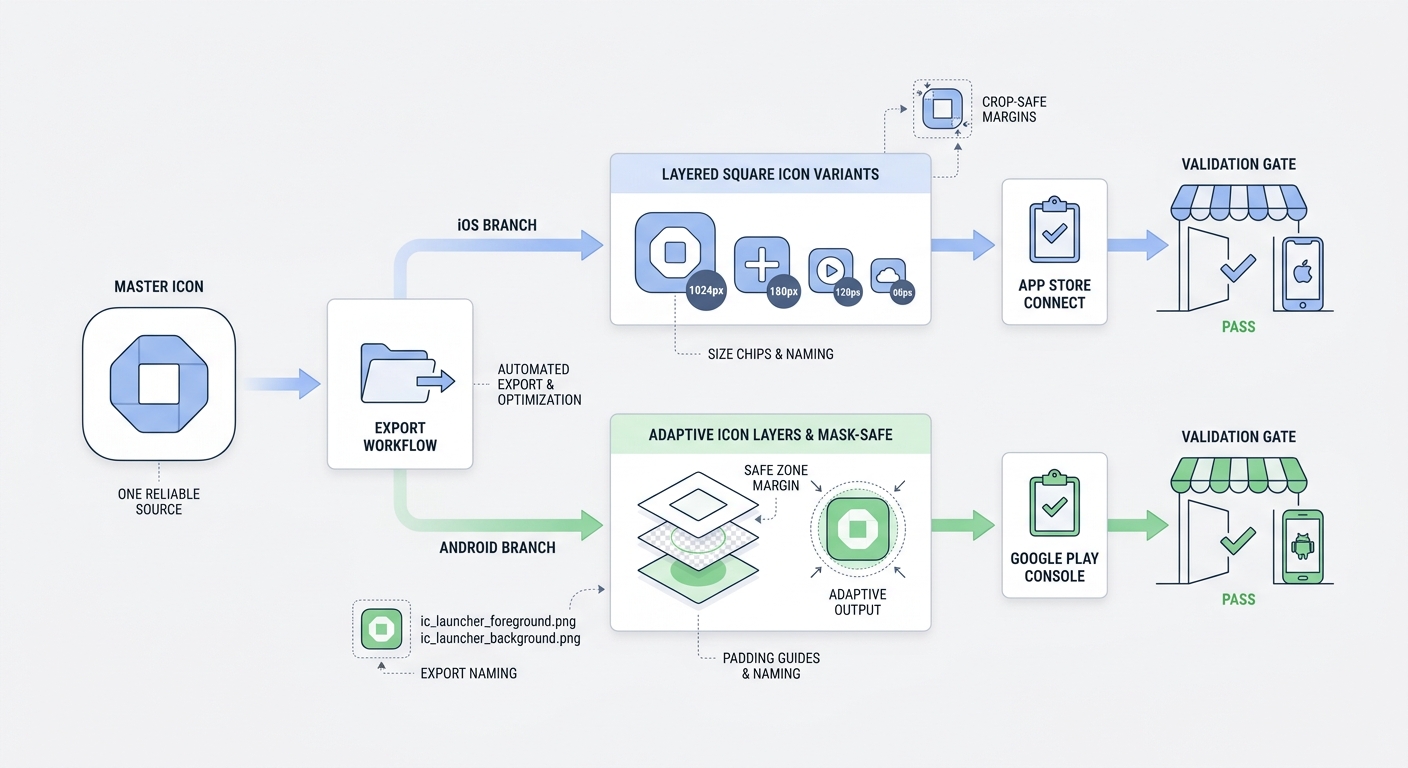
A step-by-step process diagram showing a square master icon moving into separate iOS and Android export branches, then into App Store Connect and Google Play Console validation.
Realistic effort, dependencies, and tradeoffs (so you can plan)
For a typical icon refresh, budget 30-90 minutes to adjust padding, contrast, and layers, plus 15-30 minutes to export and validate on at least one iOS and one Android device or simulator. If brand sign-off is involved, plan for 1-3 business days of review lag.
Tradeoffs and constraints worth calling out:
- Adaptive icon layers add work: foreground and background layering improves results across masks, but increases design and QA time.
- Safer padding can look "smaller": icons that survive masks often feel less edge-to-edge, which can be a stakeholder negotiation.
- Legacy behavior depends on your min SDK and launcher mix: supporting older Android versions may require additional fallbacks.
Operational dependencies to keep in mind:
- iOS: Xcode asset catalogs (Assets.xcassets) are the safest path; icons with an alpha channel can fail review.
- Android: OEM mask variance means "looks fine on Pixel" can still look tight elsewhere.
- Store-side processing: previews and thumbnails can take minutes to hours to update, especially right after a new upload.
Start with a master icon that survives platform masks
Create a square master and protect the center
Start from a single square master (typically 1024 x 1024) and treat the middle as the safe zone. Leave comfortable padding so iOS corner rounding and Android masks do not clip the core mark.
Design for small-size readability
Your icon is often seen at glance size. Favor bold shapes and clean contrast over fine detail or small text, which will blur or disappear when scaled.
Plan backgrounds with platform rules in mind
Apple expects a square PNG without transparency for the App Store icon, so plan a solid background rather than relying on alpha (Apple HIG). On Android, adaptive layers can include transparency, but you still need the design to read well under multiple masks.
A concrete end-to-end workflow (Figma to stores)
Build the master in Figma (or Sketch)
Create a 1024 x 1024 frame and keep the primary shape centered with padding. If you are doing Android adaptive, separate a foreground group from the background early so you are not retrofitting layers later.
Export the right source files
- Export PNG 1024 x 1024 for iOS (solid background, no alpha).
- Export foreground PNG and background PNG for Android adaptive icon (aligned to the same frame).
- Export a 512 x 512 PNG for the Play Store listing (close match to your launcher look is the goal, not pixel-perfect identity across every device).
Wire up iOS in Xcode
Drop the 1024 PNG into
Assets.xcassets -> AppIconand let Xcode populate sizes. Concrete check: in Finder, select the exported PNG and open the macOS preview Inspector (Tools - Show Inspector) to confirm it reports no alpha before you upload.Wire up Android adaptive icons
In Android Studio, configure
mipmap-anydpi-v26adaptive icon XML pointing at your foreground/background layers. Add legacymipmap-fallbacks if your min SDK requires them, then check on at least one non-Pixel launcher if you can.Do a quick visual check
Test at 48 px and 64 px. Then check on-device: home screen, app switcher, and store listing preview after processing (which can take time and is not fully under your control).
For tradeoffs, checklists, and edge cases, The Last Step AI App Builders Don't Solve: Publishing rounds out this section.
Common app icon mistakes that cause avoidable launch friction
Icons that depend on tiny text, borders, or edge-hugging frames
On-device, your icon is usually viewed at a glance: home screen grids, folder previews, and store search results. Small text disappears and thin borders get clipped differently across masks, so the mark becomes hard to read even if the source file looks crisp.
Practical test: shrink the icon until it is uncomfortable. If it only works when zoomed in, simplify the silhouette or increase padding.
One-size-fits-all exports (the packaging mismatch)
- App Store and Google Play require different asset packaging, even when the visual design is shared.
- A single flat PNG often triggers manual fixes during upload: wrong size, missing layers, or mismatched store artwork.
- Maintain separate deliverables: an iOS icon source (Xcode-generated from the 1024 square) and Android adaptive layers plus store listing art (commonly 512 square) (MobileAction).
Everything You Need to Know About Apple and Google Developer Accounts reframes the same problem with a slightly different lens - useful before you finalize.
App icon launch checklist and next-step QA
Pre-flight checks before you publish
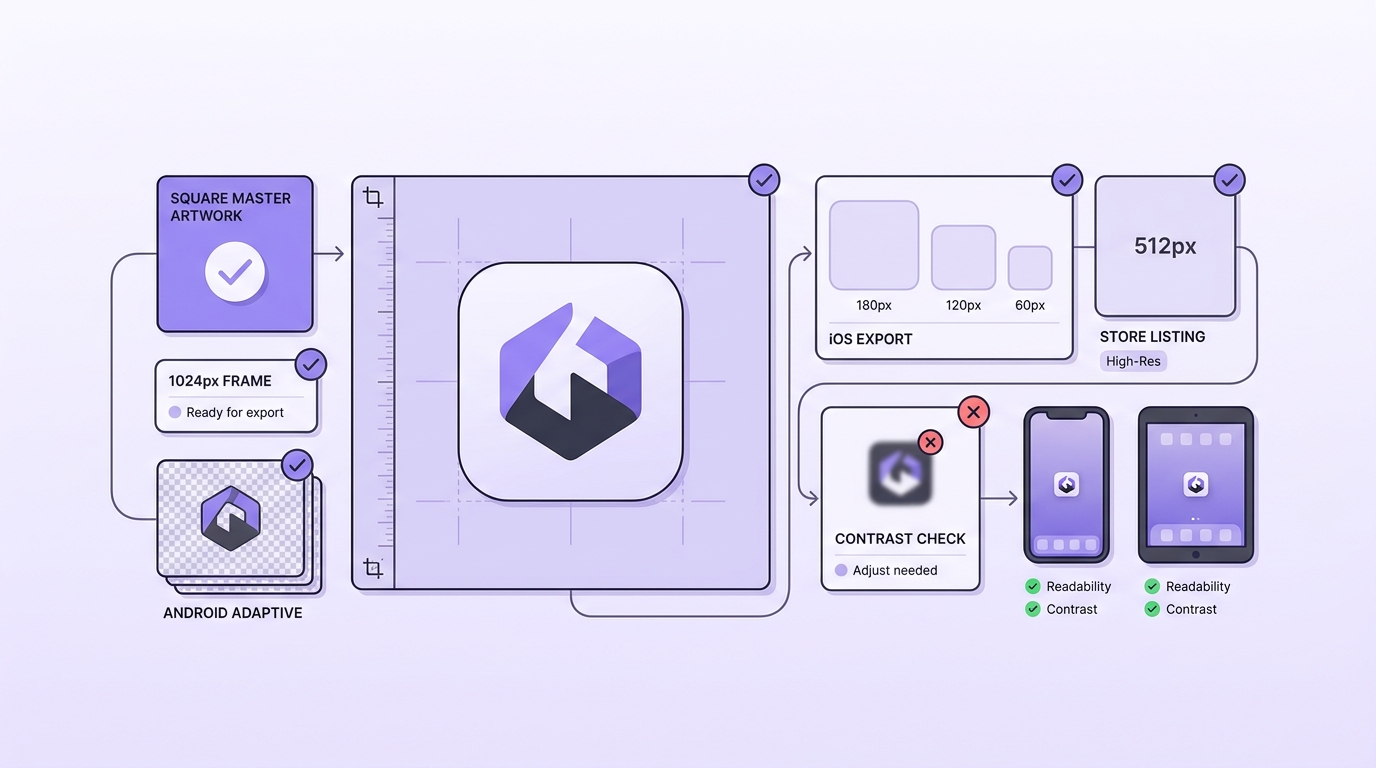
A mobile-friendly pre-publish checklist for app icon QA, including square master artwork, platform-specific exports, contrast checks, and device preview verification.
| Check | How to verify | Common failure |
|---|---|---|
| Master readability | Zoom out until it is favicon-sized; the silhouette should still read | Too much detail; thin strokes vanish |
| iOS App Store icon rules | 1024 x 1024 square PNG; no rounded corners; no transparency (Apple HIG) | Hidden alpha channel; pre-rounded export |
| Xcode packaging | Add to Assets.xcassets -> AppIcon and confirm no missing slots/warnings | Manually exporting multiple sizes and missing one |
| Android adaptive setup | Foreground + background layers wired in mipmap-anydpi-v26 | Only shipping a single flat icon; layers misaligned |
| Play listing icon | 512 x 512 PNG matches launcher closely enough (MobileAction) | Store icon differs from launcher; odd padding |
| Contrast and halos | Test on light and dark backgrounds | Faint edge halo from scaling or anti-aliasing |
Planned visual: A mobile-friendly checklist showing square master artwork, platform exports, contrast checks, and device previews.
After upload, inspect the store listing surfaces
After App Store Connect or Play Console finishes processing, preview on a real device and screenshot the home screen and listing thumbnail. Look for surprises: Android masks can change perceived padding, and iOS can reveal soft edges if the master is slightly off-grid. Log any crop or color shift as a ticket so the next release reuses a corrected master and exports.
Want a quick pipeline review before your next submission? Share your current icon sources and target platforms, and I will point out the most likely rejection risks and where your export steps usually break. Review the pipeline


