
If UI is your bottleneck, an AI UI generator can help you move from a rough idea to a reviewable set of mobile screens quickly, but the value depends on your inputs, how much you iterate, and how strict you are about states, accessibility, and engineering constraints. This shortlist compares five options founders, PMs, and small teams use to draft app UI without a full-time designer, including where each one helps and where it tends to create rework. By the end, you should know which tool fits your workflow and how to avoid the trap of polished screens you cannot ship.
Best Free Figma Templates for Mobile App Design goes deeper on the ideas above and adds concrete next steps.
What can an AI app UI generator realistically produce?
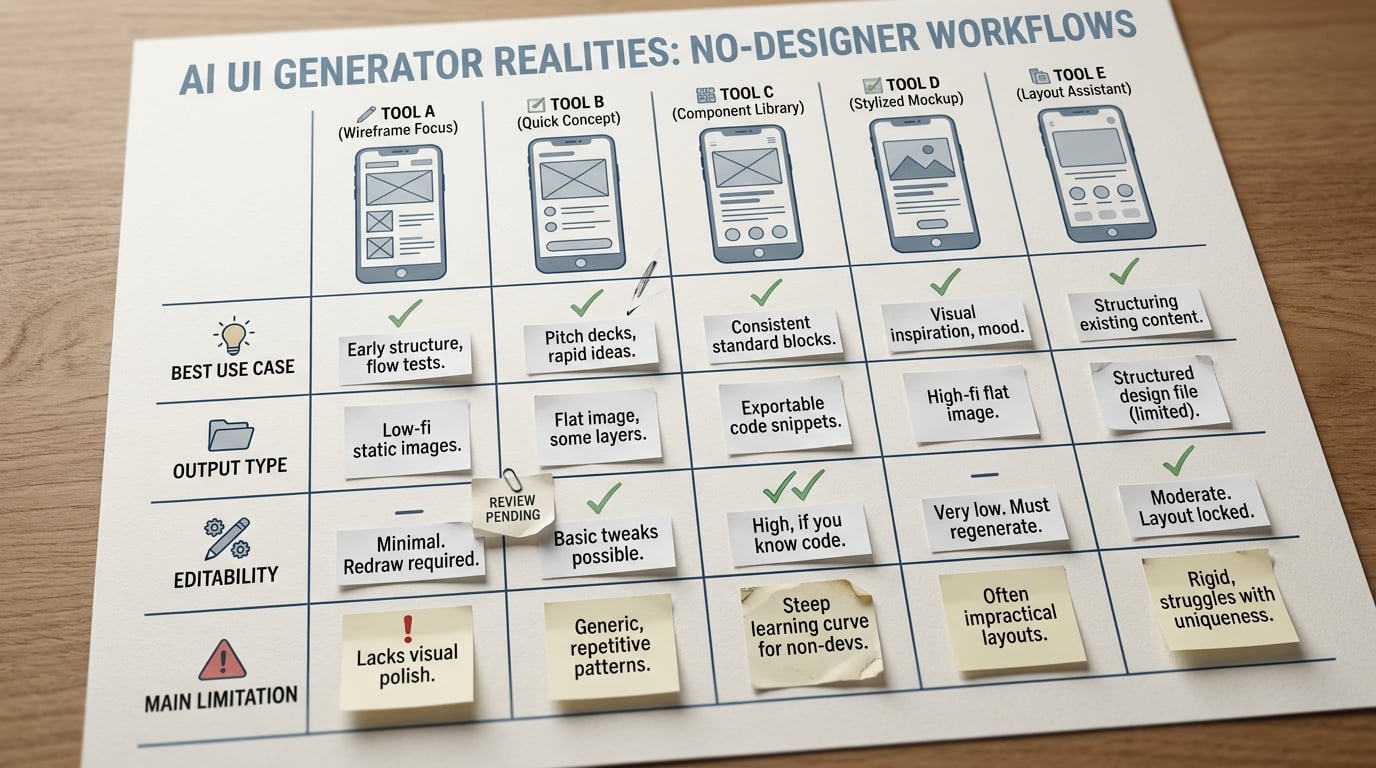
A comparison table visual for this article showing five AI app UI generators with columns for best use case, output type, editability, and main limitation in no-designer mobile app workflows.
A solid 1-2 paragraph brief (user, core job, key entities, and one happy-path flow) plus iOS or Android targets is usually enough to draft a small connected flow. Expect fast wins on common screens, and expect gaps on edge cases, realistic content, and system details.
| What you provide | What the AI UI generator can draft | Where it typically breaks |
|---|---|---|
| Brief + platform + brand hints | 3-8 linked screens for one core flow | Navigation and component drift after revisions |
| Sample copy + data fields | Login, onboarding, dashboard, settings | Missing empty, loading, error, and offline states |
| One example app to mimic | Reasonable layout hierarchy and spacing | Weak permissions, system dialogs, and platform conventions |
Explanation: This is based on typical internal drafting benchmarks across common onboarding-to-first-action flows, not a guarantee. Using mainstream tools and a clean brief, teams often see initial generation in ~10-25 minutes for a 5-8 screen flow, then 30-90 minutes of export and cleanup (layers, naming, components, text styles) depending on how strict the handoff needs to be.
Interpretation: AI is strongest at first drafts: hierarchy, common components, and a plausible happy path. It is weaker at the work that usually drives real product time: state coverage, accessibility, permissions, and staying consistent after change requests.
Reader impact: Plan for 30-120 minutes to get to a critiqueable draft, plus at least 1-2 review cycles (product plus engineering) before treating anything as handoff-ready. If you need production-level specs, budget more time for tokens, states, responsive behavior, and content realism.
Metric hook to keep you honest: Track two numbers in a simple Notion or Jira checklist: generation time and cleanup time. If cleanup time is more than 2x generation time, the tool or prompt is a poor fit for your workflow. Also track missing-state count; if you have 10+ missing states across the flow, redo the brief before you polish visuals.
When you move from outline to execution, How to Make Your App Look Professional Without Hiring a Designer helps close common gaps teams hit here.
Which AI tools are best for app UI without a designer?
| Rank | Tool | Best for | Ideal workflow | Main tradeoff |
|---|---|---|---|---|
| 1 | ScreenFlow | Mobile-first UI drafts and linked flows | Describe feature - generate screens - refine components | Needs tight product copy and stable field names (ScreenFlow) |
| 2 | Dezyn | Editable UI concepts for review | Prompt - generate screens - edit layouts - share | Restyle and state coverage still on you (Dezyn) |
| 3 | Qorvex | Closer-to-build app structure | Prompt - generate flow - validate components - align to RN/Expo | Requires engineering sanity checks and refactors (Qorvex) |
| 4 | MakeUI | Figma-friendly starting points | Generate UI - export - clean up - map to system | Export quality varies with component complexity (MakeUI) |
| 5 | Mowgli | Variations and early direction | Canvas brainstorm - assemble flow - pick a direction | Great for ideation, weaker for build-ready handoff (Mowgli) |
This ranking is for founders and PMs optimizing for: prompt-to-wireframe speed, editability across multiple screens, mobile structure quality, export path, and small-team iteration. It favors tools that survive revisions, not just polished one-offs.
What this means in practice: the main risk is rarely "can it make a pretty screen?" It is revision drift and hidden cleanup time that shows up right before a demo or sprint planning.
A complementary angle worth comparing lives in 10 Best No-Code Mobile App Builders This Year.
Ranked recommendations: the five AI tools we would shortlist first
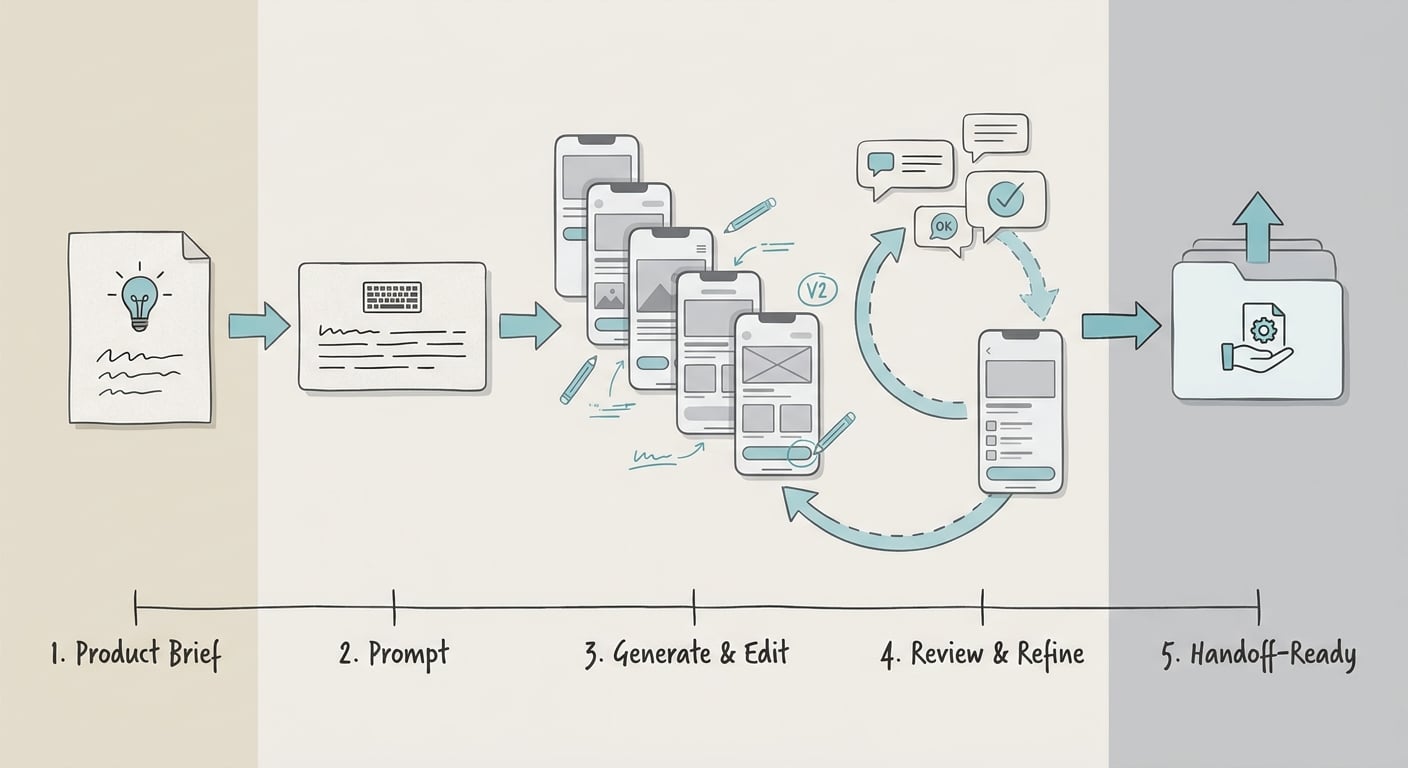
A process diagram showing the no-designer workflow from product brief to prompt, generated mobile screens, light edits, stakeholder review, and handoff-ready iteration using an AI UI generator.
1. ScreenFlow: strongest for connected mobile app flows
- Best for: multi-screen journeys where consistency matters more than exploration
- Typical win: linked screens with standardized navigation patterns across a flow (ScreenFlow)
- Dependency: works best when your screen list and field schema are stable for a few days; daily churn turns every regen into rework
- Common failure mode: after 2-3 revision loops, patterns diverge (button placement, spacing, labels) unless you lock a small set of components
- Effort note: plan ~2-6 hours to get a small flow stakeholder-ready if you handle cleanup and state gaps yourself
2. Dezyn: good editable concepts when you need fast iterations
- Best for: teams that need "good enough to review" screens and quick stakeholder cycles
- Typical win: coherent screens you can edit and comment on without starting over (Dezyn)
- Dependency: you need at least basic component hygiene (consistent labels, reusable elements) or edits get messy fast
- Common failure mode: output gets treated as a spec; call out what is missing (states, permissions, rules) before reviews
- Effort note: expect a restyle pass (often 1-2 working sessions) plus one engineering review for feasibility
3. Qorvex: closer to build constraints, but not a free pass to production
- Best for: React Native or Expo teams that want engineering to validate structure early (Qorvex)
- Typical win: a more implementation-shaped flow (navigation skeleton, component inventory, basic screens)
- Dependency: you still need product decisions on state management, data loading, and permissions; the tool cannot pick those safely for you
- Common failure mode: UI looks implementable, but the interaction model is underspecified (loading, retries, offline, deep links)
- Effort note: time saved shows up only if an engineer reviews within the same day, not at sprint planning
4. MakeUI: practical when your workflow centers on Figma exports
- Best for: teams living in Figma that want a fast draft they can clean up (MakeUI)
- Typical win: quick screens you can adjust before engineering sees them
- Dependency: best results when you already have a component library and someone who knows how to map output to it
- Common failure mode: token loss and broken components after export, especially with nested variants and complex layouts
- Effort note: budget 30-120 minutes per flow for layer cleanup and component remapping if handoff quality matters
5. Mowgli: best for exploration, not handoff certainty
- Best for: early ideation when you are still finding product shape (Mowgli)
- Typical win: many variations that help you pick a direction and communicate intent
- Dependency: you must be willing to rebuild in your primary design tool and then again in code
- Common failure mode: the "winning" concept cannot survive real data, edge states, or platform constraints without redesign
- Effort note: treat it as a discovery asset, not a sprint deliverable
For tradeoffs, checklists, and edge cases, How to Start Building Mobile Apps With Zero Experience rounds out this section.
How do you choose the right AI UI generator for your workflow?
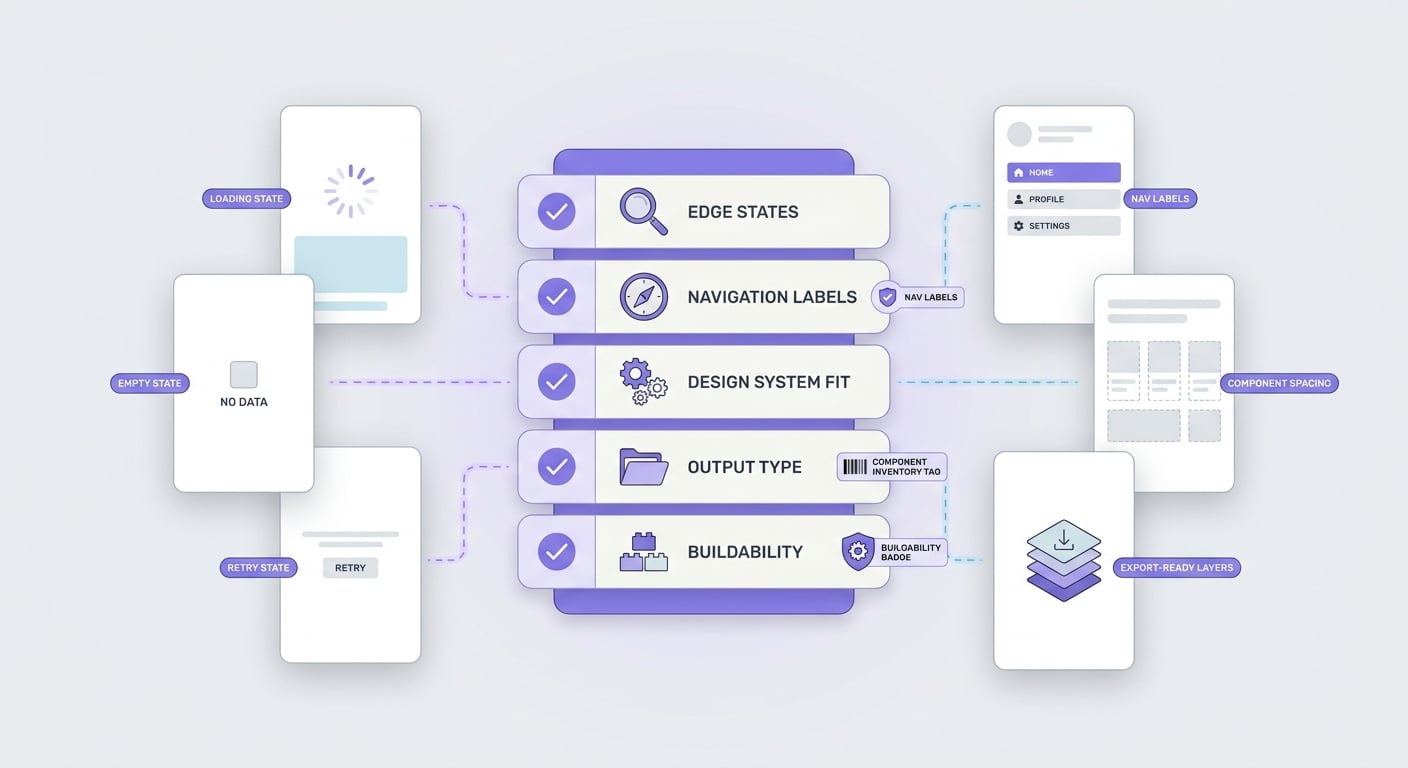
A concise review checklist for AI-generated app UI before engineering handoff, covering edge states, navigation labels, design system fit, output type, and buildability.
Pick by product stage, not feature list:
- Use flow-focused tools when you already know the journey and need consistency across screens (example: ScreenFlow).
- Choose editable concept tools when alignment beats polish and you want fast iteration with stakeholders (example: Dezyn).
- Reach for build-leaning generators when engineering needs an early sanity check on navigation and components (example: Qorvex).
- Use canvas ideation tools when you need options and can afford to rebuild later (example: Mowgli).
Common failure modes (and who usually fixes them)
These tools can save time, but they also create predictable cleanup work. Staff the work explicitly or it will land on whoever is "available" right before a deadline.
- Design-system mismatch (design-minded PM or designer, 1-4 hours): spacing, typography, and components are almost right but not reusable.
- State gaps (PM plus engineer, 1-3 hours): happy path exists, but empty, loading, error, permissions, and offline are missing.
- Accessibility misses (designer plus engineer, 1-6 hours): contrast, touch targets, focus order, and dynamic type usually need manual work.
- Export breakage (designer, 30-120 minutes): flattened styles, unusable naming, broken components after export.
- Revision drift (PM, ongoing): each change request pushes screens out of sync unless you enforce a component set and naming rules.
A practical 60-minute draft sprint (operator format)
Prerequisites (5-10 minutes): a screen list for one flow, real field names, and 2-3 example records (so copy and data are not placeholder). If you do not have these, expect the sprint to spill into 90-120 minutes.
Write the brief (10 minutes)
Define user, job-to-be-done, platform, navigation pattern (tabs vs stack), and the core entities (for example: Project, Task, Member). Include at least one empty state and one error state so the draft has real constraints.
Generate the first pass (10-15 minutes)
Create 5-8 screens for one flow (onboarding to first success). Do not chase aesthetics yet; focus on information, actions, and screen order.
Do a fast consistency pass (10 minutes)
Check nav labels, component reuse, and whether fields are consistent across screens. Log drift immediately; it compounds after each revision.
Decision point: prototype vs build draft (5 minutes)
Decide what you are making:
- Prototype for alignment: keep it lo-fi, prioritize copy, rules, and flow.
- Build draft: start mapping to your design system and add states before visual polish.
Export test and gap list (10-15 minutes)
Export once, open it where your team works (often Figma), and log gaps: missing states, broken components, token mismatches, and anything engineering will reject.
Expected outputs: a screen list, a basic field schema, an edge-state checklist, and an export-tested file you can review without apologizing for obvious holes.
Tracking (2 minutes): in Notion or Jira, capture:
- Generation time
- Cleanup time (flag if >2x generation time)
- Missing-state count (redo brief if 10+)
Next step: run the 60-minute draft sprint
Timebox one real flow (onboarding to first success) and track generation time, export cleanup time, and missing-state count.
Draft sprint checklist


