
Finding the exact Bundle ID for an iOS app is a small but critical task. If you need to sign builds, configure push, or troubleshoot "Access Denied" errors in CI, the correct CFBundleIdentifier ties your code, Apple services, and entitlements together. This short guide shows where to look, how long each check typically takes, and the tradeoffs you should expect.
| Label | Short evidence |
|---|---|
| Explanation | A wrong Bundle ID can block App Store submission, break push, and cause entitlement mismatches. |
| Interpretation | Quick reads take 1-15 minutes; fixing provisioning or org-permission problems often takes hours to days depending on approvals. |
| Reader impact | Confirm the exact Bundle ID early to avoid multi-day CI or release delays and repeated build churn. |
How to find bundle ID for iOS app goes deeper on the ideas above and adds concrete next steps.
Where can I find the iOS Bundle ID?
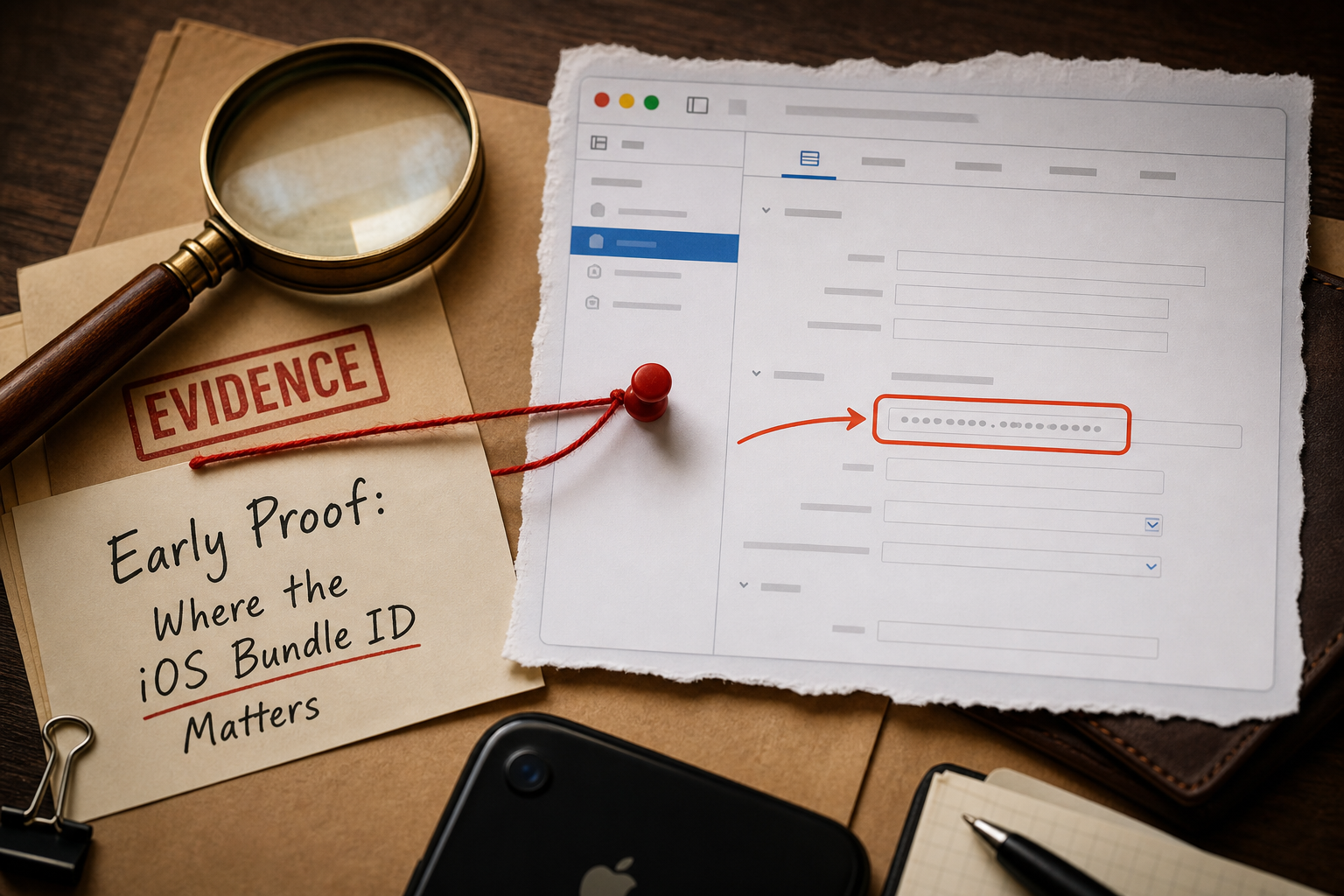
Cropped, annotated mockup (no real UI text) showing the Xcode General tab layout with an obfuscated Bundle Identifier field highlighted. The image focuses on where to copy the identifier, with non-readable placeholders for project names.
| Source | When to use it | Practical note |
|---|---|---|
| Xcode - Target > General > Bundle Identifier | You have source and build access | Fastest check - 1 to 5 minutes. Requires correct scheme and source. |
| Info.plist inside .app or .ipa | You only have a binary | Reliable runtime value - 5 to 15 minutes to extract. No developer role needed. |
| App Store Connect - App Information | You need the published app's canonical value | Shows the bundle tied to the App Record; needs App Manager/Admin role and may not reflect local test builds. |
What this means: pick the source that matches your role. Developers: Xcode. QA or release engineers: .ipa extraction. Product or support: App Store Connect.
Screenshot description to include (trust-building visual)
Show a cropped Xcode General tab with the Bundle Identifier field highlighted. Obfuscate project and team names. Caption: "Copy this exact string; it is case-sensitive and dot-delimited."
When you move from outline to execution, Why Code Signing Is the Most Confusing Part of iOS Publishing helps close common gaps teams hit here.
How do I find the Bundle ID step-by-step?
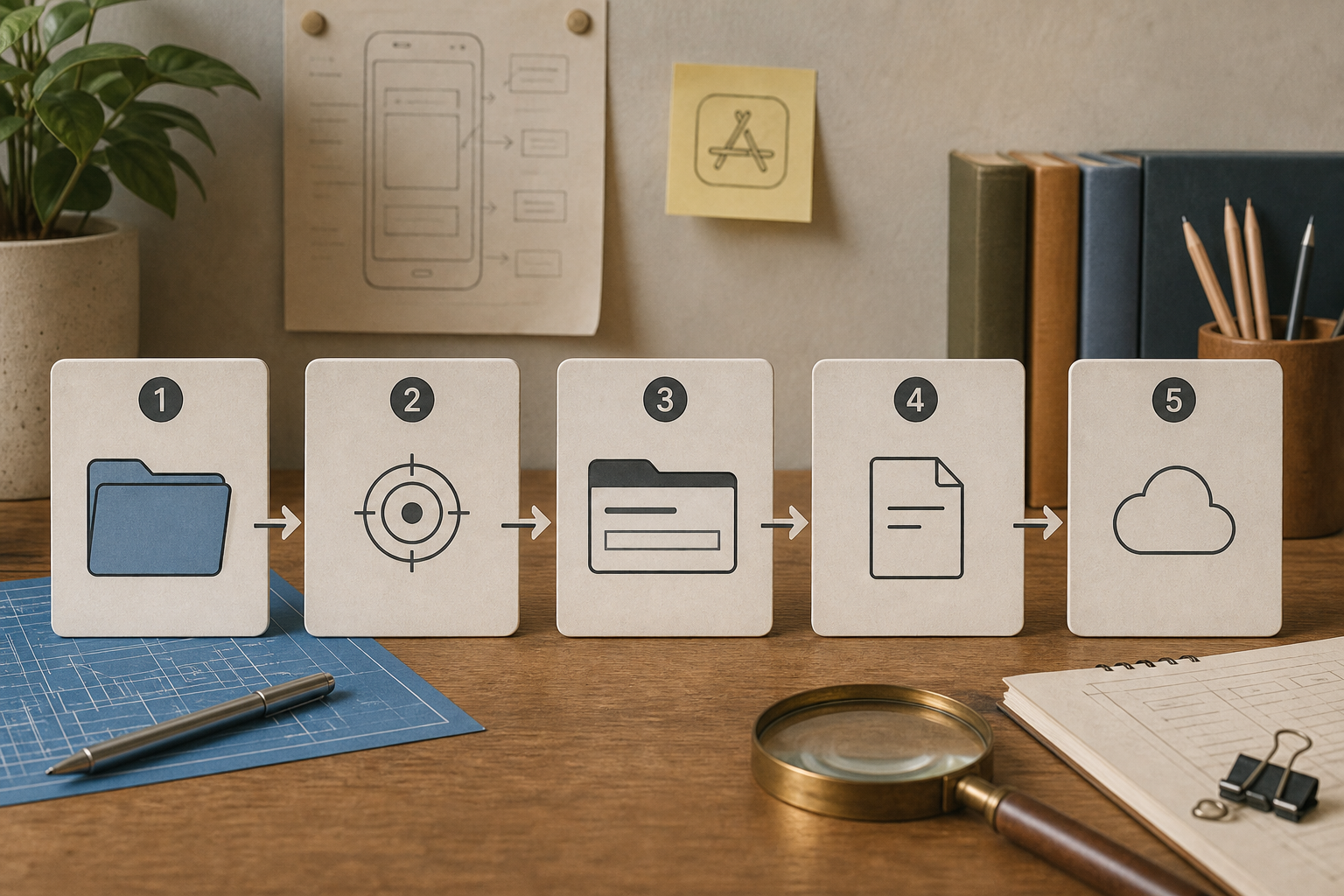
Simple process diagram showing the step flow: Open project → Select target → General tab → Copy Bundle Identifier → Confirm in App Store Connect. Each node includes a 1-line action to emphasize exact clicks or commands.
Summary: Use the workflow that matches what you can access. Expect a few minutes for read-only checks and additional time if you need approvals or to regenerate credentials.
Prerequisites: accounts, permissions and files to have ready
- Apple ID with App Store Connect access (Admin, App Manager, or Developer) when viewing app records.
- Local project or exported .ipa/.app if inspecting a binary.
- macOS tools (Xcode, unzip, plutil) for Info.plist inspection.
- Realistic expectation: requesting a role or creating an API key often takes a few hours; in larger orgs with approvals it can take multiple business days.
Method A - In Xcode (developer recommended)
Open the project and select the target
Open the project in Xcode and choose the app target under TARGETS.
Open the General tab and copy Bundle Identifier
Copy the string from Bundle Identifier; this is the CFBundleIdentifier used at runtime.
Confirm build settings for multiple targets
If there are multiple schemes or targets, verify the identifier for the exact target you will sign and submit.
Practical time: 1 to 5 minutes. Tradeoff: requires source access and correct scheme selection.
Method B - From App Store Connect or the compiled .ipa (for non-devs and published apps)
App Store Connect
Log in to App Store Connect, go to My Apps, open the app and check App Information -> Bundle ID. This shows the bundle tied to the App Record.
If you get "Access Denied"
Check Users and Access for your role and request App Manager or Admin access if needed. Approvals can take hours to days depending on your org.
Extract CFBundleIdentifier from an .ipa
Rename the .ipa to .zip, unzip, open Payload/*.app/Info.plist and run plutil -p Info.plist to read CFBundleIdentifier. This is a reliable fallback when you only have the binary.
Practical time: .ipa extraction 5 to 15 minutes; permission fixes can take longer. Risk: org policies, revoked keys, or lack of access can block UI/API checks.
Request an identifier audit
Need help auditing app identifiers across teams quickly and safely?
A complementary angle worth comparing lives in App Store Connect vs Google Play Console: Key Differences.
Why am I seeing Access Denied and how do I fix it?
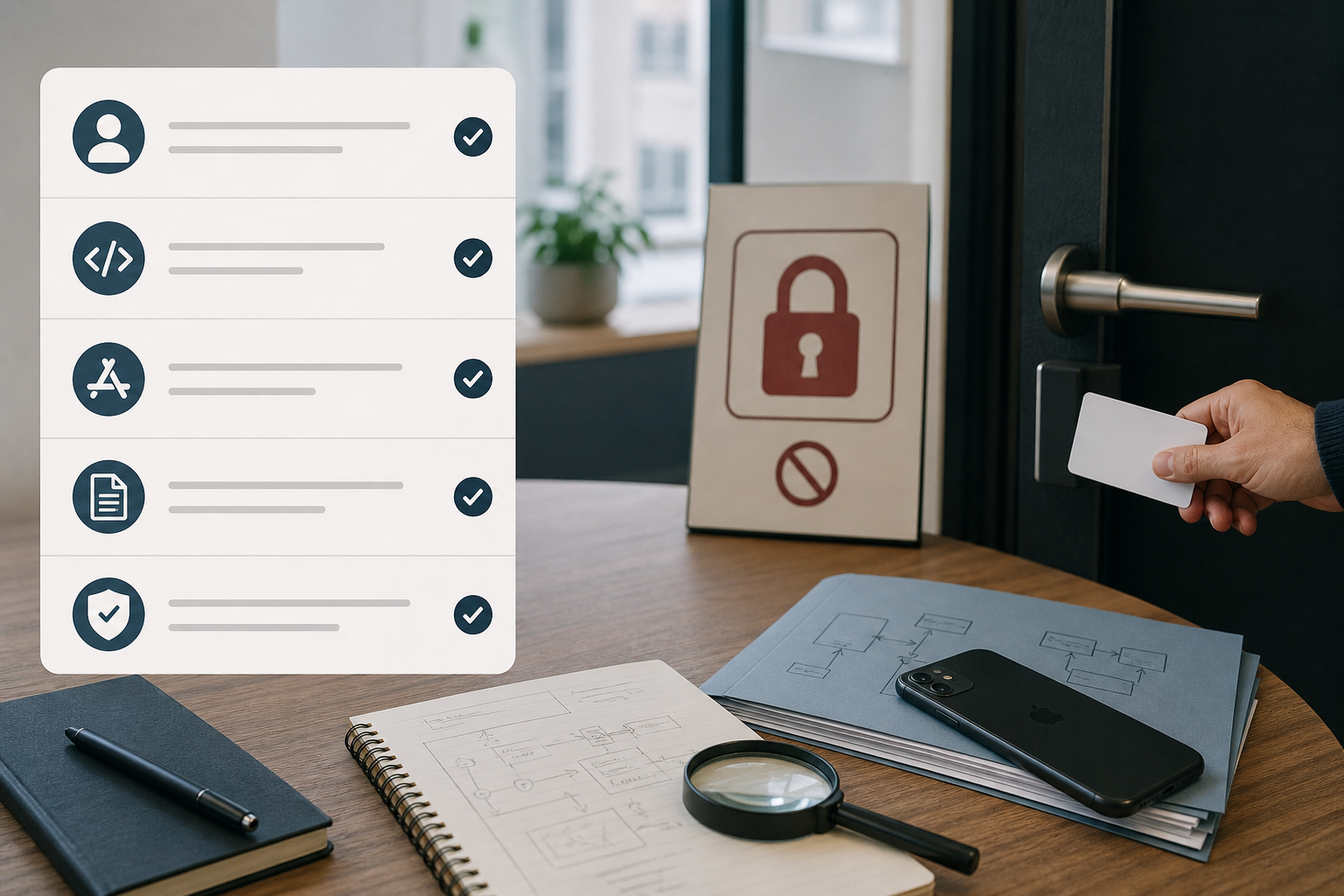
Compact checklist block showing the execution checklist items: confirm App Store Connect role, copy Bundle Identifier from Xcode, cross-check with App Store Connect, extract Info.plist if needed, verify at runtime. Designed for quick tap-through verification.
Summary: Common failure modes, quick fixes, and a compact preflight you can run in minutes.
Named anti-patterns that cause a wrong or mismatched Bundle ID
- Using placeholder IDs like com.example.app in production.
- Changing the Bundle Identifier in Xcode without updating the App Store Connect App ID and provisioning.
- Confusing the Bundle ID with the Team or App ID prefix; mismatched prefixes cause provisioning failures.
The implication: small naming mistakes can create major release delays.
Permission Server / Access Denied - stepwise troubleshooting
- Confirm App Store Connect Users and Access role first; privileges are the most common cause.
- For CI/API failures, verify the API key's Issuer ID and Key ID and whether the key was revoked.
- Rotate the API key only if necessary; rotation requires updating CI secrets and may interrupt deployments.
- Fallback to .ipa inspection when UI or API access is blocked.
One thing worth noting: Access Denied usually signals a privileges or key issue, not a wrong Bundle ID. The practical takeaway is to fix access before chasing identifier changes.
Execution checklist - immediate preflight and validation steps
- Confirm your App Store Connect role and team membership.
- Open Xcode target > General and copy the Bundle Identifier exactly (case-sensitive).
- Cross-check with App Store Connect -> My Apps -> App Information -> Bundle ID when possible.
- If you only have the binary, extract Info.plist from the .ipa and run plutil -p to read CFBundleIdentifier.
- If APIs return Permission Server or Access Denied, request role changes or rotate keys and update CI secrets with care.
Final steps and tradeoffs
If you change a Bundle ID, understand the consequences: Apple treats it as a different app. That means a new App Store listing, separate user data and analytics, and new provisioning and entitlements. In practice, avoid changing the Bundle ID for production apps unless you intend to publish a replacement.
Operational costs: expect a few hours for small teams to regenerate profiles and update CI, and multiple business days for larger orgs with approval gates. For quick checks, .ipa extraction is low-effort. For long-term CI reliability, invest time upfront to fix API permissions and confirm Issuer and Key IDs to reduce flaky deployments later.
Download the bundle ID checklist
Want a short, shareable checklist to use before releases?


