If your iOS release pipeline keeps stalling on signing errors or App Store Connect rejections, the root cause is often not your code alone, but an identifier mismatch. Apple Team ID, Bundle ID, and App ID get conflated more often than most teams admit, especially with agencies, multiple targets, or last minute capability changes. This write-up separates what each one controls across Xcode, certificates, and App Store workflows so you can diagnose issues faster without defaulting to blind retries.
Why Code Signing Is the Most Confusing Part of iOS Publishing goes deeper on the ideas above and adds concrete next steps.
What is the difference between Team ID, Bundle ID, and App ID?
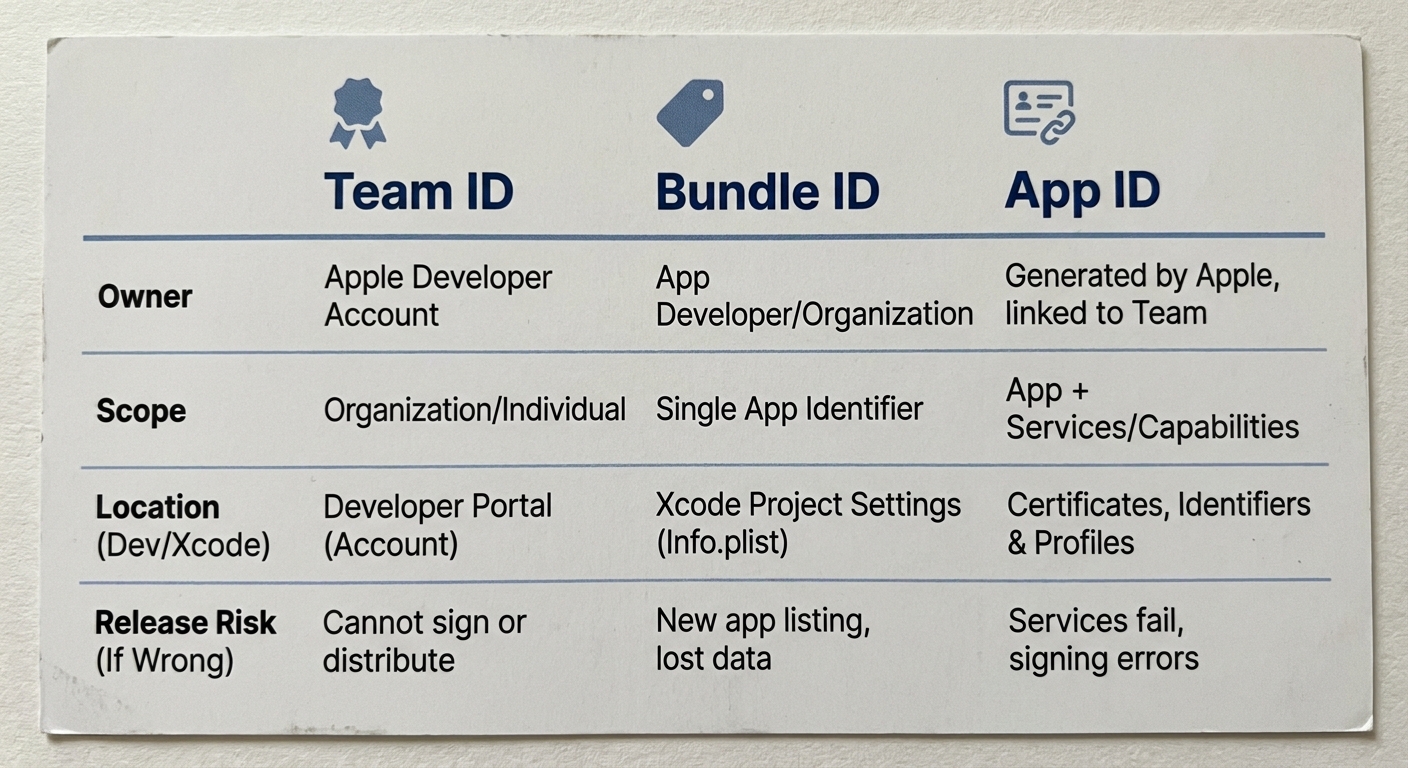
A compact three-column comparison table for Apple Team ID, Bundle ID, and App ID, showing owner, scope, where it appears in Apple Developer or Xcode, and the release risk if it is wrong.
| Identifier | Owner and where it lives | Scope and what it controls | If wrong, what breaks (common symptom) |
|---|---|---|---|
| Apple Team ID | Your Apple Developer team | Which account can sign and ship | You sign with the wrong org or cannot create profiles (No profiles for ... were found) |
| Bundle ID | Your app target in Xcode (CFBundleIdentifier) | Uniquely identifies the app on device and in App Store mapping | Install/update conflicts or upload mismatch (bundle identifier ... does not match) (Apple) |
| App ID | Apple Developer portal record | Binds Team ID + Bundle ID for entitlements and services | Provisioning fails when entitlements do not match (doesn't support the ... capability) (Apple) |
What it is: a quick way to see which system owns each identifier (Xcode vs Apple Developer portal) and what it affects.
How to read it: when something fails, match the error to the layer (team ownership, bundle identity, or entitlements/capabilities).
Impact: in my experience this often saves 20-60 minutes of certificate/profile churn. It will not help if you are blocked by permissions (Account Holder/Admin), a certificate rotation is in progress, or Apple portals are flaky that day.
When you move from outline to execution, App Store Connect vs Google Play Console: Key Differences helps close common gaps teams hit here.
How do Apple Team ID, Bundle ID, and App ID work?
Most publishing delays I see are not technical debt, they are identity debt. A team hits a signing failure or an App Store Connect upload error, then starts changing things until something sticks.
The practical model:
- Team ID: who owns the signing and distribution rights.
- Bundle ID: what the app is called at the OS and App Store mapping layer.
- App ID: the portal record that ties that bundle identity to capabilities and entitlements.
One thing worth noting: Apple UI changes and org setups vary (multiple teams, multiple targets, enterprise). Treat steps as directional, and expect extensions and capabilities (push, app groups) to add time and edge cases.
A complementary angle worth comparing lives in Everything You Need to Know About Apple and Google Developer Accounts.
How do the three identifiers work across Apple publishing?
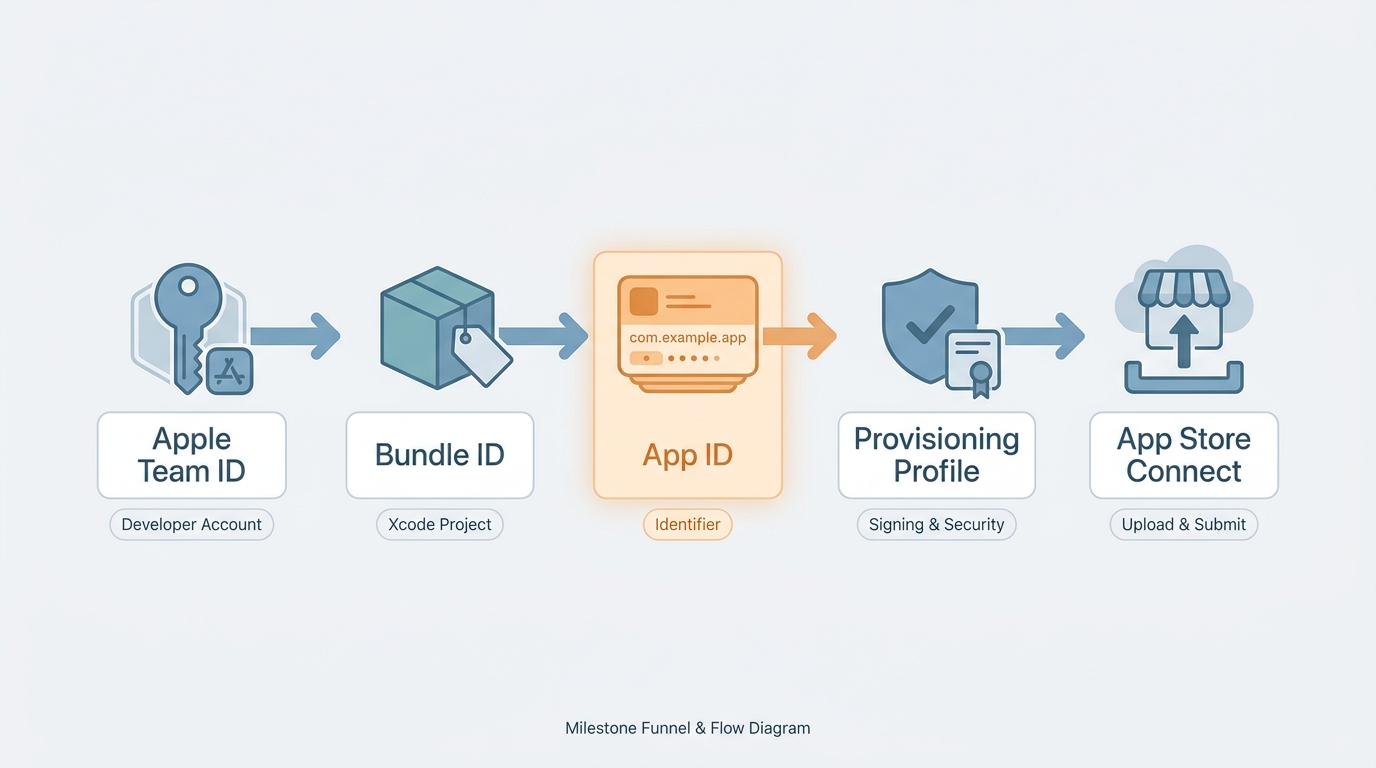
A simple flow diagram showing Team ID in Apple Developer leading into Bundle ID in Xcode, then App ID and provisioning profile creation, and finally App Store Connect upload.
This is the workflow I use when a build fails to sign or upload. With the right access, it is often 10-30 minutes. Without it, the real timeline is usually "until the right person is available."
Confirm the Team ID (ownership)
In Xcode, check the selected Team under Signing and Capabilities for the main target. If the Team is wrong, any profiles you create will be wrong too.
Confirm the Bundle ID (product identity)
In Xcode, verify the Bundle Identifier for the scheme/configuration you are shipping. Treat Bundle ID as sticky: changing it midstream can break update continuity and force new App Store Connect setup (Apple).
Confirm the App ID (capabilities and entitlements)
In the Apple Developer portal, the App ID record is where push, Sign in with Apple, iCloud, and similar services are enabled. If entitlements in your build do not match what the App ID and profile allow, you will get signing or validation failures.
Concrete failure mode to recognize: enabling Push Notifications in Xcode, then archiving and seeing Provisioning profile ... doesn't support the Push Notifications capability or APS Environment entitlement missing. The fix is rarely "try a new certificate" first; it is usually enabling push on the App ID in the portal, regenerating the provisioning profile, then re-downloading/refreshing it in Xcode.
For tradeoffs, checklists, and edge cases, Firebase Analytics and Apple Privacy Labels: What to Declare rounds out this section.
How do you find and fix Bundle ID mismatches before archiving?
This is what I run when a build "should work" but does not. Budget 15-30 minutes the first time (especially with extensions), and 5-10 minutes once your team has a short runbook.
Xcode: verify Team + Bundle ID
Open the app target - Signing and Capabilities. Confirm the Team dropdown and the Bundle Identifier field, then repeat for each extension target.
Xcode: confirm what is actually being built
Run
xcodebuild -showBuildSettingsfor the scheme you are archiving and confirmPRODUCT_BUNDLE_IDENTIFIER. This catches per-configuration overrides.Apple Developer: confirm the App ID record exists
In Certificates, Identifiers and Profiles, find the Identifier for your app and confirm it matches the Bundle ID (or the registered pattern) under the same team.
Apple Developer: check capabilities and entitlements
Verify required services are enabled on the App ID. If you added a capability recently, assume you will need to regenerate the provisioning profile.
Profiles: regenerate only if needed
Regenerate when capabilities changed, profiles are missing/expired, or certificates rotated. This can be fast, or it can be blocked by permissions, two factor auth, or internal approvals.
App Store Connect: verify the app record mapping
Open the app record and confirm the Bundle ID matches what your build uses. If it does not match, uploads can fail validation or land under a different app.
Common drift patterns to watch for:
- Wrong Team selected in Xcode, often after switching accounts or working with an agency.
- Bundle ID drift across targets/configurations, especially with extensions.
- Using "App ID" to mean "Bundle ID" in conversation, then changing the wrong thing (Apple).
Dependency caveat: even when identifiers are correct, uploads can still fail for non-identity reasons (export compliance, privacy disclosures, versioning, missing usage strings). This checklist is intentionally focused on the identity layer.
Check your IDs before you regenerate anything
Spend 10 minutes running the drift check across Xcode, Apple Developer, and App Store Connect before you rotate certificates or profiles. It often saves real time, but it is not a guarantee if access or portal issues are the bottleneck.
Run the drift check
IDFA, Analytics, and App Privacy: What to Declare reframes the same problem with a slightly different lens - useful before you finalize.
What should founders and app teams do next?
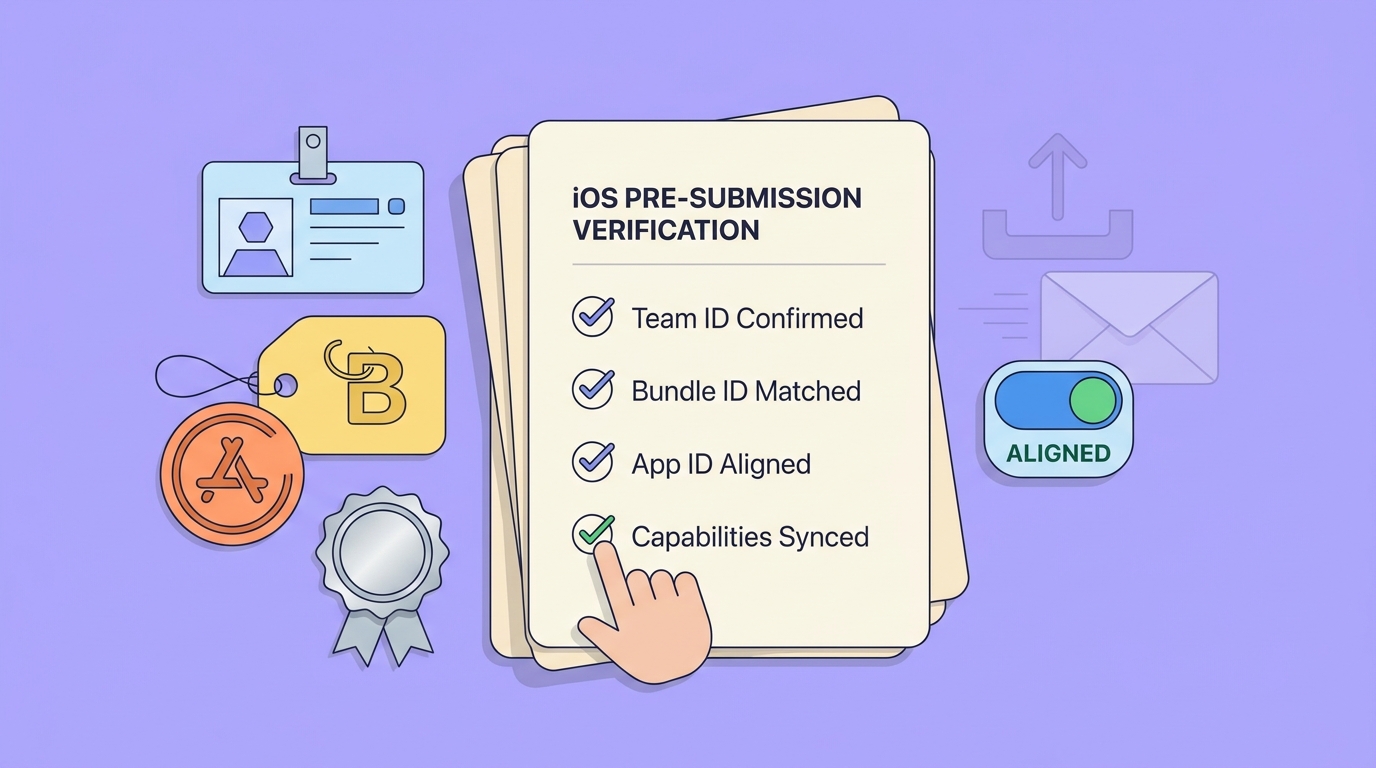
A mobile-friendly checklist highlighting the pre-upload verification steps for Team ID, Bundle ID, App ID, and capability alignment before an App Store submission.
Treat these identifiers like production infrastructure, not tribal knowledge. The goal is not more process, it is fewer release-day surprises when roles change, certificates expire, or someone toggles a capability late.
A lightweight checklist that stays realistic:
- Team ID: note which Apple Developer team owns the app and who has Account Holder access.
- Bundle ID: document the exact string per target (main app plus extensions) and per environment if you ship multiple.
- App ID: track which capabilities are enabled and when profiles were last regenerated.
The tradeoff: you spend 15-30 minutes writing this down and keeping it current (and a few minutes each time you add a capability). The upside: fewer "why is this failing on release day" loops when you are already under deadline pressure.
Make this part of your release runbook
Add Team ID, Bundle ID, App ID, and the drift check steps to your next release checklist so identifier issues are caught before archive day.
Add it to your runbook