If your iOS releases still depend on whoever has the right Xcode version, the right certificates, and the patience to click through Archive and Upload, you are one signing change away from a broken build. The beginner pain is usually not YAML, it is repeatability: code signing, build numbers, and App Store Connect permissions. By the end, you will have a small CI/CD setup that runs on every commit and can produce a signed artifact you can ship from (after you do the one-time signing work).
Early proof callout: these are timelines from real first-time setups on typical apps, not guarantees. They are directional because project complexity, Apple account access, and signing history can swing the time a lot.
| Early proof snapshot (from real first setups) | What it is | How to read it | Impact for you |
|---|---|---|---|
| First working CI build: 30-90 minutes | Getting xcodebuild to run on a clean macOS runner | If this takes longer, it is usually schemes, destinations, or dependency resolution | You stop relying on one developer machine to confirm "it builds" |
| First successful signed IPA: 2-6 hours (often split over 1-2 afternoons) | Wiring signing + export options + keychain access | Expect a few failed runs while you fix entitlements/profiles | Release day becomes less about panic debugging and more about approvals |
| First TestFlight upload: 1-3 hours after signing is stable | App Store Connect auth + upload step | Common blockers are missing roles, expired sessions, or app metadata | Anyone on the team can produce a beta without knowing your laptop setup |
These numbers represent elapsed time to the first green run, including the inevitable failed attempts. They vary mostly due to Apple access (roles, API keys), existing signing mess, and how clean your project is (shared schemes, dependencies, flaky tests). The reader impact is simple: once you get the first boring, repeatable run, future releases become a checklist instead of a rescue mission.
The point is predictability: once it works, repeat runs are boring, and boring is good for releases. The tradeoff is you will surface problems you have been unintentionally masking locally, especially around signing and flaky tests.
CI/CD Pipelines Are Overkill for Most Mobile App Publishers goes deeper on the ideas above and adds concrete next steps.
Why does CI/CD matter for shipping iOS apps reliably?
What breaks when every iOS release is manual
Manual iOS releases fail in predictable ways: the build only works on one Mac, someone forgets to refresh a provisioning profile, or Xcode quietly changes behavior after an update. The Archive and Upload flow also hides problems until the worst moment, because signing and export issues show up late.
What this means in practice is longer feedback loops and more "it worked for me" time. CI/CD does not remove Apple constraints, but it makes failures earlier, visible, and repeatable.
What a simple iOS CI/CD pipeline looks like
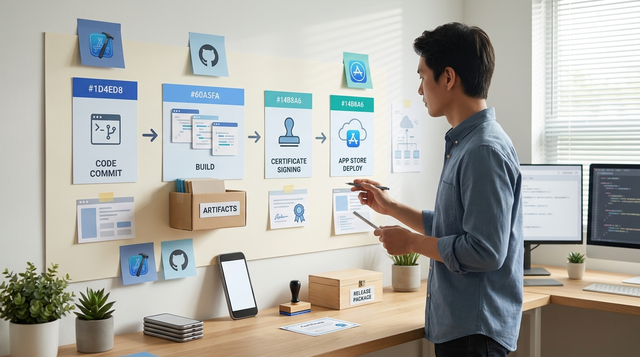
Pipeline mental model: Git push - build - test - archive - sign - produce an artifact - optionally upload to TestFlight. Start with CI (build and tests) and add CD (distribution) once you can reliably create a signed IPA on a clean runner.
One thing worth noting: iOS CI needs macOS runners, and distribution depends on App Store Connect roles plus stable signing assets. Those are often the real bottlenecks, not the pipeline config.
What this beginner setup will let you do (and what it will not)
You will be able to:
- Build and run tests automatically on every push or pull request.
- Produce a signed artifact repeatably once signing is configured.
- Turn release day into a short checklist: bump version, confirm notes, approve upload.
You will still need:
- Ongoing maintenance (often 15-30 minutes per week at first while you kill flaky tests and stabilize caching).
- Periodic security and access work (certificate rotations, API key hygiene, offboarding).
When you move from outline to execution, How to Get Your First 1,000 Users for Your iOS App helps close common gaps teams hit here.
What does a beginner-friendly iOS CI/CD pipeline look like?
Manual release versus automated release
| Release step | Manual (local) | CI/CD (beginner setup) |
|---|---|---|
| Build environment | Your laptop Xcode state | Clean macOS runner, pinned Xcode |
| Code signing | Ad hoc keychain fixes | Managed signing or encrypted secrets |
| Tests | Skipped under time pressure | Runs automatically before distribution |
| Failure mode | Works for you, fails for others | Fails early with logs and artifacts |
Tradeoff: CI will surface issues you have been accidentally ignoring (missing shared schemes, flaky tests, dependency resolution). That can feel like extra work, but it is usually work you would have paid during a release anyway.
The minimum you need before you start
- A buildable
.xcodeprojor.xcworkspacein Git, with shared schemes enabled. - At least one test target (even a small one helps).
- A CI provider with macOS runners (Xcode Cloud, Codemagic, Appcircle, GitHub Actions macOS).
- Apple Developer Program + App Store Connect access (and the right roles to upload builds).
Dependencies to plan for up front:
- Apple Developer Program enrollment or renewals can take days in some orgs (legal and payment approvals are common blockers).
- App Store Connect role changes often require an admin, and you may discover you cannot upload the moment you try.
- If you rely on interactive 2FA logins, plan on using App Store Connect API keys or a safer auth approach to avoid brittle sessions.
A complementary angle worth comparing lives in Step-by-Step Guide to Publishing Your First Mobile App.
How do you set up iOS CI/CD step by step?
1. Prepare the repo and Xcode project
Prove it builds from the command line
Your CI runner will not "click play" in Xcode, so validate the exact build and test command up front. Plan 15-45 minutes the first time, usually to fix shared schemes, the right workspace, and a deterministic simulator destination.
Minimal example (works locally and on most macOS runners):
xcodebuild test \
  -workspace MyApp.xcworkspace \
  -scheme MyApp \
  -destination 'platform=iOS Simulator,name=iPhone 15,OS=latest' \
  -resultBundlePath artifacts/TestResults.xcresult
Make tests reliable (before you make them fast)
Keep unit tests independent from UI tests and remove local-only assumptions. The usual CI breakers are keychain access, real network calls without stubs, and tests that depend on simulator state.
Commit what runners need, exclude secrets
Commit the project/workspace and dependency lockfiles, but never signing keys or tokens. If you see "scheme not found" in CI, it is almost always because the scheme was not shared.
2. Add a CI workflow that builds and runs tests
Trigger on push and pull request
This prevents "works on my machine" from becoming a weekly argument. Expect a few red builds early while you standardize Xcode versions, destinations, and test stability.
Keep the build step boring and inspectable
Use
xcodebuild(or your wrapper) and always upload logs and the.xcresultbundle as artifacts. When it fails, you should be able to debug from evidence, not reruns.Track one health metric
Pick one that forces focus: percent green builds on
main, median build time, or flaky test rate. If you are new, start with percent green builds onmainso reliability wins first.
CTA: Get a simple iOS CI checklist you can copy
A short, operator-style checklist for the first 2 afternoons: repo prep, CI build, signing, TestFlight upload, and who needs what App Store Connect role.
Get the checklist
3. Automate signing and distribution (carefully)
Centralize signing so it is repeatable
Use a tool (Fastlane is the common default):
matchfor certs and profiles, thenpilotfor TestFlight. Budget 2-6 hours the first time because you will likely hit an entitlement mismatch, wrong profile type, a missing keychain unlock step, or an expired asset.Get to a signed IPA first, then add TestFlight
A green simulator test run is not a shippable beta. Uploads can fail on App Store Connect roles, auth/session issues, bundle ID mismatches, or missing app metadata.
Keep production release manual at first
Add an approval checkpoint for App Store submission until you have seen a few clean cycles. This lowers the risk of shipping a technically valid build that is not product-ready.
For tradeoffs, checklists, and edge cases, Why Code Signing Is the Most Confusing Part of iOS Publishing rounds out this section.
Which CI/CD mistakes cause iOS pipelines to fail most often?
The usual blockers after "hello world" CI
- Xcode drift: local Xcode differs from the runner, and warnings become errors.
- Unshared schemes: CI cannot find the scheme even though Xcode can.
- Signing assumptions: scripts rely on a local keychain state that CI does not have.
- Flaky UI tests: they pass locally and fail on clean simulators, then block merges.
Another real constraint: teams bottleneck on the one person who "knows signing." If that is you, document the minimum (bundle IDs, profile type, where the API key lives) so you can hand it off later.
What can go wrong (and how you recover)
| Failure mode | What it looks like | Likely fix | Typical time cost |
|---|---|---|---|
| Signing fails on CI | "No signing certificate" or export errors | Fix match setup, keychain unlock, correct provisioning type | 30-120 minutes |
| App Store Connect upload denied | 401, missing role, or API key rejected | Get correct role, regenerate API key, verify issuer ID | 15-60 minutes (longer if waiting on admin) |
| Tests flaky on runner | Random simulator failures | Quarantine tests, add retries, reduce UI test coupling | 30-90 minutes to stabilize basics |
| Dependency resolution slow or broken | SPM timeouts, CocoaPods issues | Cache derived data, pin versions, fix repo access | 15-60 minutes |
What should you verify before you call the iOS pipeline done?
Pre-flight checks for the first reliable run
- A fresh runner can build and archive with no manual steps.
- Tests run in CI and do not depend on developer machines.
- A signed artifact is produced, and a TestFlight upload completes end to end.
Post-launch habits that keep it healthy
- Review failures weekly and fix patterns (especially flaky tests) before they become "normal."
- Upgrade Xcode intentionally and rerun the full pipeline after the change.
- Rotate and re-audit secrets periodically (often quarterly) and re-check App Store Connect roles when the team changes.
CTA: Want help getting signing and TestFlight stable?
If you are stuck on certificates, profiles, entitlements, or App Store Connect permissions, we can map the minimum path to a boring, repeatable upload.
Talk to us