
Checkout drops when paying feels slow, unfamiliar, or error-prone on a small screen. Apple Pay can remove a lot of that friction, but only if your merchant setup, app entitlements, signing, and backend processing are aligned. This guide gets you from prerequisites to a working, testable Apple Pay flow in your iOS app, with the launch-blockers called out as you go.
Here is a quick proof block that shows what actually determines whether Apple Pay works end to end. It is mostly coordination across Apple, Xcode signing, and your PSP, not button UI.
| Early proof: Apple Pay setup is mostly coordination, not UI | What to look for | Why it matters |
|---|---|---|
| Apple Developer Portal | Merchant ID exists under the same team as the app | Prevents "invalid merchant" and entitlement mismatches |
| Xcode signing | Apple Pay capability enabled and correct merchant ID selected | The sheet often will not appear if entitlements and profiles are stale |
| PSP/backend | Apple Pay enabled in your processor account and token processing is wired | iOS can be correct while charges fail server-side |
| Real device + Sandbox | One end-to-end Sandbox purchase reaches authorization/charge logs | Catches issues before App Review and before users do |
| Measurable check | % of Sandbox authorizations visible in PSP logs | Confirms your token is not getting lost between app, server, and PSP |
- Interpretation: if any row is missing, you can see a button and still fail at runtime.
- Reader impact: plan for a couple focused sessions across 1-2 days if access and PSP enablement are involved. The fastest teams are the ones that can move signing and PSP settings without waiting on other people.
How to Set Up In-App Purchases on iOS the Right Way goes deeper on the ideas above and adds concrete next steps.
Why Does Apple Pay Setup Matter in an iOS App?
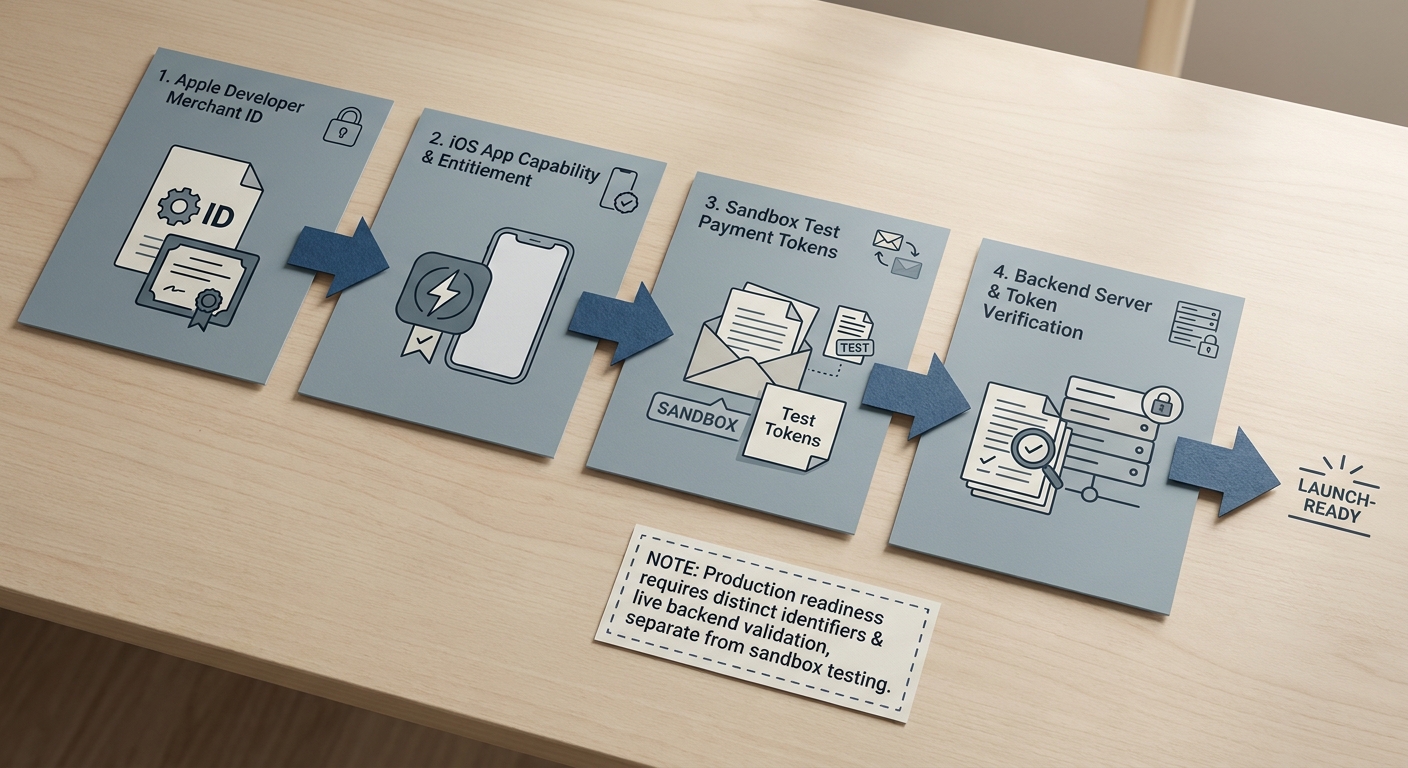
A compact step-flow showing merchant ID creation in Apple Developer, Apple Pay capability enabled in Xcode, sandbox testing, and backend token handling, presented as a practical setup chain for an iOS app.
Apple Pay helps when your problem is checkout friction: less typing, a familiar sheet, and fast device auth. The tradeoff is configuration complexity, plus dependencies you might not control (PSP enablement, merchant validation, org access, and regional network support).
One thing worth noting: Apple Pay is not a conversion guarantee. It will not fix pricing confusion, shipping surprises, inventory issues, or issuer declines. Treat it as a speed and reliability upgrade, then measure the impact in your funnel.
When you move from outline to execution, The Founder's Complete App Publishing Checklist helps close common gaps teams hit here.
What Takes the Most Time in Apple Pay Setup?
Most delays are not coding delays. They are ownership, access, and environment mismatches.
- Access and approvals (30-120 minutes, sometimes longer): Apple Developer team access, permission to create Merchant IDs, and ability to regenerate profiles in the right team.
- PSP enablement and environment setup (same day to several days): Apple Pay may need to be enabled per merchant, per region, and per environment (sandbox vs production).
- Merchant validation certificate ownership (30-90 minutes to set up, ongoing): someone must own renewal and rotation. Expired or misconfigured certs commonly break web or domain validation flows, and the fix can be outside the iOS team.
- QA on totals and shipping (1-3 hours minimum): address edits, shipping method changes, taxes, discounts, and inventory checks are where the sheet can behave differently than your standard checkout.
- Operational failure modes to plan for: sandbox authorizations never show up in PSP logs (token not forwarded or wrong credentials), or works in one build flavor but not the one you ship (wrong Team ID, entitlements, or bundle ID).
A complementary angle worth comparing lives in Top 5 Ways to Monetize Your First iOS App.
How to Set Up Apple Pay in Your iOS App, Step by Step
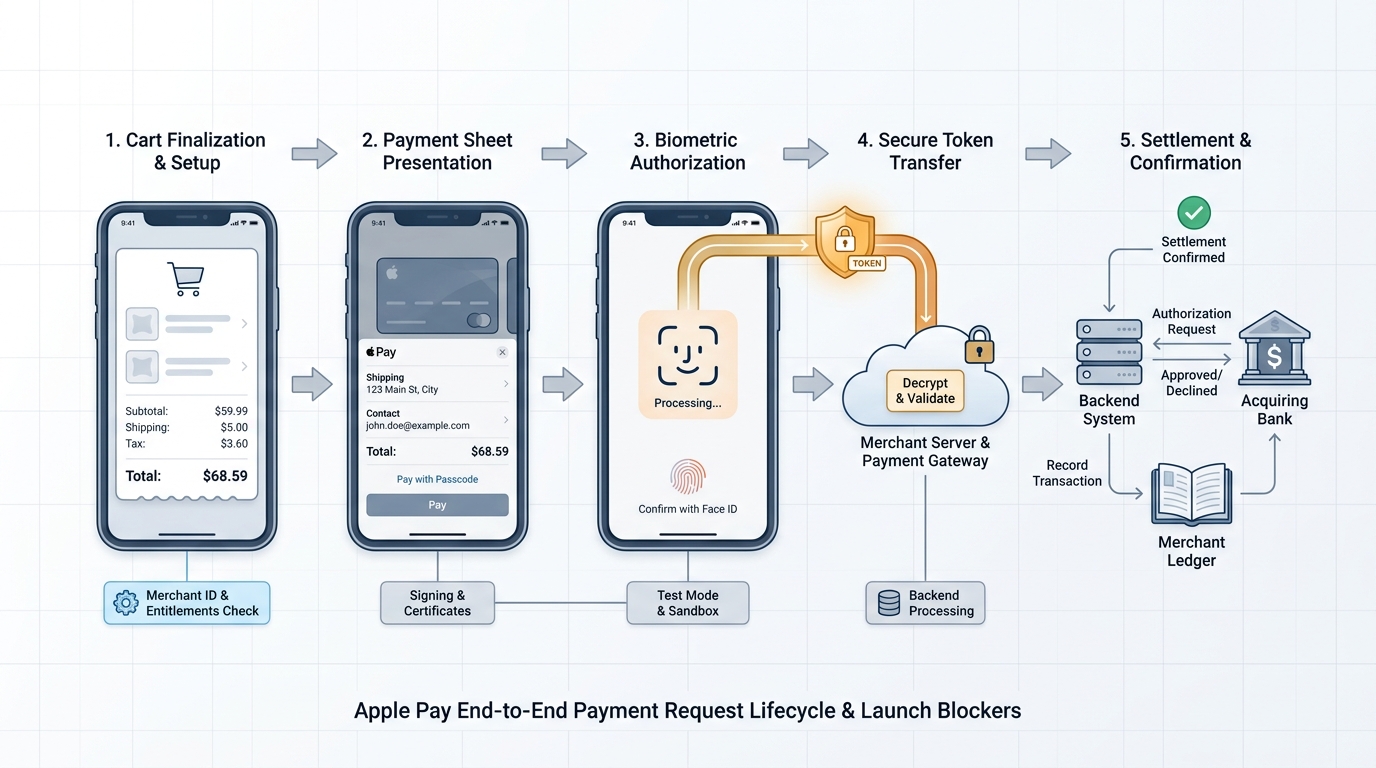
A process diagram that follows the Apple Pay payment request lifecycle inside an iOS app: cart finalization, payment sheet presentation, biometric authorization, token return, and backend settlement check.
Create or confirm the Merchant ID
In the Apple Developer portal, create a merchant identifier (for example:
merchant.com.yourcompany.app) and note which team it lives under. You will reference this ID in Xcode and often in PSP configuration.Enable Apple Pay for the App ID you actually ship
Enable Apple Pay on the correct App ID (bundle identifier). If you have multiple targets (staging vs production), confirm the one you distribute is configured, not just a dev flavor.
Keep Merchant ID, App ID, and signing under the same team
Merchant IDs, App IDs, and signing assets must belong to the same Apple Developer team. This is where acquired apps, contractor-owned teams, or mixing enterprise and App Store teams can quietly block you.
Add the Apple Pay capability in Xcode and select the merchant ID
In your app target, go to Signing and Capabilities, add Apple Pay, then select the merchant ID you confirmed. After installing a build, verify the running app’s Team ID and entitlements in Xcode (Organizer or device logs) so you are not debugging the wrong signing identity.
Refresh provisioning profiles after capability changes
If the profile was created before enabling Apple Pay, it will not contain the required entitlements. Regenerate or re-download profiles, then confirm your CI and local builds are using the updated profiles.
Practical expectation: budget 30-90 minutes if profiles are centrally managed or if you need someone else to grant permissions or rotate certs.
Build the payment request and present the sheet only when totals are stable
Use
PKPaymentRequestto set country, currency, supported networks, and required contact fields. Apple’s reference: Offering Apple Pay in Your App.If totals can change (shipping, taxes, discounts), expect extra QA. The sheet can re-query totals during edits, and your edge cases will show up there first.
Run an end-to-end Sandbox transaction and confirm it in logs
"The sheet opens" is not success. Your checkpoint is: user authorizes, your app receives a token, your backend sends it to the PSP, and you see an authorization or capture in logs.
Track the sandbox authorization rate in PSP logs (even if it is a small sample). If it is 0%, pause iOS work and validate credentials, merchant enablement, and environment selection with your PSP. Apple lifecycle overview: Implement Apple Pay and order management.
For tradeoffs, checklists, and edge cases, Step-by-Step Guide to Publishing Your First Mobile App rounds out this section.
What Are the Most Common Apple Pay Setup Mistakes?
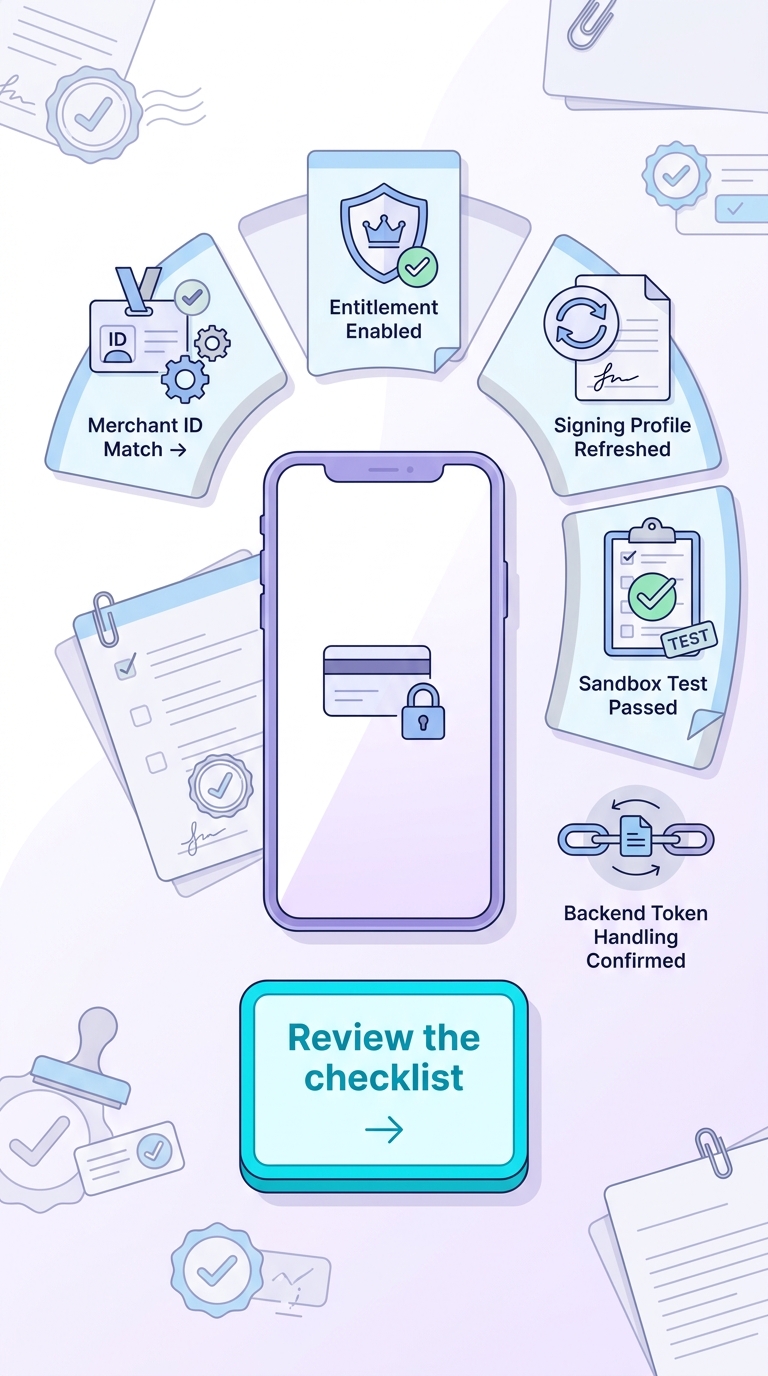
Use this card to move readers from identifying Apple Pay setup mistakes to taking action with a quick setup review.
Use this as a fast scan before you blame your code.
| Area | What goes wrong | How to catch it fast |
|---|---|---|
| Merchant ID and team | Merchant ID exists but under a different team | Confirm App ID and Merchant ID are on the same Apple Developer team |
| Bundle ID drift | You configured one bundle ID but shipped another | Check the running build’s bundle ID and signing team in Xcode and device logs |
| Stale profiles | Capability enabled but profile not refreshed | Regenerate/re-download provisioning profiles after enabling Apple Pay |
| "Sheet opened" false confidence | UI works but PSP declines or token never reaches server | Require 1 Sandbox transaction that shows up in backend and PSP logs |
| PSP not enabled | Apple Pay not enabled per merchant, region, or environment | Verify PSP dashboard flags and test-mode settings before deep iOS debugging |
| Merchant validation cert issues | Cert missing, expired, or misconfigured | Confirm merchant validation setup early, and document renewal ownership |
| Region or network gaps | Supported networks do not match your markets or PSP | Start with your actual regions and PSP-supported networks, then expand |
| QA matrix explosion | Too many devices, iOS versions, markets to validate | Pick a minimal matrix first, then broaden after baseline stability |
Post-launch, monitoring matters because failures can look like "user canceled" unless you separate outcomes:
- Track user cancellations vs payment failures
- Split authorization failures vs capture failures (different owners and fixes)
- Watch for region, network, and issuer behavior differences
- Confirm settlement or processor logs reflect successful Apple Pay processing, not just token receipt
The Fastest Way to Make Your First $1,000 From an iOS App reframes the same problem with a slightly different lens - useful before you finalize.


