
Learning iOS development in 2026 is less about collecting resources and more about picking a small, modern stack that gets you to a working SwiftUI app in Xcode without constant context switching. This roundup ranks strong free options by practical fit so you can build steadily, avoid outdated patterns, and finish a small project you can actually run on a device or simulator.
Top AI Coding Assistants for Mobile Developers in 2026 goes deeper on the ideas above and adds concrete next steps.
Best free iOS development resources in 2026
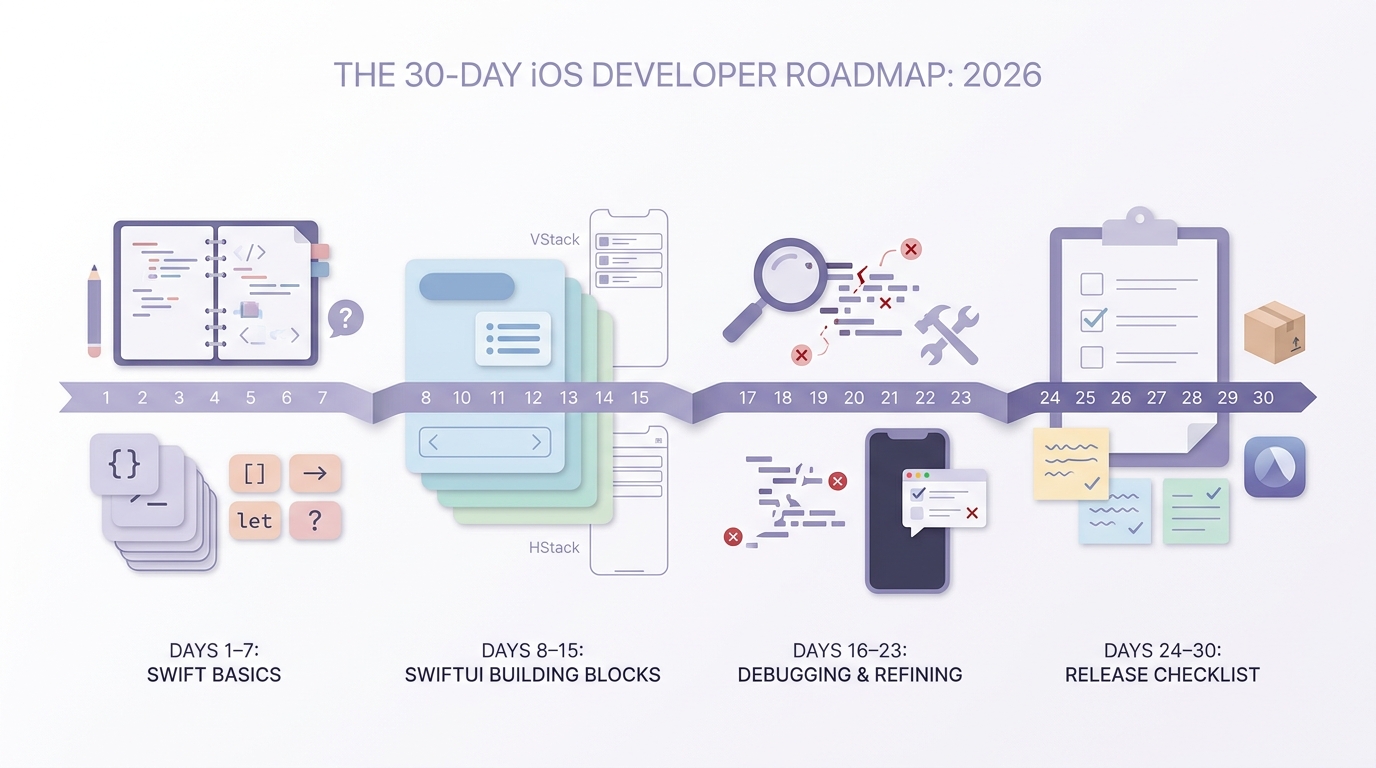
A simple 30-day iOS learning timeline that moves from Swift basics to a first SwiftUI app, then to debugging and a basic release checklist. The visual should help readers see a realistic path from free resources to a working starter app.
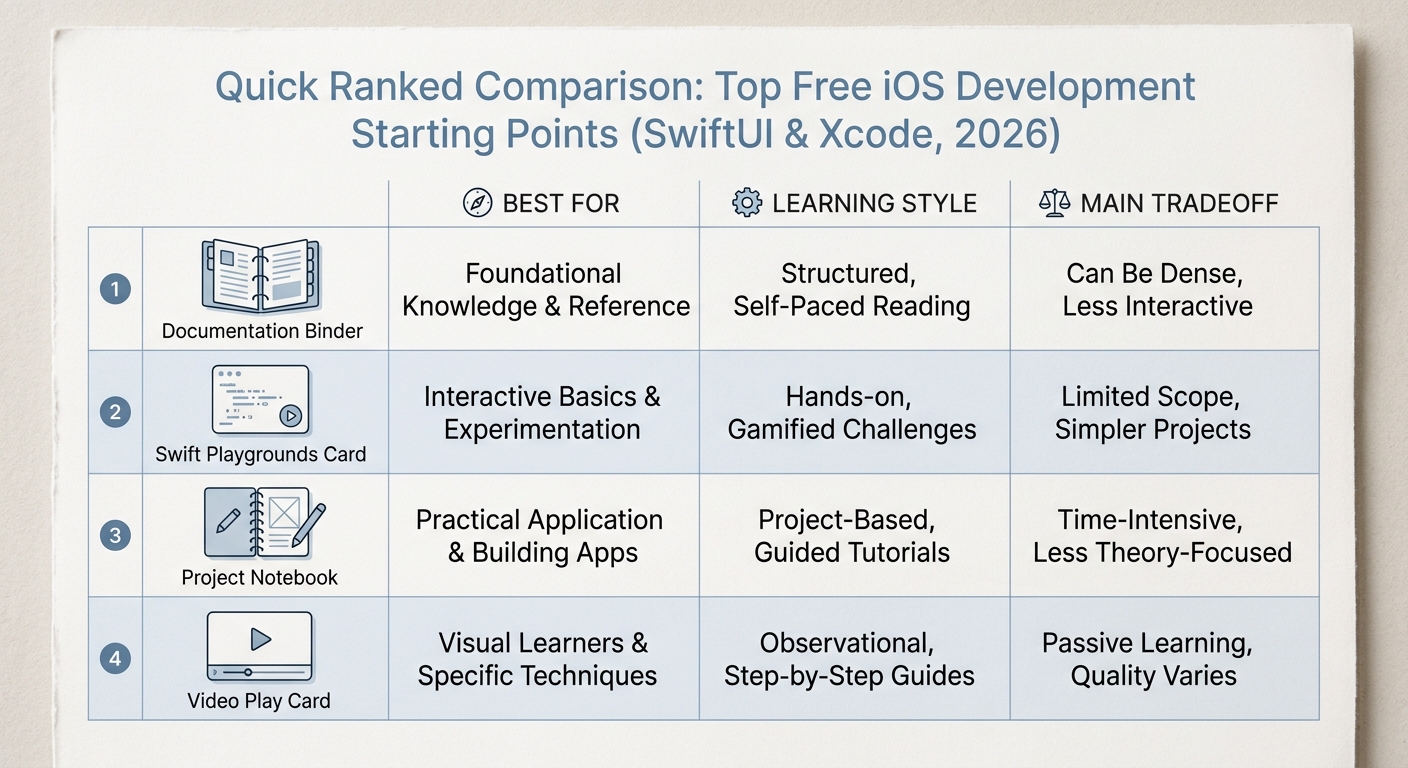
A compact comparison grid showing the top free iOS learning resources in 2026 with columns for best for, learning style, and main tradeoff. It should visually support the editorial ranking and make the first-choice options obvious.
Quick comparison of the strongest free starting points
| Rank | Resource | Best for | Learning style | Main tradeoff |
|---|---|---|---|---|
| 1 | Apple Developer Documentation and tutorials | Developers who want current, correct guidance | Reference plus guided tutorials | Authoritative, but not always beginner hand-holding |
| 2 | Swift Playgrounds | Absolute beginners who want low setup friction | Interactive practice on iPad or Mac | Great for fundamentals, limited for real app architecture and shipping |
| 3 | Hacking with Swift | Self-directed learners who learn by building | Project-based lessons with explanations | Some steps drift as Xcode and SwiftUI change, so you must cross-check |
| 4 | Free YouTube and Xcode tutorial series | Visual learners who like following along | Video walkthroughs | Quality varies, and older videos break on current Xcode |
| 5 | GitHub sample apps (Apple and community) | Learners who learn by reading and modifying code | Reverse engineering real projects | Easy to get lost without a clear feature goal |
Editorial note: this is ranked by fit for learning iOS development in 2026, not by popularity or completion claims.
What a good free path should deliver in 2026
Minimum success target (30 days): you can build a small SwiftUI app, run it in Xcode (simulator and ideally a device), fix basic errors, and explain how state flows through your UI.
Realistic effort note: 30 days usually means 30 to 60 minutes most days plus 1 to 2 longer sessions for setup and debugging. If you can only do weekends, expect closer to 6 to 10 weeks, especially if you are new to programming or setting up a Mac for the first time.
When you move from outline to execution, Top 10 Mobile App Development Tools You Need in 2026 helps close common gaps teams hit here.
How do you know a free iOS learning path will work?
Benchmark snapshot (common beginner benchmarks, not a guarantee)
| Common stall point | What fixes it | Why it matters |
|---|---|---|
| Docs feel too abstract | Pair Apple docs with one project track | You keep building while staying current |
| Tutorials stop matching your Xcode | Expect version drift and learn to read errors | You avoid quitting when screenshots do not match |
| Simulator works but device fails | Test on a real device early when possible | You catch signing, permissions, and performance issues sooner |
Explanation: The most repeatable free loop is one reference (Apple), one guided project track, and a habit of reading real code (even small snippets).
Interpretation: You will still hit friction, but this mix reduces common dead ends: outdated APIs, mismatched steps, and unclear structure.
Reader impact: You spend more time finishing one small app and less time restarting because a single resource stopped lining up with your environment.
One concrete operational expectation: plan 1 to 3 hours total in your first week just for installs, Xcode first launch, simulator downloads, and getting a blank app to build. If you hit signing or device issues, that can add another focused session.
Build your first iOS app with a simple learning loop
Choose one main resource, one support resource, and a 30-day milestone so you stop collecting bookmarks and start finishing features.
Start your 30-day iOS plan
A complementary angle worth comparing lives in Top 7 Vibe Coding Tools for Building iOS Apps Fast.
Ranked free resources for learning iOS development
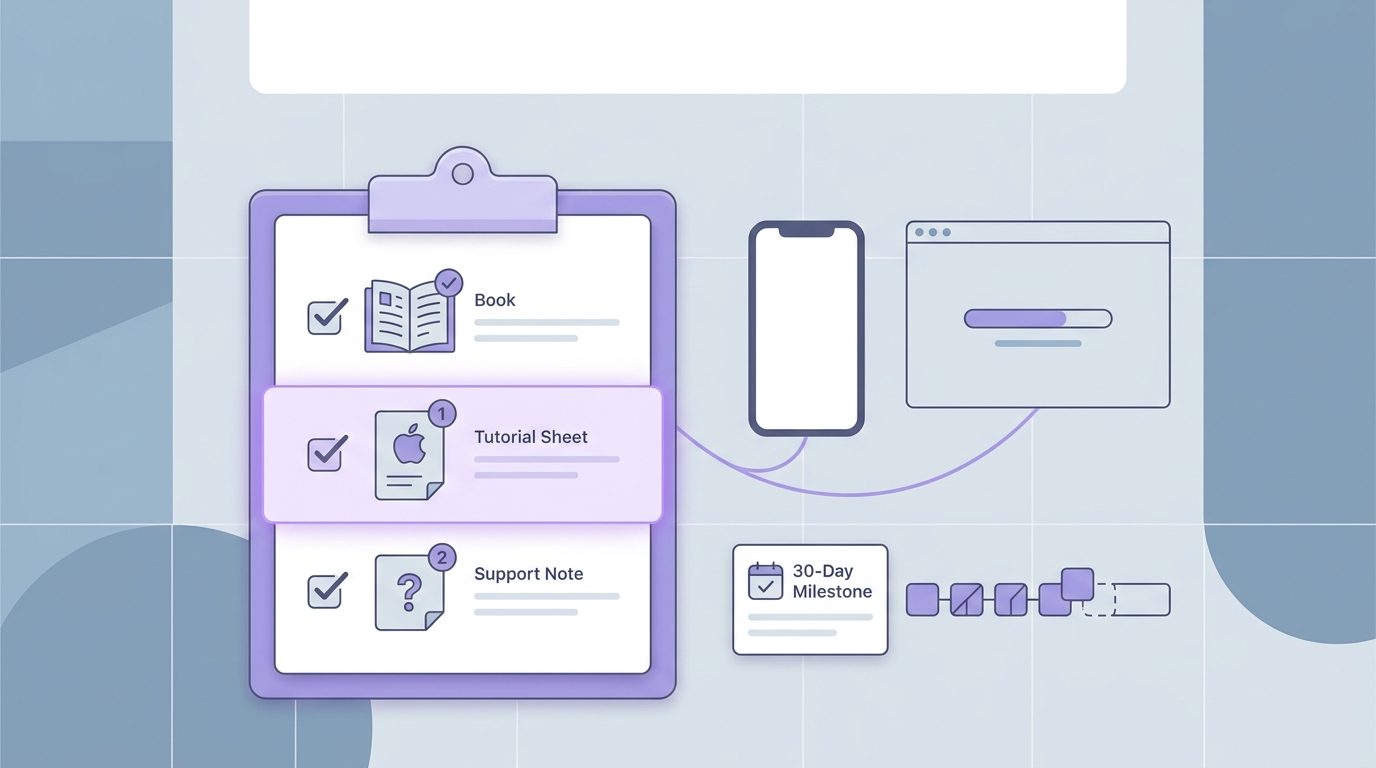
A short checklist that helps readers choose one primary iOS learning resource and one support resource based on their current skill level, available Mac access, and whether they want to reach a first App Store-ready project.
1. Apple Developer Documentation and SwiftUI tutorials
- Best for: learners who want the most current guidance on Swift, SwiftUI, Xcode, testing, and platform conventions.
- Use it for: resolving conflicts when a tutorial disagrees with your current Xcode, or when you need the correct API behavior.
- Strengths: current platform guidance, strong edge-case coverage, teaches conventions you will see in real codebases.
- Limits and tradeoffs: not always linear for beginners, and setup topics (signing, capabilities) can take a few sessions to click.
- Realistic effort note: learning to search docs and interpret compiler errors is slow at first. Expect it to feel tedious for 1 to 2 weeks, then steadily pay off.
2. Swift Playgrounds
- Best for: absolute beginners who want to learn Swift fundamentals without wrestling with Xcode on day one.
- Use it for: syntax, control flow, functions, and quick experiments that build confidence.
- Strengths: low setup friction, good for repetition and muscle memory, works well if you are learning on an iPad.
- Limits and dependencies: you will still need Xcode on a Mac for serious iOS app work and most release workflows, which is a real access constraint.
3. Hacking with Swift
- Best for: self-directed learners who want step-by-step projects that connect Swift concepts to real app features.
- Use it for: momentum and structure when you need a sequence, not just reference material.
- Strengths: project-driven, encourages debugging, helps you see patterns across multiple small apps.
- Limits and risks: SwiftUI and Xcode drift, so budget time for build errors the tutorial does not cover and cross-check Apple docs when behavior differs.
For tradeoffs, checklists, and edge cases, 10 Best No-Code Mobile App Builders This Year rounds out this section.
How do you choose the right free iOS learning path?
Match the resource to your current skill level (decision table)
| If you are... | Primary resource | Support resource | First project to finish |
|---|---|---|---|
| Brand new to programming | Swift Playgrounds | Apple Develop in Swift | 1-screen tracker (add, list, delete) |
| Comfortable with programming basics | Hacking with Swift | Apple docs | 3-screen CRUD app with local storage |
| A tinkerer who learns by editing code | Apple docs | GitHub sample app | Add one feature to an existing app |
Decision point: if you cannot get Xcode to build a blank SwiftUI app within 60 to 90 minutes, switch from "learn app architecture" to "fix environment" for a session. Trying to push through without a clean build often burns whole evenings.
Use a 30-day progression instead of random browsing
- Week 1: Swift basics (types, functions, optionals) + SwiftUI layout primitives and simple state.
- Week 2: Build one small SwiftUI app in Xcode, run it on the simulator, and fix common build errors.
- Week 3: Add navigation and one data feature (local persistence with SwiftData or Core Data).
- Week 4: Do a release-style pass: app icon, basic tests, permissions review, and an intro to signing and provisioning.
Mini-project example (keep it small): build a simple habit tracker with local persistence, a goal of 3 screens (list, detail, settings) and 1 data model (Habit). Track one metric: can you add, edit, and delete habits without data disappearing after a restart.
Tradeoff to accept: if you try to add networking, authentication, widgets, and polished design in month one, you will likely slip and stall. Finish the tiny version first, then iterate.
Practical constraints to plan for up front
- Mac requirement: you can learn Swift without a Mac, but building and shipping iOS apps in Xcode is typically macOS-only. If you need access, plan the logistics (borrow, work machine, used Mac) and assume an initial setup day.
- Version mismatch: Xcode updates can break older steps, packages, or sample code. If you are stuck for more than 30 to 45 minutes, check the latest Apple docs, confirm your Xcode and iOS simulator versions, then search the exact error message.
- Signing friction: running on-device and App Store submission are separate hurdles. Budget 1 to 3 focused sessions the first time you touch certificates, profiles, and capabilities, and expect occasional blockers tied to Apple ID or team settings.
- Simulator vs device: some issues only show up on a real phone (permissions flows, camera, performance). If you can, test on-device by week 2 so problems surface early.
Pick your stack and ship a tiny SwiftUI app
Choose one primary path (Apple tutorials or Hacking with Swift) and one support track (Swift Playgrounds or a sample app). Commit to one mini-project you can finish and improve.
Create your learning stack
How to Build a Full iOS App With Cursor AI in a Weekend reframes the same problem with a slightly different lens - useful before you finalize.


