
Building a full iOS app in a weekend is not a motivation problem. It is a workflow problem. Most indie founders lose Saturday to setup friction, spend Sunday stuck in SwiftUI errors, and end up with something that runs only on their machine, not a TestFlight build they can share.
This guide gives you a practical Saturday-to-Sunday plan for using Cursor AI to move from a fresh Xcode project to a working app that is often TestFlight-ready by Sunday night if your scope is tight and your Apple account is already unblocked. You will get reusable prompts, realistic time ranges, and the mistakes that tend to burn the most hours.
Early proof: the compressed build path (typical ranges, not guarantees)
| Checkpoint | Typical time range | What Cursor helps with | What can still block you | Reader impact |
|---|---|---|---|---|
| Project setup + first run | 45-150 min | Faster scaffolding and clearer error explanations | Xcode updates, simulator downloads, disk space | You keep momentum on Saturday |
| 1st usable screen | 60-150 min | Generate a compiling SwiftUI view and iterate quickly | Preview quirks, missing imports, type errors | You see real UI early |
| Core loop wired (list-add-detail-delete) | 2-5 hours | Multi-file edits and targeted diffs | State bugs, navigation edge cases | You get an end-to-end flow on device |
| Persistence added | 1-3 hours | A minimal persistence layer from your model | SwiftData migration quirks, identity bugs | Your app survives relaunches |
| TestFlight upload | 1-3 hours | Checklists and fixing build settings | Certs/profiles, App Store Connect agreements, provisioning delays | You can actually share the build |
Interpretation: the win is not that Cursor builds your app for you. The win is fewer dead ends and faster debug loops, as long as you keep scope narrow, review diffs, and validate changes in Xcode. (Cursor capabilities like multi-file edits and agent workflows vary by setup and version, so treat this as observational, not a benchmark.)
Reader impact: getting to a shareable build sooner shortens the time from idea to real feedback. Even saving a couple hours across a weekend matters when your constraint is time, not headcount.
How to Publish a Cursor-Built Mobile App goes deeper on the ideas above and adds concrete next steps.
Why does Cursor AI change a weekend iOS build?
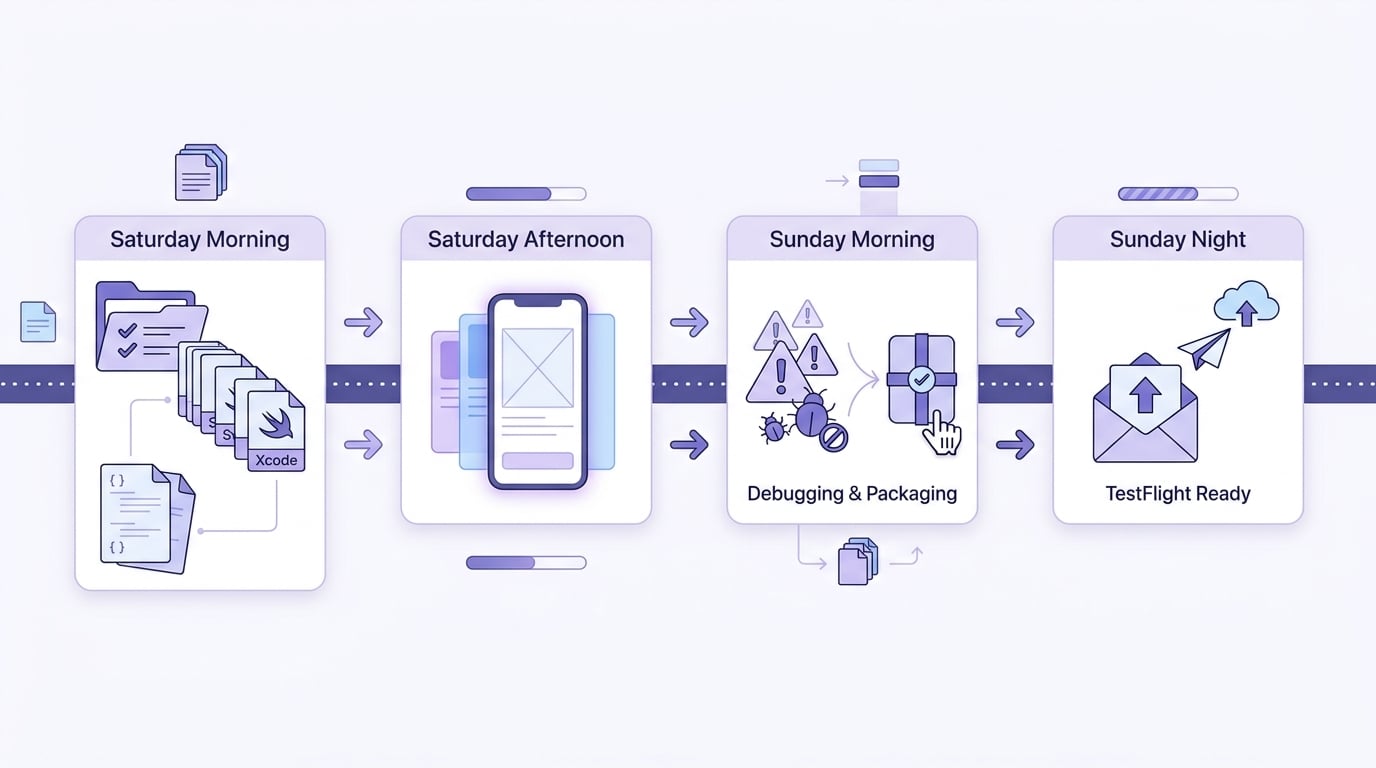
A Saturday-to-Sunday timeline showing the weekend iOS build path: Saturday morning project setup, Saturday afternoon first SwiftUI screen, Sunday debugging and packaging, Sunday night TestFlight upload.
Cursor works best when you already know what "done" looks like: one narrow user flow, a handful of screens, basic state, and a build you can install on a device. It compresses scaffolding, wiring, and debugging, while you stay in charge of scope and product decisions.
Tradeoff: Cursor can create new failure modes. AI-generated SwiftUI can compile but hide issues like duplicated sources of truth (@State vs @Observable), navigation resets, or update loops that show up only at runtime. The practical move is small diffs, frequent compiles, and being willing to delete code that is getting too clever.
Operational reality: you will spend time on overhead that Cursor cannot skip, like Xcode downloads, simulator device installs, and code review. Plan at least 20-40 minutes across the weekend just to read diffs and clean up naming, file structure, and state flow so you can debug under pressure.
When you move from outline to execution, The Last Step AI App Builders Don't Solve: Publishing helps close common gaps teams hit here.
What is the exact Saturday to Sunday build workflow?
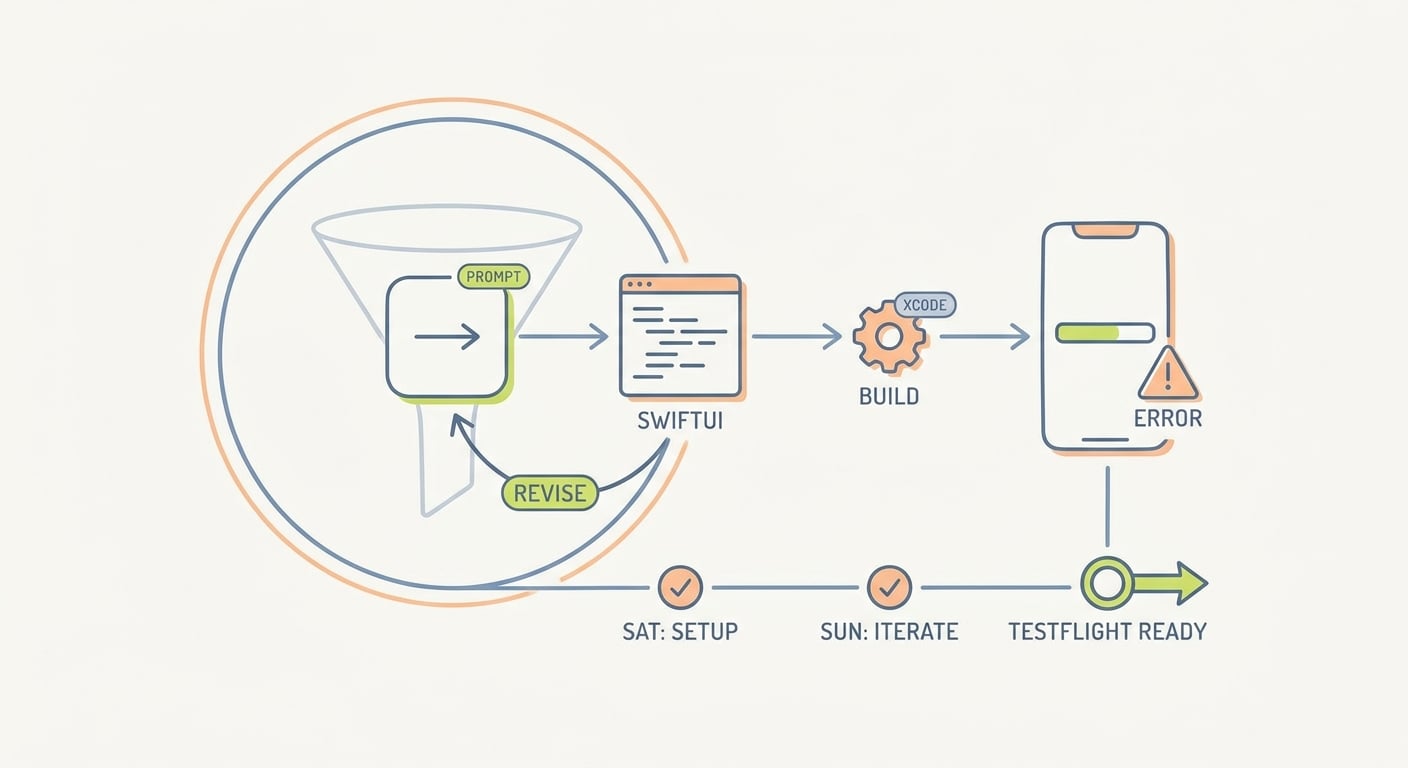
A workflow diagram showing the loop inside Cursor: write a focused prompt, generate SwiftUI code, test in Xcode simulator, inspect errors, revise the prompt, then repeat until the feature is stable.
This is the weekend plan I use when the goal is a simple, real iOS app in two days. The constraint is the feature set. The goal is a working loop and a shareable build.
Saturday morning: start the Xcode project the right way
Create a clean Xcode project
Create a new iOS App using SwiftUI. Pick a name and bundle ID you can live with for TestFlight to avoid renaming churn later. Set a realistic deployment target and stick to it.
Run the empty app before adding features
Build and run on the simulator immediately. If the blank app does not run, fix toolchain issues first (license prompts, simulator devices, storage, Xcode version mismatch). This is often 15-30 minutes, but it can take 60-90 minutes if Xcode or simulators need downloads.
Verify Apple prerequisites (if you want TestFlight)
TestFlight requires Apple Developer Program access (paid) and App Store Connect access. Agreements, tax, banking, or role permissions can block uploads, and those are not code problems. Log into App Store Connect Saturday morning and confirm you can create an app record.
Open the project in Cursor and set scope
Open the folder in Cursor and write one scope prompt that defines the weekend deliverable:
- "We are building a simple iOS SwiftUI app this weekend. Core flow: create an item, see it in a list, tap to view details, delete it. No accounts. Local storage only. Keep the UI basic and native. Start with the list screen."
Decision point: define "local storage" for this weekend. A common pattern is in-memory on Saturday, persistence on Sunday.
Pitfall: letting Cursor generate a big architecture (repositories, coordinators, services) before you have a compiling first screen. That is how Saturdays disappear.
Saturday afternoon: build one screen at a time (tight loop)
Use this loop on repeat. It is boring on purpose, and it ships.
Prompt one small change
Ask for one screen or one behavior at a time, with constraints (what not to change matters).
Compile and run immediately
Treat every Cursor output as a draft until Xcode compiles and the simulator behaves. Budget time for this: even with good prompts, you will likely do 10-25 compile-run cycles across the weekend.
Paste the smallest error context
Share the error text plus the relevant file or 30-60 lines around the failure, not the whole project.
Request a minimal diff and a why
Ask Cursor to change as little as possible and explain the cause in 2-3 bullets.
Implementation details that keep you moving:
- Start with a list screen that renders with sample data.
- Add create flow (sheet) and delete first.
- Add navigation to detail after add/delete is stable.
- Plan 3-8 compile-run cycles per screen. If you are new to SwiftUI, plan for 2x that.
Fallback when you are stuck for 30 minutes:
- Revert to the last known-good commit or duplicate the file and simplify.
- Ask Cursor for a "minimal reproducible example" in a new file, then port the fix back.
- If it is a state/navigation issue, temporarily remove navigation and get the list-add-delete stable again.
- If you are blocked by tooling (signing, simulator, Xcode), switch tasks and keep momentum (write copy, icons, metadata).
Sunday: stabilize, persist, and get to TestFlight
Turn errors into small tasks
Prompt:
- "Here is the Xcode error and the file. Provide the minimal code change to fix it. After the code, explain why it failed in 2-3 bullets."
Risk caveat: AI can be confidently wrong, especially around SwiftUI state and navigation. If a fix starts expanding across many files, stop and choose the simpler design.
Add persistence after the flow works
Pick one approach and do not switch mid-day:
- SwiftData: nicer long-term shape, more setup and more quirks under time pressure.
- UserDefaults or JSON file: less elegant, often fastest for simple lists.
One thing worth noting: persistence changes often surface identity bugs (duplicate rows, edits not refreshing, deletes reappearing). When that happens, simplify IDs and data flow before adding features.
Do an end-to-end fresh install test (simulator and ideally one device)
Validate:
- Launch from empty state
- Add from blank state
- Detail for newly created items
- Delete does not crash or corrupt state
- Relaunch shows persisted items (if implemented)
Start signing and App Store Connect steps early
Plan 60-180 minutes here if you have not shipped before. Common blockers:
- Certificates and profiles (and keychain weirdness)
- Bundle ID collisions
- App Store Connect agreements not accepted
- Missing icons, version/build numbers, metadata fields
Dependency note: new or recently changed Apple accounts can have extra verification or access delays. Provisioning profiles can also take longer than you expect when devices or teams were changed recently.
Archive, upload, and configure TestFlight
Archive in Xcode, upload, then create an internal testing group. Keep build 1 small: you are confirming installability, basic flow, and crash-free use on real devices, not polishing UI.
A complementary angle worth comparing lives in How to Get Your First 1,000 Users for Your iOS App.
Prompts, mistakes, and the checks that keep the weekend on track
Cursor saves time when you treat it like a focused implementation partner. The failure mode is vague prompts that force it to guess product decisions and architecture, then you spend an hour untangling it.
Prompt patterns that work (and keep diffs reviewable):
- Define the outcome and constraints:
- "Implement X, keep existing UI, do not add new dependencies."
- Ask for a minimal diff:
- "Change only these files. Propose the smallest change that compiles."
- Force a test plan:
- "After the code, list 3 things I should test in the simulator."
Common weekend-killing mistakes:
- Building features before you have a runnable app. You need a compiling baseline before fast iteration is safe.
- Accepting output without a run on the simulator. SwiftUI bugs can hide until runtime.
- Leaving signing and App Store Connect until Sunday night. Admin steps can block uploads even if your code is fine.
- Letting the tool expand scope. If Cursor suggests onboarding/settings/auth, park it.
For tradeoffs, checklists, and edge cases, How a Solo Founder Prepared Their App for Launch Without Hiring an Agency rounds out this section.
What is the weekend checklist for shipping a first iOS app?
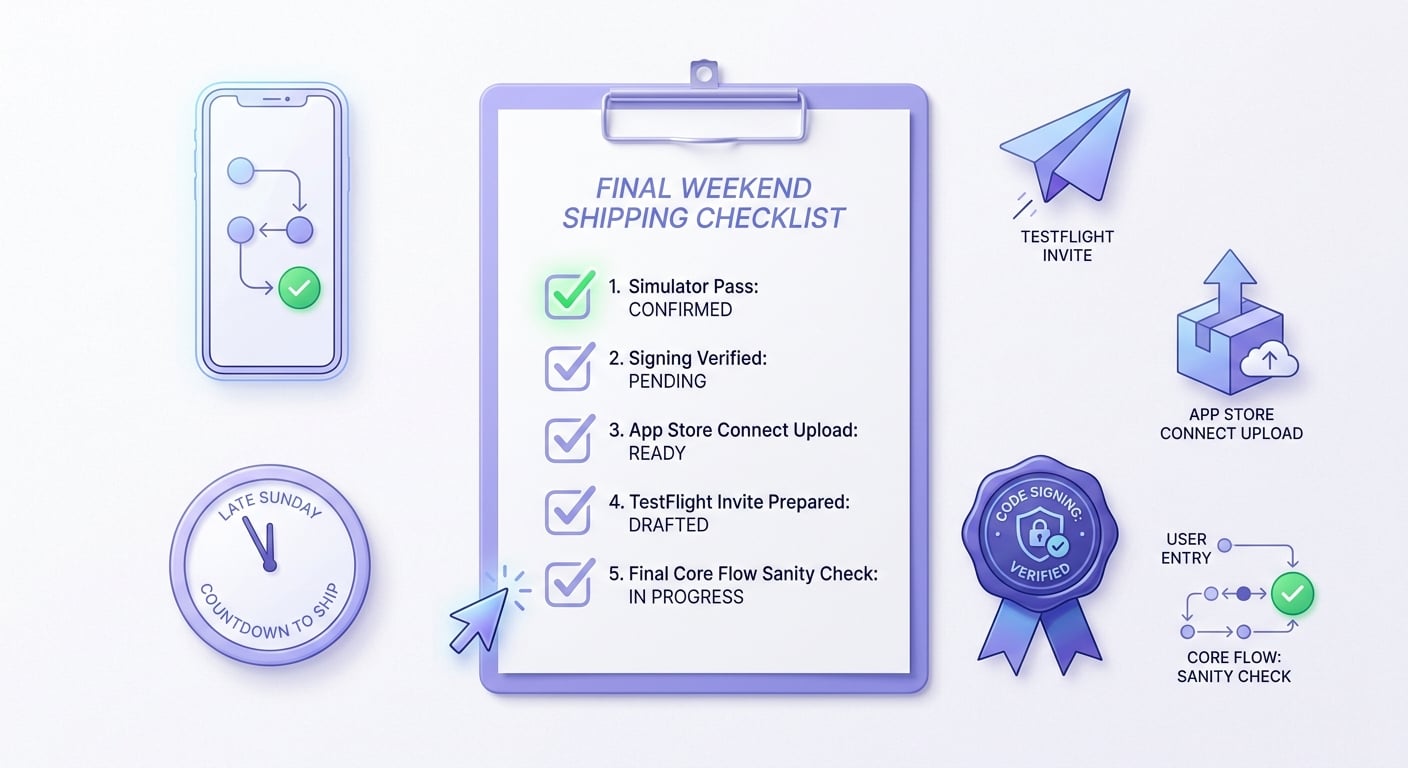
A concise shipping checklist for the last stage of the weekend: simulator pass, signing verified, App Store Connect upload complete, TestFlight invite prepared, and one final sanity check on the core user flow.
Use this as your canonical list. If you hit these items, you have something you can put in front of real users and learn from.
| Stage | Checklist | Expected outcome | Effort (typical) |
|---|---|---|---|
| Pre-flight (before Saturday) | Xcode opened once, simulators installed, Cursor opens project | No setup surprises | 20-60 min |
| Core loop (Saturday) | List renders, add works, delete works, detail works | End-to-end flow in simulator | 4-8 hours |
| Persistence (Sunday) | Data survives relaunch, IDs stable, no duplicate rows | Usable beyond one session | 1-3 hours |
| Release prep (Sunday) | Bundle ID, signing, archive succeeds | Upload-ready build | 1-2 hours |
| TestFlight (Sunday night) | Uploaded build, internal testers invited | Real device feedback loop starts | 30-90 min |
Edge case: if you cannot get TestFlight working this weekend, still ship a runnable build to a physical device via Xcode and do live feedback. It is not as scalable, but it keeps learning moving.
TestFlight Guide - How to Beta Test Your App Before Launch reframes the same problem with a slightly different lens - useful before you finalize.


