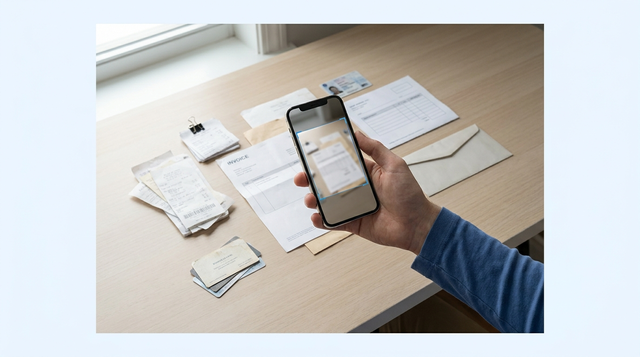
If your phone scans keep coming out crooked, blurry, or impossible to search, the problem is rarely your camera - it is the scanner app workflow getting in your way with weak OCR, messy exports, and surprise paywalls. This guide helps you pick a practical option for iPhone or Android, then validate it with a quick test on your own documents so you do not discover limits after you scanned a whole stack.
7 Breakout Android Apps Making Waves in June 2026 goes deeper on the ideas above and adds concrete next steps.
Early proof: what separates the best scanner apps from the rest
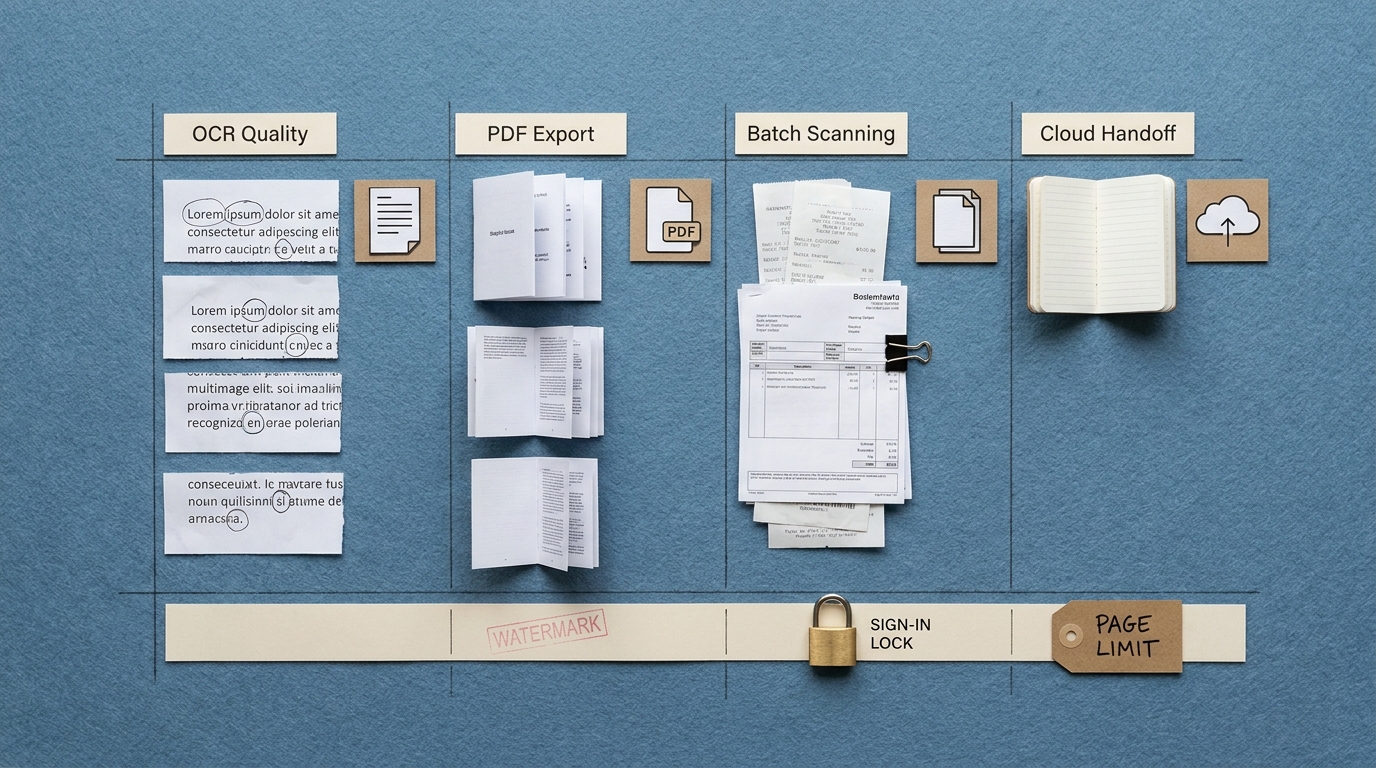
A compact comparison table showing the selection criteria for scanner apps in 2026: OCR quality, PDF export, batch scanning, cloud handoff, and friction like watermarks or mandatory sign-in.
A quick comparison that readers can scan in seconds
| Capability lens | What to check in 30 seconds | Best fit when | Common friction to watch |
|---|---|---|---|
| Scan speed | 1-tap capture, auto edge detect, fast multipage | Long packets, office forms | Extra taps to crop, slow page-to-page |
| OCR reliability | Small fonts, mixed lighting, searchable PDF | Receipts, notes, contracts | OCR locked behind trial or account |
| PDF export | Multipage PDF, page reorder, compression | Filing, emailing, audits | Watermarks, page limits, forced branding |
| Cloud handoff | iCloud/Drive/OneDrive, share sheet, email | Business filing | Mandatory sign-in, clunky destinations |
Explanation: This is a reader-run benchmark checklist. It reflects common criteria in 2026 scanner app roundups (for example App Store Tracker and ScanLens) plus a quick sanity test you can run yourself on your own documents.
Interpretation: Treat this as a risk screen, not a scorecard. One weak lens usually shows up later as rescans, retyping, or exports that do not fit your workflow.
Impact: You reduce paywall surprises and avoid building a filing habit around an app that breaks under real documents (glare, tables, odd page sizes) when you actually need it.
Plan about 10-15 minutes up front to install 2 apps, grant camera and file permissions, and run the test. After that, the ongoing cost is mostly naming and filing discipline, which is easy to underestimate if you scan weekly.
When you move from outline to execution, 5 AI Avatar and Profile Picture Apps Worth Trying helps close common gaps teams hit here.
Why does scanner app choice matter in 2026?
Who is actually affected by a weak scanner app
- Freelancers scanning invoices, contracts, and signed forms (bad apps turn a 30 second capture into minutes of re-shooting and manual cropping).
- Students and office workers who need searchable PDFs (image-only scans break study search and basic copy-paste).
- Anyone replacing a flatbed scanner (the pain often shows up later through watermarks, forced accounts, or exports that do not match how you work).
What a good 2026 scanner app should do
- Auto edge detection and perspective cleanup so pages look flat, not trapezoids. Glossy thermal receipts and low-contrast paper are common failure cases, so test those.
- OCR that creates searchable text (not just a picture inside a PDF). Accuracy varies by device, lighting, language, and layout.
- Predictable export: multipage PDF, page reorder, and a clean way to share to Drive, iCloud, OneDrive, or email. Watch for trial gates that hide OCR, compression, or multipage export.
Constraints that can change your best pick
- Language and handwriting: Printed text is usually fine; handwriting and mixed languages can be hit-or-miss, so expect to test.
- Org policy and device management: Some workplaces require OneDrive-only storage, block consumer clouds, or restrict app installs via MDM.
- Privacy and retention: If scans include IDs or contracts, check whether OCR or sync happens on-device or in the cloud, and what the app retains.
The practical outcome this guide is solving
CTA: Get to a safe short list
Pick 2 apps that match your most common scan job (receipts, multipage forms, or searchable text) and confirm they export where you already work.
see the short list
A complementary angle worth comparing lives in Top 5 AI Assistant Apps in 2026.
What are the top scanner apps for iPhone and Android in 2026?
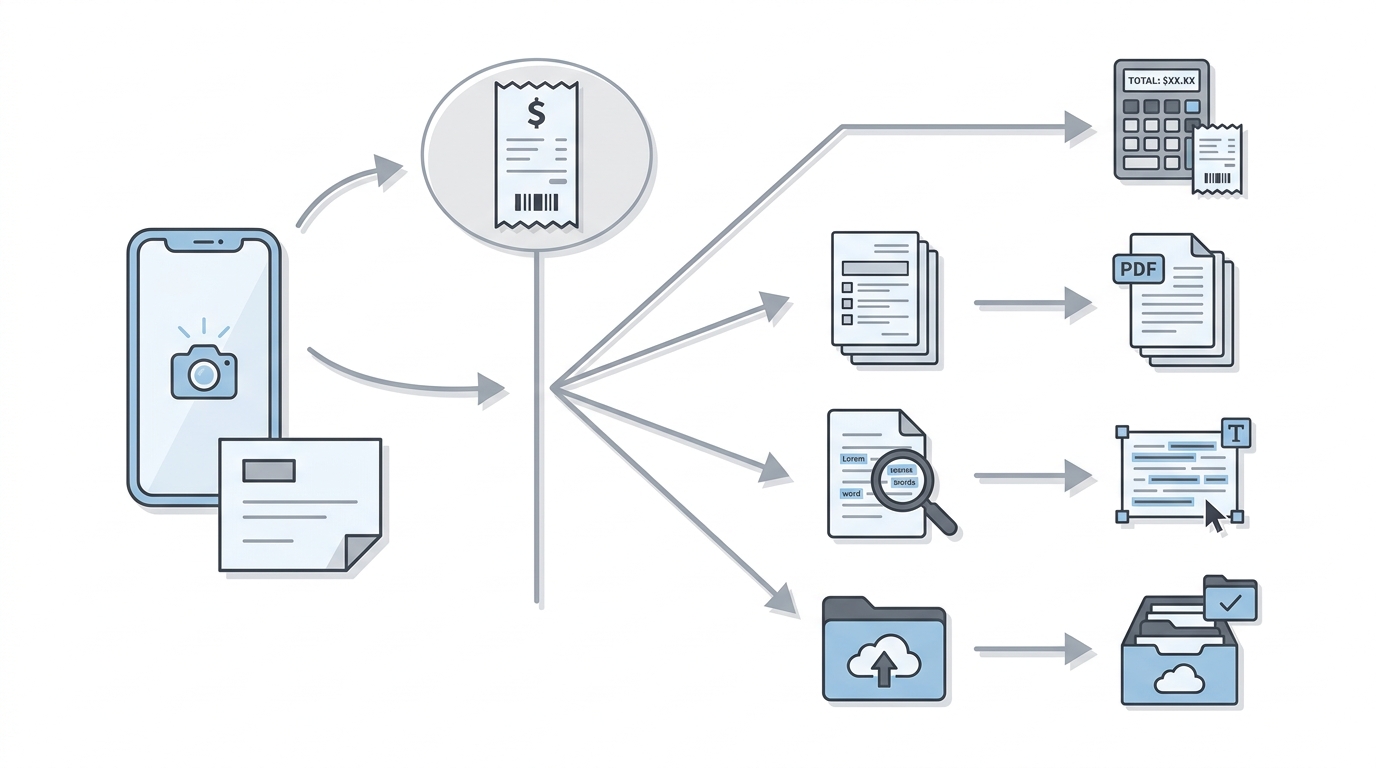
A simple decision flow diagram that routes readers from scanning need to the best app type: receipts, multipage PDFs, searchable OCR documents, or cloud-first filing on iPhone and Android.
There is no universal "best" scanner app. The winner changes with device camera quality, your region's pricing and trials, and what you scan (tables and receipts behave very differently than clean letters). Use this section to get to a short list, then let your 60 second test decide.
| App | Best for | Strength | Key tradeoff | Typical paywall or dependency |
|---|---|---|---|---|
| Genius Scan | Multipage PDFs, offline-first habits | Fast batch scanning and export | OCR and advanced features may require upgrade | Some features behind Pro; low-account workflow is usually possible |
| Adobe Scan | Searchable text workflows | OCR and Adobe-friendly PDF handling | Can feel tied to Adobe ecosystem | Sign-in may be encouraged for sync/OCR; some features gated |
| Microsoft Lens | Microsoft 365 and OneDrive filing | Smooth capture into Microsoft destinations | Less flexible outside Microsoft stack | Works best with Microsoft account and OneDrive |
| CamScanner | High-volume scanning and formats | Lots of export and sharing options | Subscription prompts and defaults to watch | Frequent upsell paths; account and cloud features often emphasized |
| iScanner | Receipts and light automation | Useful automation features for some users | You may hit paywalls earlier | Trials and paywalls can appear quickly depending on feature use |
Decision shortcut (then verify): multipage forms and offline export - try Genius Scan; OCR-first searchable PDFs - try Adobe Scan; company OneDrive workflows - try Microsoft Lens; high volume and formats - try CamScanner; receipts with automation - try iScanner.
For tradeoffs, checklists, and edge cases, 5 Mobile App Security Tools Every Developer Should Know rounds out this section.
Realistic effort and common pitfalls (so you do not get surprised)
Expect a small learning curve the first day: 10-20 minutes to set defaults (PDF vs JPG, color vs B and W, auto upload, file naming) and to teach yourself where export actually lives. The recurring effort is naming and filing, which can add 10-30 seconds per document unless you standardize a pattern.
The common failure modes are predictable: glare on thermal receipts, motion blur in low light, and OCR breaking on tables, stamps, and mixed layouts. When it fails, do not brute-force it for 20 minutes - switch tactics: rescan with brighter light, toggle black and white for text-heavy pages, crop tighter, and try your fallback app on the same page. If you scan for compliance, keep at least one "works offline" option available in case an account, sync, or subscription lapses at the wrong time.
Top 5 App Security Tools for Mobile Developers Ranked reframes the same problem with a slightly different lens - useful before you finalize.
What are the most common scanner app mistakes to avoid?
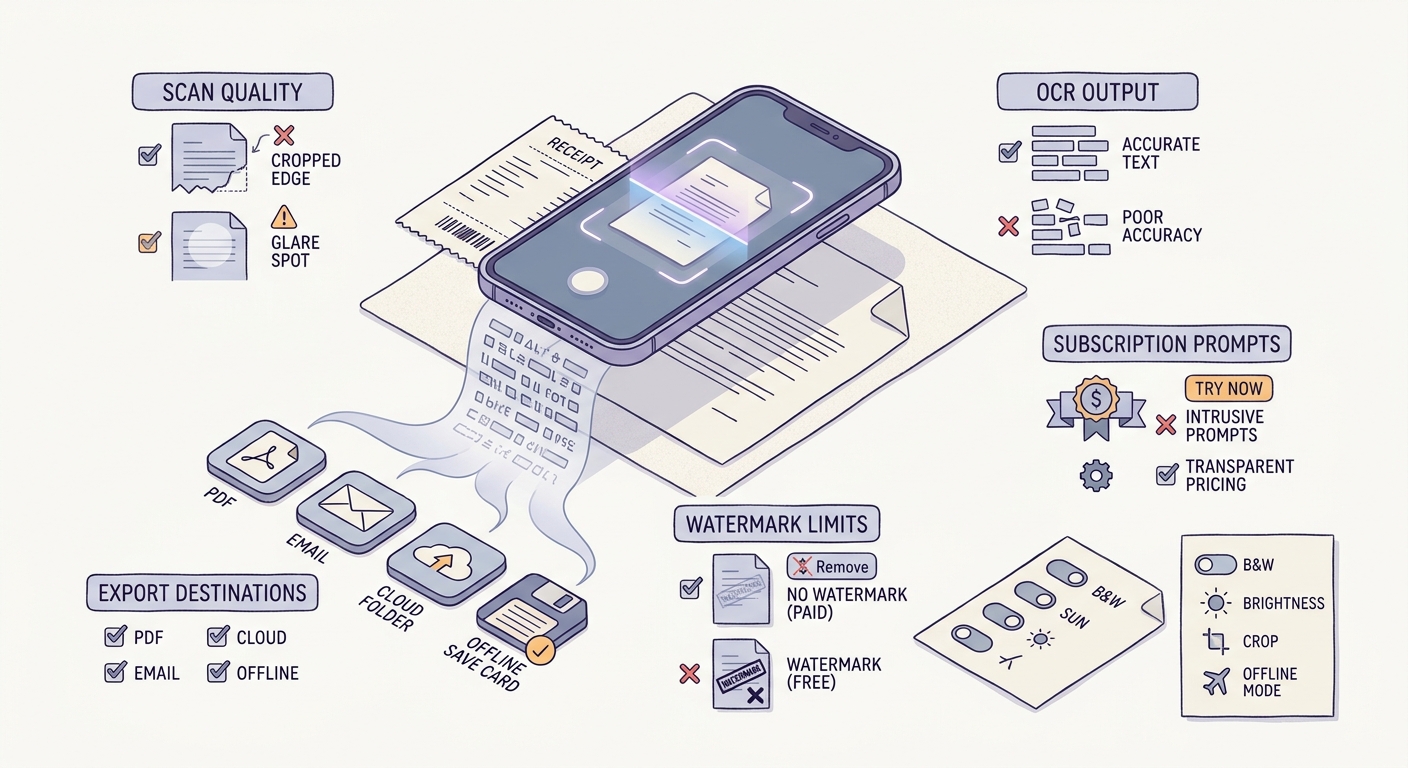
A mobile-friendly checklist block for testing a scanner app before committing: scan quality, OCR output, export destinations, watermark limits, and subscription prompts.
Mistakes that lead to bad scans or wasted subscriptions
Most scanner app regrets come from skipping real-world tests. A clean interface can still produce messy OCR on your actual invoice, or fail on a receipt with glare.
Another common failure: you scan 20 pages, then discover export is limited (page caps, watermarks, or no compression) unless you subscribe. Recovering from that can mean rescanning everything, so it is worth doing the quick test up front.
A 60 second test protocol (do this before you pay)
Use three pages you actually care about: one receipt, one signed page, and one multipage document (at least 5 pages).
Capture and edge detection (15 seconds)
Scan the receipt in slightly imperfect light. You want clean edges and minimal manual cropping.
OCR spot check (20 seconds)
Run OCR, then search for a specific 6-8 character string you can verify, like an invoice number or a date format (for example "INV-38421"). If search misses it, assume you will be retyping later.
Export and size sanity check (25 seconds)
Export a single multipage PDF and check two things: it stays one file (not separate images), and the size is reasonable for email or Drive upload (for many use cases, staying under ~10 MB for 5-10 pages is a practical target). Compression quality varies, so check readability after export.
If any step forces a trial, watermark, or account sign-in you cannot accept, that is your decision point to switch apps.
CTA: Lock in your scanning setup
Choose one primary app and one fallback, then rerun the 60 second test on your hardest document so you know what breaks before you rely on it.
lock in your setup