
A Google Play rejection can stall your release, burn a day of momentum, and tempt you into a rushed resubmission that gets rejected again for the same root cause. This guide gives you a calm, executable 24-hour plan to go from rejection notice to verified fix, clean build, and a resubmission you can stand behind in Play Console.
| Phase | Typical effort (hands-on) | Output you should have | Why it helps |
|---|---|---|---|
| Triage | 30-90 min | Root surface identified (code, declaration, listing, SDK) | Prevents fixing the wrong layer |
| Fix | 2-6 hours | Patch + updated Play Console answers/assets | Keeps scope tight while still compliant |
| Validate | 1-3 hours | Repro gone + screenshots/steps ready for reviewers | Reduces ambiguity and follow-up questions |
| Submit | 30-60 min | New AAB uploaded + reviewer note tied to the fix | Makes the review easier to verify |
Interpretation: the "24 hours" here is elapsed time, not nonstop engineering time. You can lose time waiting on a test account, an SDK vendor response, a privacy or legal sign-off, or a screenshot refresh across locales.
Impact: this workflow will not guarantee approval in 24 hours (review time is outside your control), but it usually reduces avoidable repeat rejections by making the fix verifiable and consistent across code, listing, and declarations.
To make the proof more operational, here is what an evidence packet typically includes so a reviewer can validate quickly:
- Build identifiers: versionCode/versionName, track, and the exact artifact you tested
- 2-5 verification steps (include device/Android version if it matters)
- Test account credentials if login is required (and any 2FA notes)
- Before/after screenshots or short screen recording references (where relevant)
- The specific Play Console surface updated (Data safety, permissions, store listing, content rating)
Google Play Permissions Declaration Form Explained goes deeper on the ideas above and adds concrete next steps.
Why does a 24-hour Google Play resubmission matter after rejection?
A rejection knocks your release off the normal path, whether it is policy, metadata, or a technical pre-launch issue. In practice, the fastest recoveries come from one clean resubmission that matches the rejection reason and stays consistent across all Play Console surfaces.
A real constraint: even if you finish in a few hours, Google review timing is outside your control. What you can control is scope, evidence, and not creating new problems while trying to move fast.
Who this checklist is for
- Indie developers shipping a hotfix after a Play Console rejection
- Product or release managers trying to keep an update moving within a day
- Small Android teams that need a repeatable triage path before uploading a new AAB
- Anyone coordinating store listing edits, declarations, and build changes in parallel
What slips when resubmission takes too long
Every rejection adds another review cycle, which can delay bug fixes, monetization changes, or compliance updates. Under time pressure, teams often change the wrong thing (for example, updating screenshots when the rejection was about a runtime permission).
The practical takeaway: this checklist aims to reduce review churn, not compress Google timelines.
When you move from outline to execution, How to Prepare Your App for Google Play Review helps close common gaps teams hit here.
What does a successful 24-hour resubmission workflow look like?
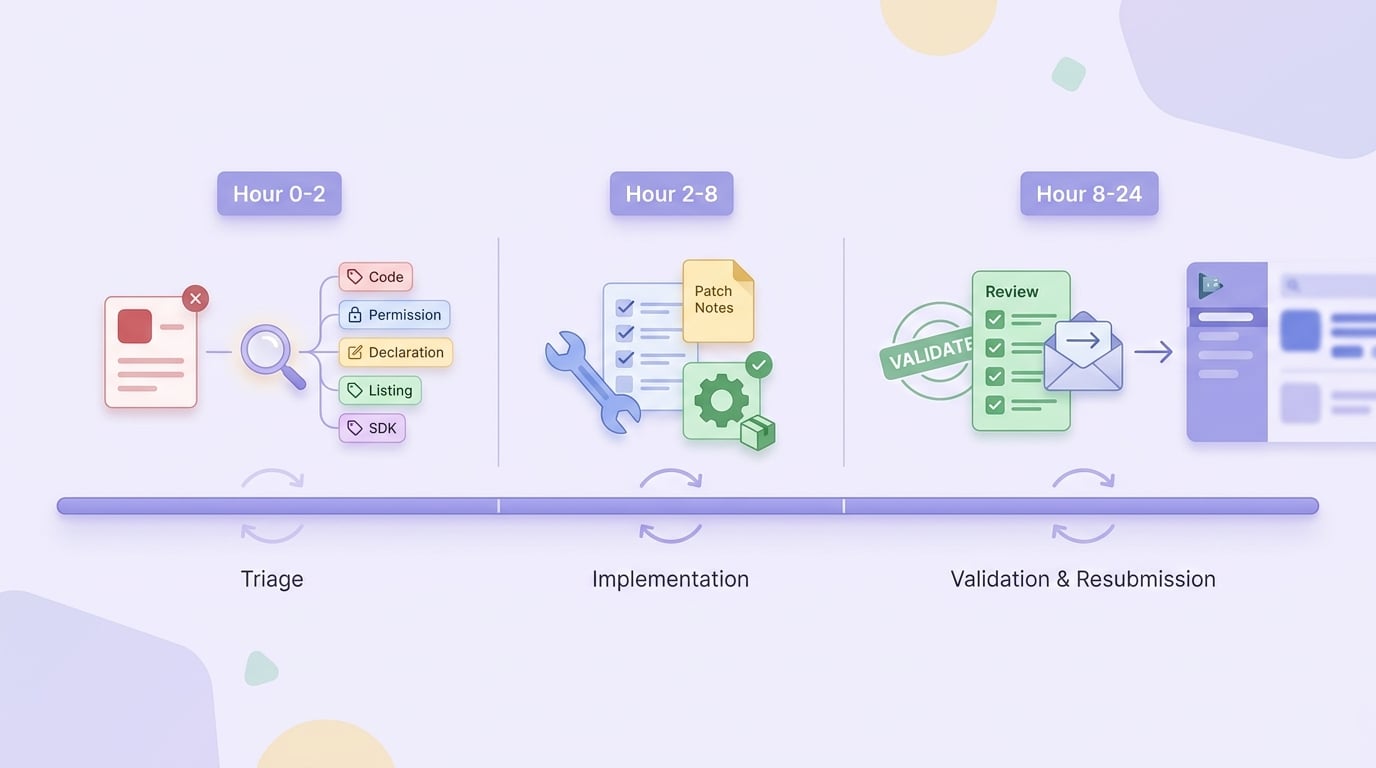
A compact timeline showing Hour 0-2 rejection triage, Hour 2-8 fix implementation, Hour 8-24 validation and resubmission in Google Play Console.
A one-day fix-and-submit timeline
| Window | Goal | Concrete output |
|---|---|---|
| Hour 0-2 | Decode the rejection | Map the Play Console note to one surface: code, permission, declaration, listing, or SDK |
| Hour 2-8 | Implement the fix | Updated AAB and or listing changes, plus corrected declarations (for example, Data safety) |
| Hour 8-24 | Validate and resubmit | Verified behavior + uploaded artifact + reviewer note that points to the exact fix |
One thing worth noting: some fixes do not fit neatly in this window. SDK compliance changes, items requiring a broader regression pass, or anything involving sensitive data flows can take longer. Forcing a 24-hour window can also increase the risk of a second rejection if you ship an incomplete fix or miss a related declaration update.
What to confirm before you hit resubmit
- The rejection category and reviewer notes clearly tie to your change (policy, permissions, listing, or declaration) per the Developer Program Policy guidance.
- Build identifiers match intent: versionCode, release track, and the uploaded AAB is the one you tested.
- A quick internal sign-off confirms the issue is gone in app behavior and in Play Console surfaces (store listing, Data safety, permissions).
A complementary angle worth comparing lives in Google Play vs App Store Approval Process - What's Different in 2026.
How do you fix and resubmit to Google Play within 24 hours?
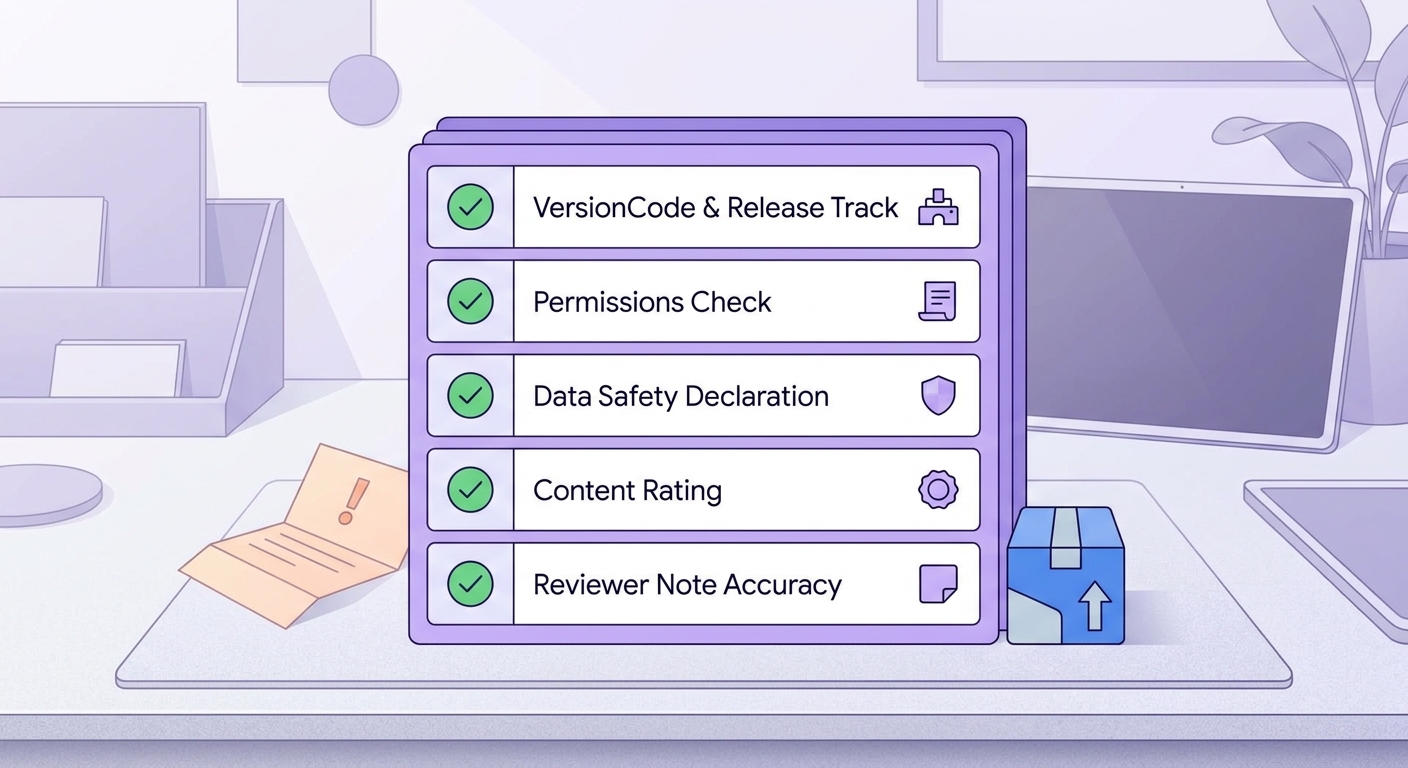
A scannable checklist block for version code, permissions, data safety, content rating, and reviewer note validation before uploading the new Android bundle.
Step 1: read the rejection like a release blocker
Copy the exact rejection text from Play Console
Paste the policy clause, screenshots, and any "how to fix" notes into your tracker. Treat it like a failing test case, not general feedback.
Classify the problem before touching the app
Bucket it as one workstream: manifest or permissions, Data safety, ads and SDKs, content rating or target audience, or store listing metadata. This mapping keeps you aligned with Google Play policy expectations and reduces wasted changes (Developer Program Policy).
Decide where the fix lives (and what you will not change today)
If the rejection points to behavior, fix code or assets. If it points to declarations, fix Play Console forms. Try hard not to expand scope until you can explain the failure mode in one sentence.
Step 2: implement the smallest compliant fix (without painting yourself into a corner)
Smaller changes are easier to validate and easier for a reviewer to confirm, but they are not always the cheapest long-term choice. Sometimes the "small fix" becomes tech debt, so document it if you plan a follow-up cleanup.
Common dependencies that slow teams down (and often cause second rejections):
- Data safety accuracy may require privacy or legal review, especially if you are unsure about SDK data collection.
- Ad SDK or analytics changes may depend on vendor release notes, migration steps, or a rushed version bump.
- Reviewer verification may require a working test account, a specific device type, or a region-specific path.
- Geo or feature-flag behavior can make your fix look inconsistent if the reviewer lands in a different variant.
- Tight timelines can skip regression on nearby flows, increasing the chance of a new crash or policy issue in the resubmitted build.
A small time-saver: in Play Console, go to Policy status - Details - Action required, open the specific issue, and draft your reviewer note using the exact wording they flagged. It helps you respond to what they actually reviewed, not what you think the issue is.
For tradeoffs, checklists, and edge cases, 72-Hour App Launch Checklist: Verify Before You Submit rounds out this section.
What goes wrong during Google Play resubmission, and how do you avoid it?
The three most common resubmission mistakes
- Fixing the wrong layer: editing the store listing when the rejection was caused by app behavior or declarations under policy.
- Uploading a new build but not explaining exactly what changed and how to verify it.
- Rushing submission before confirming version code, permissions, and Play Console declarations all match the build you are shipping (see Helpful tips to get your app published).
A concrete example (rejection - fix - verify - reviewer note)
Rejection: reviewer flags that your app requests READ_MEDIA_IMAGES, but the feature works without it, and your Data safety form says you do not collect photos. Fix: remove the permission from the manifest, add runtime guardrails if any library still probes media, and double-check that any photo picker flow uses the system picker without broad access.
Verify: install the new build, run the flow that previously touched images, confirm no permission prompt appears, and confirm the feature still works. Reviewer note: "Removed READ_MEDIA_IMAGES from AndroidManifest; app now uses system picker only. Verified on Pixel 7, Android 14: Steps 1-3 ... No permission prompt shown. Data safety unchanged (no collection) and matches behavior."
A failure mode to watch for (it causes repeat rejections)
If your declarations say one thing but runtime behavior shows another, you can get rejected again even after a code fix. Common triggers include region-specific behavior, feature flags, and needing a test account to reproduce the issue the reviewer sees.
Practical response: if reproduction depends on a login, provide a test account and 2-3 exact steps. If behavior differs by country, call that out and state what region you validated.
Build a 24-hour resubmission packet
Copy a ready-to-fill template for: rejection summary, fix notes, verification steps, and reviewer message.
Get the template
First Mobile App Publishing Checklist for Non-Technical Founders reframes the same problem with a slightly different lens - useful before you finalize.
What should be on the final Google Play resubmission checklist?
Pre-submit checks to complete in order
- Match the rejection reason to a specific fix in code and or in the listing, then reference it in your reviewer notes (Developer Program Policy).
- Confirm the version code, release track (internal, closed, production), and uploaded AAB are the intended ones, not yesterday's rebuild (Upload your app).
- Reconcile permissions, Data safety answers, content rating, and store text so they describe the same behavior and data use (Helpful tips).
After-submit follow-up in the first 24 hours
Category: Prevention
Statistic: 65%
Label: Issues caught pre-submit
Context: With an internal QA pass
Category: Monitoring
Statistic: 24 hrs
Label: Monitor reviewer messages
Context: Check Play Console status changes during the first day
Category: Readiness
Statistic: Same-day
Label: Clarification responder assigned
Context: Ready with screenshots, steps, or a test account
- Monitor Play Console for status changes and reviewer messages, especially if you use Managed Publishing (Control publishing).
- Keep one evidence packet: rejection screenshot, commit or ticket link, and the exact resubmission note you sent.
- Pre-assign a responder who can provide clarifying screenshots, steps, or a test account the same day.
When to treat the resubmission process as done
You are done when you have either passed review and published (or intentionally held via Managed Publishing), or you have a clear follow-up request from Google and an owner actively working it. If you passed, write down the root cause and the fix so the next release does not repeat it.
Turn this into your reusable release checklist
Save the checklist, add your team-specific owners and links, and run it for every submission.
Build your playbook


