If your iOS app still looks and behaves like it shipped two years ago, it can feel behind even if the underlying product is solid. The tricky part is separating changes that actually improve usability and conversion from changes that are mostly aesthetic. This ranked roundup covers seven iOS app design trends worth considering now, what each is best for, the tradeoff to watch, and how to decide what is likely to move a real metric.
SwiftUI vs UIKit - Which Should You Use in 2026? goes deeper on the ideas above and adds concrete next steps.
Which iOS app design trends matter most right now?
| Rank | Trend | Typical effort | Main upside | Main risk or dependency |
|---|---|---|---|---|
| 1 | Liquid Glass layers | Med | Clearer hierarchy, modern polish | Contrast and perf testing needed |
| 2 | Bottom sheets | Low-Med | Faster, thumb-friendly flows | Hidden state and back behavior |
| 3 | Accessibility-first | Med | Fewer errors, broader usability | QA matrix expands across screens |
| 4 | Intentional haptics | Low | Better feedback on key actions | Overuse feels noisy or inconsistent |
| 5 | Dark mode-first | Med | Readability in low light | Design system + QA burden |
| 6 | Subtle motion | Med | State clarity ("did it work?") | Reduce Motion and perf constraints |
| 7 | Personalized home | High | Retention for repeat use | Data quality + experimentation overhead |
Explanation: This is an editorial ranking of trends that often affect usability and first-session success (not just visual style), aligned to Apple guidance on materials and accessibility (Liquid Glass, Materials, Accessibility).
Interpretation: "Effort" includes design, engineering, and QA time, and items like accessibility and dark mode usually spread across shared components instead of staying on one screen.
Reader impact: Pick 1-2 trends that match your current bottleneck and sprint capacity, then validate with a before/after metric (for example, a 2-5% lift in completion rate is often meaningful, but not guaranteed, and depends on baseline quality and traffic).
One thing worth noting: regulated, enterprise, or highly technical apps often get more ROI from navigation clarity and accessibility than from material polish.
When you move from outline to execution, 7 Breakout Android Apps Making Waves in June 2026 helps close common gaps teams hit here.
What are the 7 iOS app design trends to prioritize?
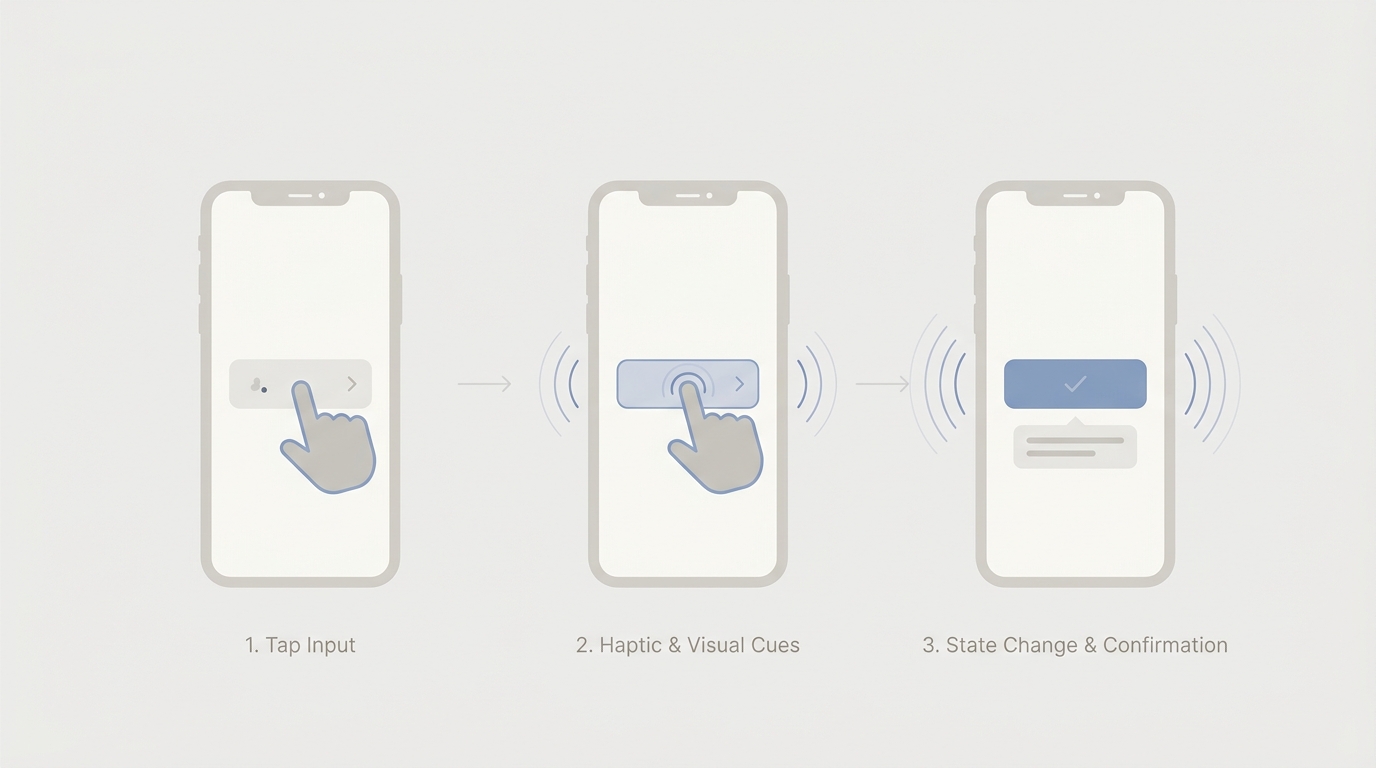
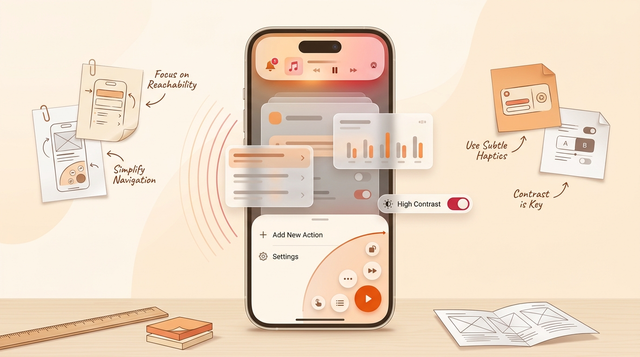
A simple iPhone interaction flow that shows a user tapping a control, receiving a subtle haptic confirmation, and seeing a visual state change in the same screen. The diagram should emphasize how haptics fit alongside motion and state feedback in a modern iOS interface.
Category: Outcomes
Statistic: 38%
Label: First-pass approval rate
Context: When metadata is complete upfront
Category: Platform shift
Statistic: iOS 26
Label: Liquid Glass design language
Context: Apple positions layered translucency, depth, and hierarchy as the current direction
Category: Roundup
Statistic: 7 trends
Label: Editorial impact ranking
Context: Liquid Glass → bottom-sheet navigation → accessibility-first → haptics → dark mode-first → subtle motion → personalized
| Trend | Best for | Watch out for | Realistic effort |
|---|---|---|---|
| Liquid Glass layers | Making hierarchy clearer on key surfaces (cards, overlays, toolbars) | Contrast failures, blur cost on older devices | 3-7 days for 1-2 surfaces plus QA; longer if you retoken a design system |
| Bottom sheets | Filters, quick actions, lightweight details | Hidden state, confusing dismissal/back rules | 2-5 days for one flow; add time for deep link and interruption tests |
| Accessibility-first | Dynamic Type, touch targets, readable contrast everywhere | More edge cases, ongoing QA as UI changes | 1-2 sprints if you touch shared components; then ongoing upkeep |
| Intentional haptics | Confirming key actions in forms, creation, checkout | Overuse, inconsistent behavior when haptics are off | 1-3 days to define + implement a small set of haptic moments |
| Dark mode-first | Long sessions, night use, media, ops tools | Token gaps, images/gradients, lots of retest | 1-2 sprints if you are not tokenized; faster if you are |
| Subtle motion | Clarifying state changes and reducing "did it work?" doubt | Reduce Motion, perf, timing bugs | 3-7 days for a few transitions; test on slower devices |
| Personalized home | Repeat usage with lots of choices | Data quality, experimentation overhead, unpredictability | Multi-release; expect backend/analytics work and a rollback plan |
Two quick callouts (where teams usually get real wins)
- Accessibility-first: If reviews mention "too small," "hard to read," or "buttons don’t work," this is often a direct conversion and support-volume fix. The tradeoff is you will spend real time on edge cases at very large text sizes, and you need to keep testing as you ship new UI.
- Bottom sheets: Great for reducing heavy navigation in common flows, but only if you keep sheet depth shallow and define predictable dismissal rules. Otherwise you can improve speed while increasing confusion and support tickets.
A complementary angle worth comparing lives in How to Make Your App Look Professional Without Hiring a Designer.
How do you choose the right iOS design trend to ship first?
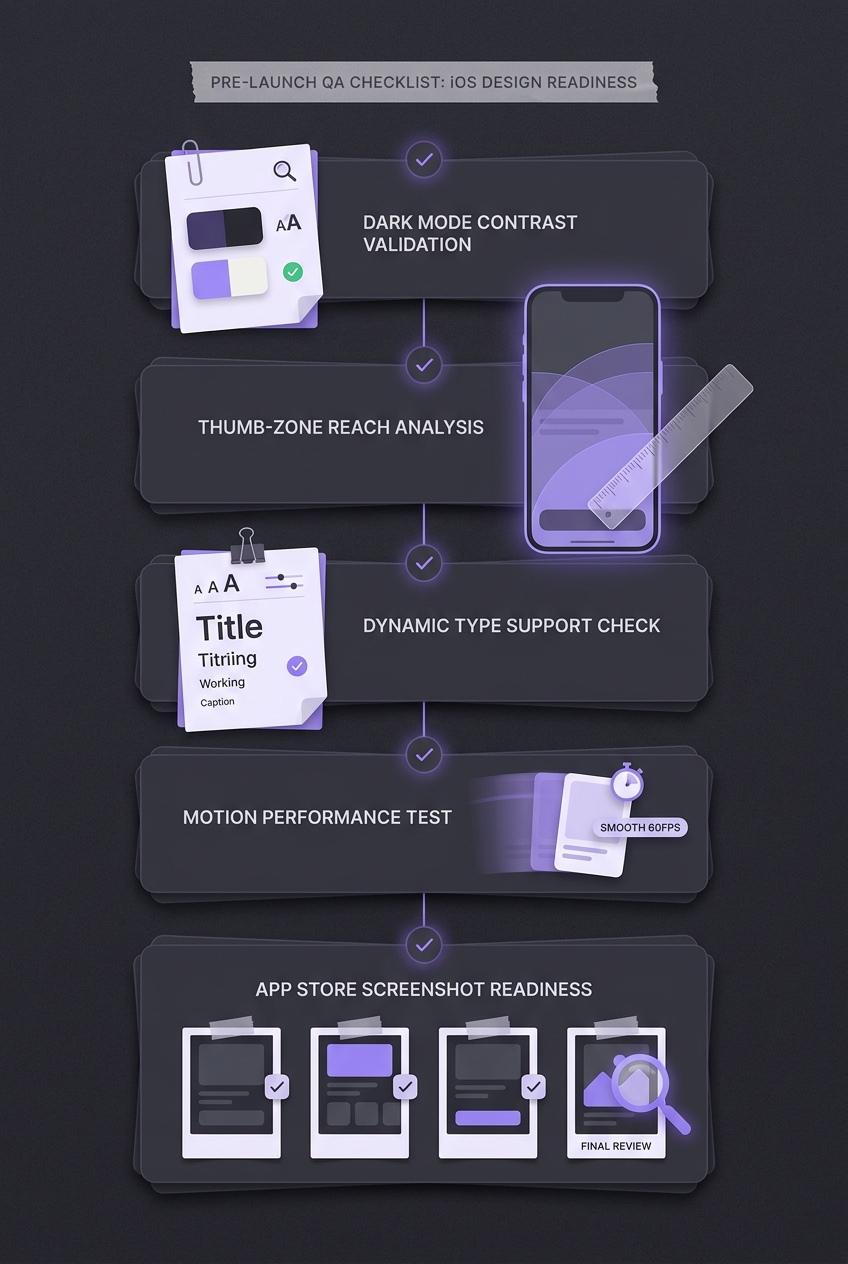
A concise checklist for iOS teams that are deciding what to ship first: confirm contrast in dark mode, test thumb-zone reach, validate dynamic type, check motion performance, and review App Store screenshots for the updated look. The block should feel like a pre-release QA checklist for an app redesign.
Match the trend to your app’s real bottleneck
Start with the friction you can name
If users get lost, bounce between screens, or complain about one-handed use, start with bottom sheets or thumb-zone adjustments. For a core flow, plan 1-2 sprints end-to-end (design, implementation, and regression QA across the screens it touches).
Treat accessibility as a product quality baseline
If your app is growing, accessibility work is rarely wasted: Dynamic Type, touch targets, and contrast make the UI more robust across devices and user settings (Accessibility - Apple HIG). The constraint is QA time: test multiple text sizes plus at least one small and one large device.
Only chase "new iOS" visuals once the basics are solid
When flows are already clear and stable, materials and motion can add polish and reduce uncertainty (Liquid Glass; Materials - Apple HIG). In practice, this can trigger design system refactors, so scope it to a few surfaces and measure before expanding.
A simple implementation workflow (so this does not stay theoretical)
Pick one measurable flow and one metric
Define a single success metric you can actually track. Example: first-session completion = event
signup_completed-> eventcreated_first_itemwithin 10 minutes (exclude returning users). Record a baseline for at least 1-2 weeks; shorter windows can be noisy unless you have high traffic.Run an accessibility and reachability pass
Use Xcode Accessibility Inspector to check labels, traits, and contrast, then spot-check Dynamic Type at very large sizes. Also verify minimum hit targets (aim for at least 44 by 44 points) on primary actions, especially on smaller devices.
Prototype, then QA the settings matrix
If you add blur or motion, test on an older device and validate Reduce Motion and Increased Contrast. If you add sheets, test dismissal, back navigation, deep links into the sheet state, and interrupted states (calls, backgrounding) to avoid shipping modal state bugs.
Mid-article CTA: review your current iPhone UI against the list
Want a lightweight way to start? Grab a simple audit checklist for the seven trends (plus a QA matrix for dark mode, Dynamic Type, and Reduce Motion), then pick one change you can ship in the next sprint.
Get the checklist from Froxi
For tradeoffs, checklists, and edge cases, 7 AI Video Editing Apps That Make You Look Pro Instantly rounds out this section.
A realistic way to avoid overbuilding
A lot of teams try to modernize everything at once, then spend weeks chasing edge cases in dark mode, large text, localization, and older devices. A safer pattern is: update one flow, measure, then expand to adjacent screens if the metric moves and the support burden stays stable.
If results are neutral, it does not automatically mean the trend "failed." It often means the bottleneck was elsewhere, the metric window was too short, or the new UI introduced a different kind of friction. Keep what is clearly beneficial (accessibility improvements often fall in this bucket), roll back selectively, and iterate with smaller changes.
Final CTA: get a practical plan for your next UI refresh
If you want a second set of eyes, share your current screenshots, your target flow, and your baseline metric. We will help you scope a realistic 1-2 release plan, including tradeoffs, QA burden, and what to measure to know if it worked.
Work with Froxi
Top 7 Vibe Coding Tools for Building iOS Apps Fast reframes the same problem with a slightly different lens - useful before you finalize.