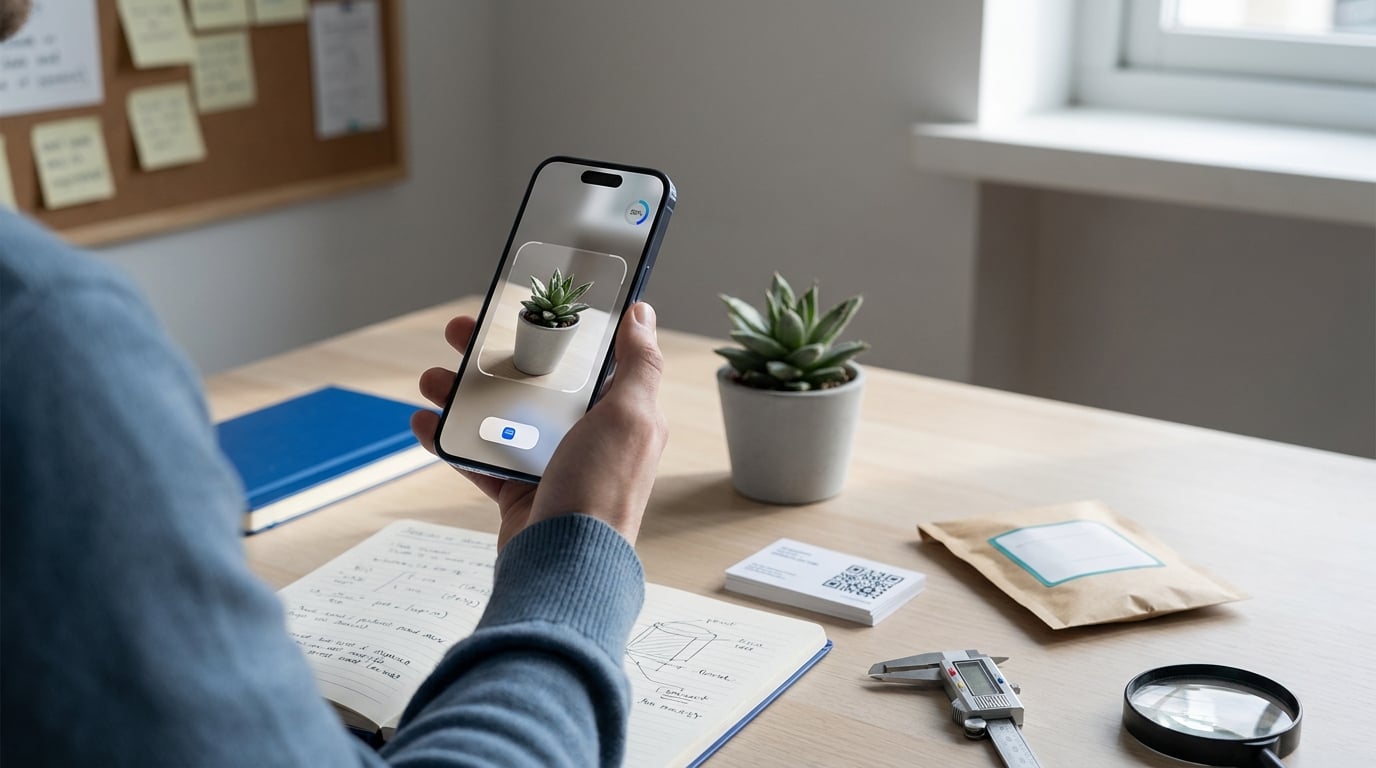
If your iOS app makes people hunt through lists or type guesses just to identify what they are looking at, image recognition can turn that friction into a one tap camera moment. The hard part is usually not the model itself, it is building a reliable pipeline from camera or photo input to a confident result, plus a safe fallback when the app is unsure. This guide helps you ship a workable baseline you can harden, with realistic expectations about data, devices, and edge cases.
Why Code Signing Is the Most Confusing Part of iOS Publishing goes deeper on the ideas above and adds concrete next steps.
What early proof should you validate before building it?
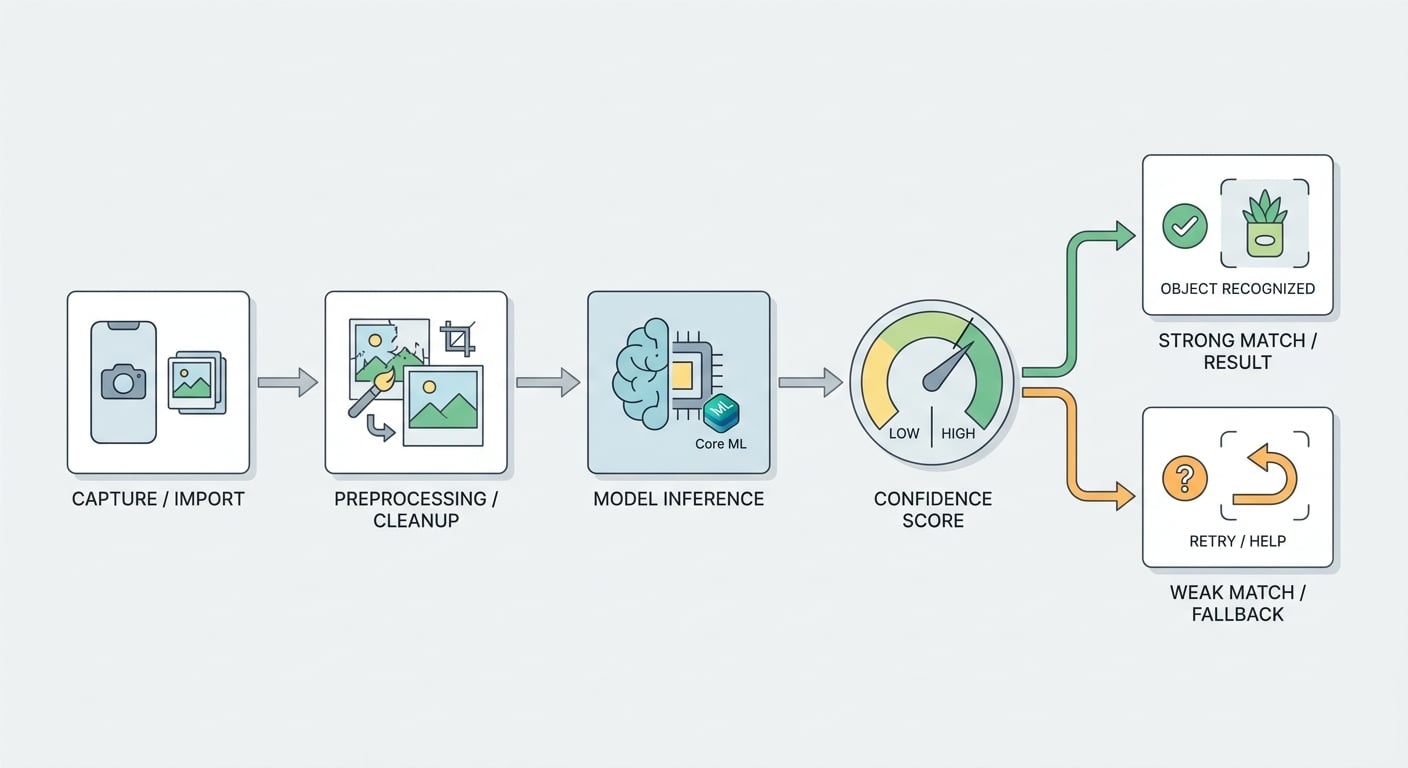
A simple workflow diagram for an iOS image recognition feature showing camera capture or photo import, preprocessing, model inference, confidence scoring, and a fallback path when the match is weak. It should make the early-proof section feel concrete and implementation-ready.
| Proof signal to validate | What you measure on real devices | Why it matters |
|---|---|---|
| Speed | P50 and P95 latency per frame (live) or per photo (pick) | Determines whether the feature feels helpful or annoying |
| Confidence behavior | Score distribution and a chosen threshold | Prevents the UI from confidently showing wrong answers |
| Fallback quality | What happens below threshold or on failure | Keeps the feature usable under glare, blur, and edge cases |
- Explanation: This is the smallest set of checks that tells you whether recognition is viable in your specific app flow, not just in a demo.
- Interpretation: If P95 latency is spiky or confidence is mostly low, change the approach (fewer frames, smaller model, tighter label scope, or different capture UI) before you spend time polishing UI.
- Reader impact: You avoid shipping a "works on my phone" feature that falls apart under real lighting, older devices, or cold start conditions.
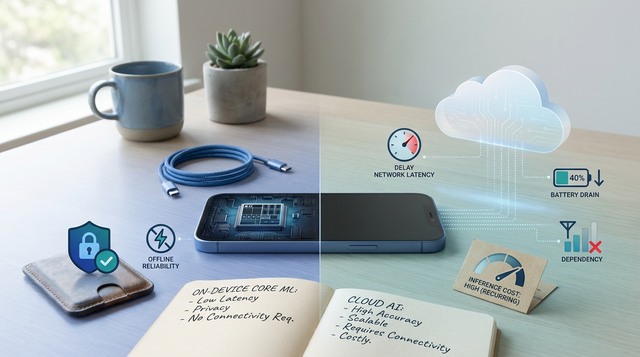
Path picker Choose on-device, Vision plus Core ML, or cloud based on privacy, offline needs, and operational tolerance. pick a path
When you move from outline to execution, Screenshot Storytelling: Turn 8 Screens into a Conversion Funnel helps close common gaps teams hit here.
When does image recognition make sense in an iOS app?
Image recognition helps most when the camera is already part of the workflow and manual search breaks the moment. It can reduce wrong selections, speed up "find the thing" tasks, and make the app feel more direct on a phone screen.
Common fits:
- Retail and checkout: scan a barcode or product photo instead of searching a catalog.
- Plant, object, and food ID: less manual tagging, fewer comparison screens.
- Field inspection and maintenance: identify an item fast and show the next step while on site.
- Document capture: detect doc type and route it to the right workflow.
- Inventory and asset tracking: fewer taps to match an item to a record.
One thing worth noting: live camera recognition can feel instant, but it competes with CPU, battery, and shaky real world inputs. Photo picker or upload based recognition can be more accurate, but the wait can create uncertainty and drop off.
A complementary angle worth comparing lives in How to Set Up Apple Pay in Your iOS App.
How do you add image recognition to an iOS app?
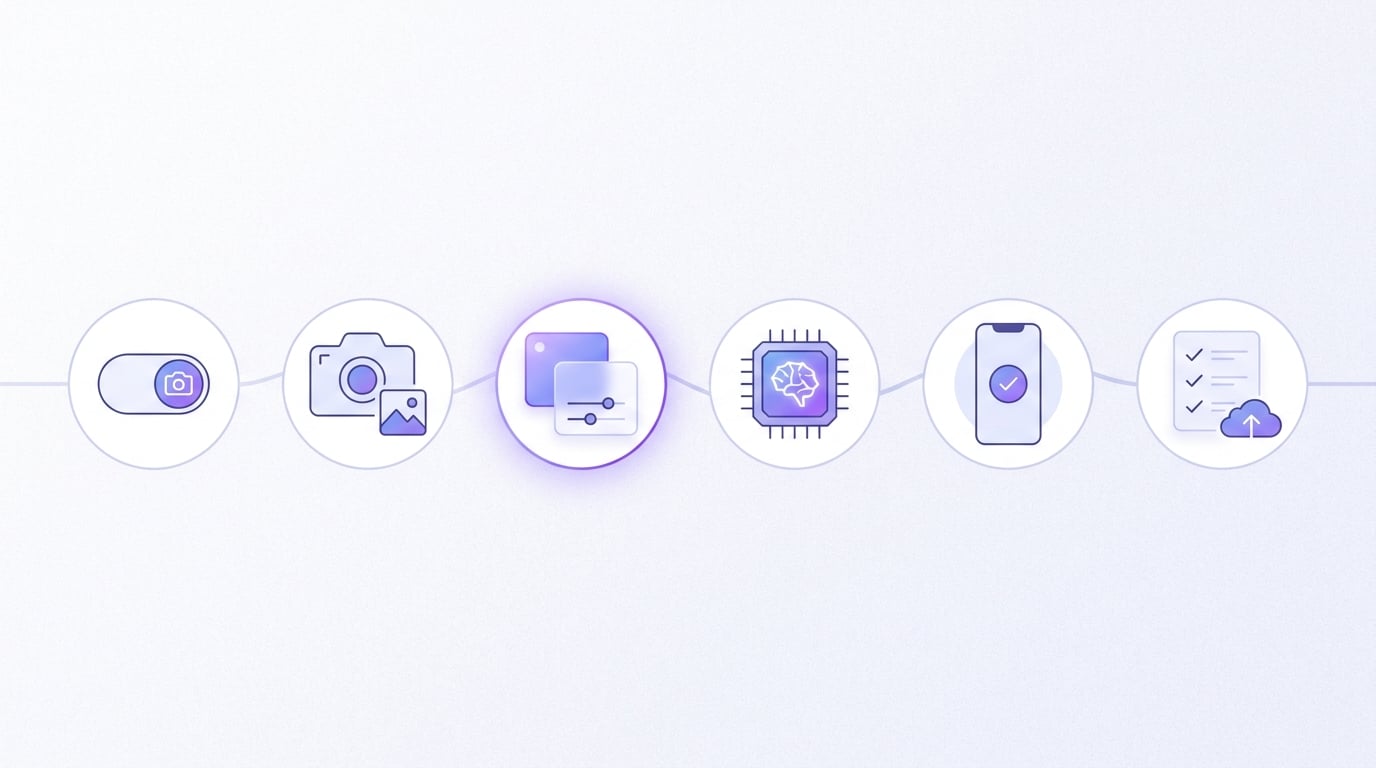
A short implementation timeline for adding image recognition to an iOS app, moving from permissions and input capture to preprocessing, model integration, on-device testing, and App Store readiness checks. The goal is to make the build sequence feel manageable on a small team.
1. Pick the recognition path that matches your constraints
Lock prerequisites before you write code
Decide your iOS target, your image source (live camera, photo library, or both), and whether offline use is required. Plan permission copy, a denied-permission state, and what you do when recognition fails. If the product flow is already clear this can be a couple of hours, but it often stretches into a day once privacy review, analytics events, and App Review wording are involved.
Choose on-device when privacy, latency, or offline matter
Vision plus Core ML is a common starting point for on-device recognition because it keeps images local and can feel responsive (Vision, Core ML). The tradeoff is device variability: model size, memory, and thermals can make older phones slower or less stable during long sessions, so you may need to cap frame rate or reduce model size.
Choose a cloud API when breadth and speed-to-first-release matter
If you need broad labels, frequent updates, or you do not have a trained model, a cloud call can be the fastest path to a first release. The constraints are operational and compliance related: connectivity, cost, latency spikes, and a stronger privacy story because you are sending images off device. Plan timeouts, retries, and an offline fallback that still lets the user complete the task.
2. Wire a minimal Vision pipeline and measure latency on real hardware
A minimal pipeline looks like this:
AVCaptureSessionprovides frames (or you use a pickedUIImage)- Convert to
CVPixelBufferif needed - Run
VNCoreMLRequestviaVNImageRequestHandler - Read top results, apply a threshold, update UI on the main thread
Do not guess on performance. Add timing with os_signpost and inspect in Instruments, on at least one newer and one older supported iPhone.
Time expectations (typical starting points, not guarantees):
- First end to end baseline: often 1 day if you have a model ready and one target device.
- Stabilizing across devices: commonly 2-5 more days once you handle orientation, memory pressure, camera focus behavior, and concurrency.
- Can stretch to 1-2 weeks when the model is large, the capture UI is complex, or you need to gather real user images to debug failures.
3. Decide what confidence means in your UX (and bake in a fallback)
A simple starting mapping (illustrative, calibrate on your data and devices):
| Model confidence | UX action | Notes |
|---|---|---|
| >= 0.80 | Auto accept and show next step | Still allow "Not this" correction |
| 0.50 to 0.79 | Show top 3 suggestions | Ask the user to confirm |
| < 0.50 | Show "No match" + retry tips | Suggest "move closer" or "improve lighting" |
These thresholds are starting points, not truth. Some models are miscalibrated and can look confident even when wrong, so validate with a small labeled set (even 50-200 representative images helps) and recalibrate if you see overconfidence or systematic confusion.
If you support multiple model versions, plan for updates and rollbacks. Even good model changes can shift score behavior and break thresholds, so ship a model version tag with results and watch metrics after updates.
For tradeoffs, checklists, and edge cases, How to Publish an AI-Powered App on App Store in 2026 rounds out this section.
What mistakes should you avoid before shipping to the App Store?
Why does weak preprocessing break otherwise decent models?
A solid model can look unreliable if inputs drift from what it was trained on. Common causes are rotated frames, inconsistent crops, glare, motion blur, harsh compression, and domain shift (studio photos vs messy real usage).
In practice, you usually should standardize orientation, crop or letterbox consistently, resize to the model input, and apply the same normalization used at training time. One caveat: some models or wrappers handle parts of resizing and normalization internally, so the right preprocessing depends on how the model was trained and exported. If your training pipeline is not documented, expect a bit of iteration to match preprocessing.
Where do teams mis-handle results and trust signals?
- Avoid showing one "final" label when confidence is low; show top candidates or ask for another frame.
- Always include a clear fallback: "No match", "Try again", and one concrete tip (lighting, distance, steadier hold).
- Keep copy plain English: what was recognized, and what to do if it is wrong.
What launch issues appear when you test only in the simulator?
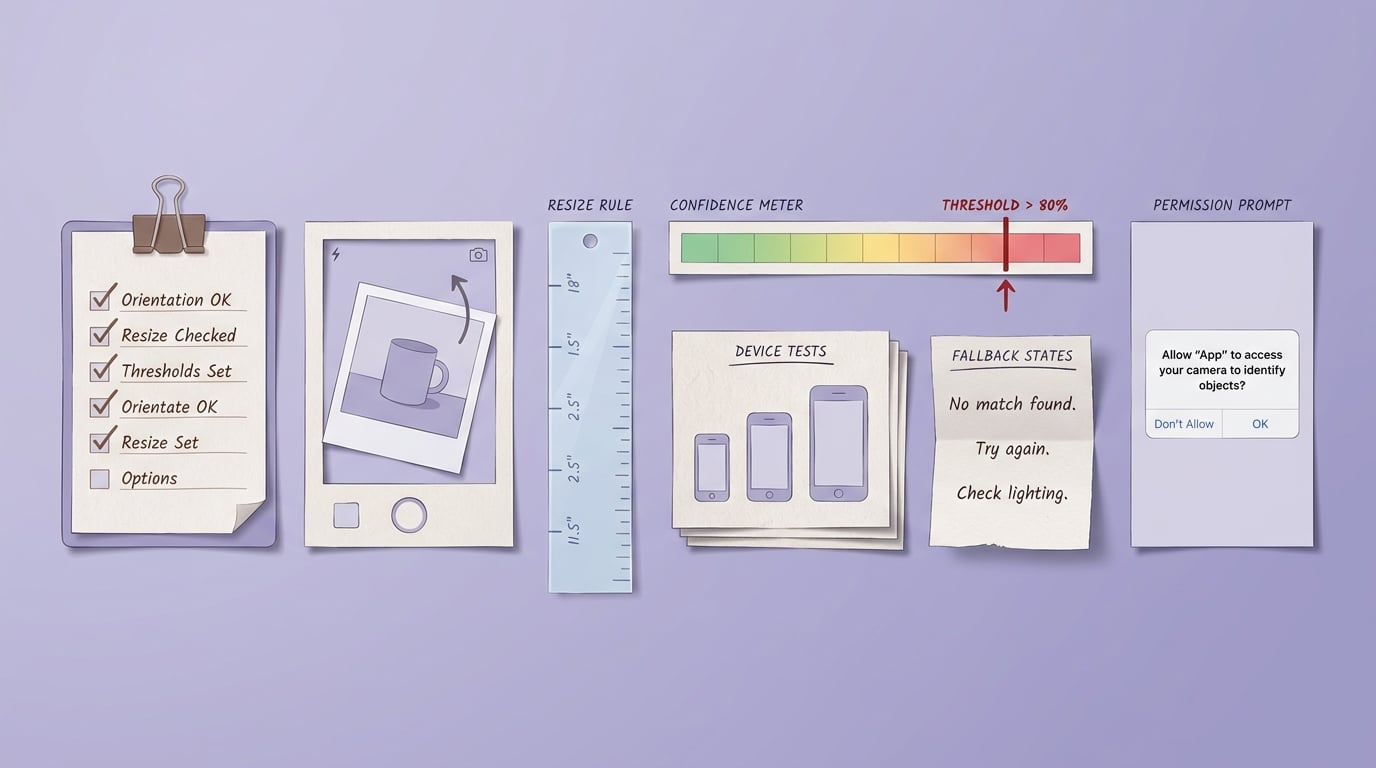
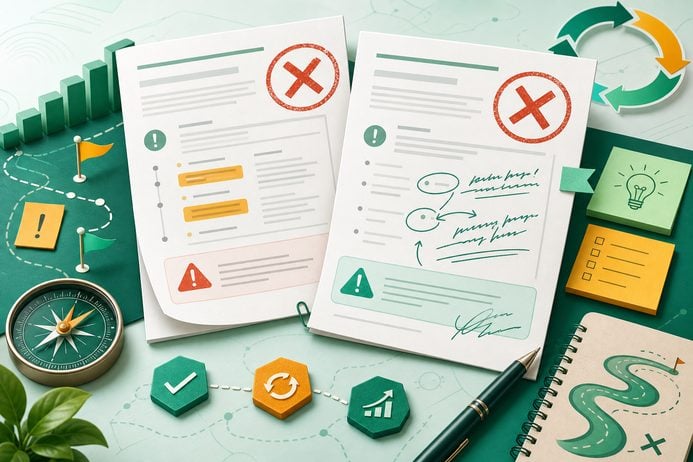
A pre-launch checklist for an iOS image recognition feature covering image orientation, resizing, confidence thresholds, real-device testing, fallback states, and permission copy. It should read like a practical release gate for App Store submission.
Simulator success does not predict camera focus behavior, thermal throttling, or memory pressure on real iPhones. It also will not catch permissions, camera session edge cases, or backgrounding behavior the same way.
Test on multiple physical devices, including at least one older supported phone. If you call an API, test timeouts, retries, and offline behavior, and confirm your privacy copy matches what you actually upload and store.
Pre-launch checklist:
- Orientation fixed; resize and normalize match training (or the model handles it, and you verified that)
- Confidence threshold tuned on representative images; fallback UI works
- Latency measured on device (P50 and P95), including cold start
- Tested under glare, low light, and motion blur
- Plan for model updates (versioning, rollback, and threshold re-tuning)
Ship-ready checklist A practical release bar you can use to decide whether to launch or do one more tightening pass. Ship-ready checklist
Top 7 AI Note-Taking Apps for iPhone in 2026 reframes the same problem with a slightly different lens - useful before you finalize.